
How to Turn the Command Bar On or Off in IE9 and IE10
Information
The Command bar is located at the upper left corner in Internet Explorer 9 (IE9) now, and offers easy access to almost any setting or feature in IE9.
This tutorial will show you how to turn the Command bar on or off in IE9 and IE10.
This tutorial will show you how to turn the Command bar on or off in IE9 and IE10.
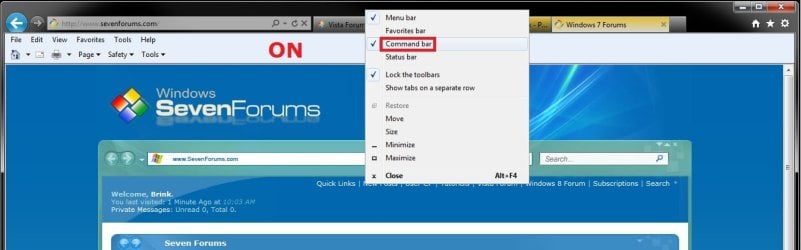
EXAMPLE: Command bar Turned On in IE9 and !E10

OPTION ONE
To Turn Command Bar On or Off from within IE9 or IE10
1. Open IE9 or IE10.
NOTE: In Windows 8, you would open the IE10 desktop version, and not the IE10 Metro (Windows UI) version.
2. To Turn On the Command Bar in IE9 and IE10
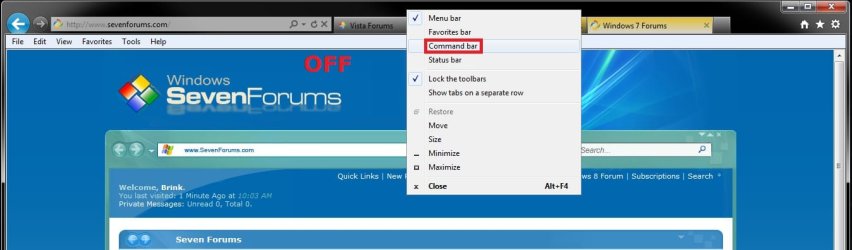
A) Right click on a empty space on the toolbar, and click on Command Bar to check it. (see screenshot below)
OR
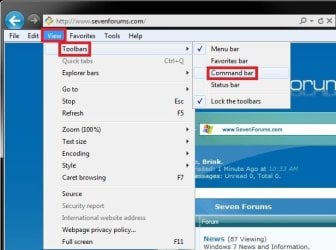
B) Click/tap on View (Menu bar), Toolbars, and click/tap on Command Bar to check it. (see screenshot below)
3. To Turn Off the Command Bar in IE9 and IE10
NOTE: This is the default setting.
A) Right click on a empty space on the toolbar, and click/tap on Command Bar to uncheck it. (see screenshot below)
OR
B) Click/tap on View (Menu bar), Toolbars, and click/tap on Command Bar to uncheck it. (see screenshot below)
OPTION TWO
To Turn Command Bar On or Off using a REG File Download
1. To Turn On the Command Bar in IE9 and IE10
A) Click/tap on the Download button below to download the file below.
Turn_On_IE9_IE10_Command_Bar.reg
Download
B) Go to step 3.
2. To Turn Off the Command Bar in IE9 and IE10
NOTE: This is the default setting.
A) Click/tap on the Download button below to download the file below.
Turn_Off_IE9_IE10_Command_Bar.reg
Download
3. Save the .reg file to the Desktop.
4. Double click/tap on the downloaded .reg file to merge it.
5. Click/tap on Run, Continue (UAC-Vista) or Yes (Windows 7/8), Yes, and then OK when prompted..
6. When done, you can delete the downloaded .reg file if you like.
7. Close and reopen IE9 or IE10 to apply.
OPTION THREE
To Turn Command Bar On or Off Manually in Registry Editor
1. Press the Windows+R keys to open the Run dialog, type regedit, and press Enter.
2. If prompted by UAC, then click/tap on Continue (Vista) or Yes (Windows 7/8).
3. In regedit, navigate to the location below. (see screenshot below)
HKEY_CURRENT_USER\Software\Microsoft\Internet Explorer\MINIE
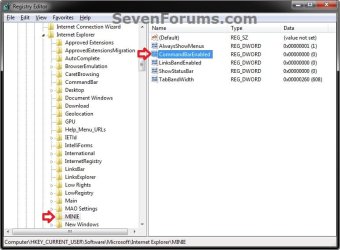
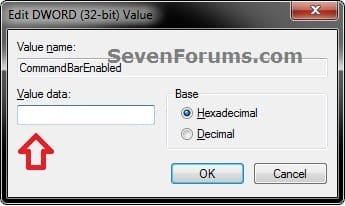
4. In the right pane, double click/tap CommandBarEnabled to modify it. (see screenshot above)
5. To Turn Off the Command Bar in IE9 and IE10
NOTE: This is the default setting.
A) Type 0 (number zero) and click/tap on OK. (see screenshot below)
B) Go to step 7.
6. To Turn On the Command Bar in IE9 and IE10
A) Type 1 and click/tap on OK. (see screenshot above)
7. Close Regedit.
8. Close and reopen IE9 or IE10 to apply.
That's it,
Shawn
Related Tutorials
- How to Enable or Disable a Internet Explorer Toolbar and Extension Add-on
- How to Turn the Menu Bar On or Off in Windows 7
- How to Move Stop and Refresh Buttons to Left or Right of Address Bar in IE9 and IE10
- How to Turn "Show tabs on a separate row" On or Off in IE9 and IE10
- How to Turn the Command Bar On or Off in IE7 and IE8
- How to Customize the Commmand Bar in IE9 and IE10
- How to Move the "Command Bar" to the Left or Right in IE9 and IE10
Attachments
Last edited:


