
How to Rename "Libraries" in Navigation Pane in Windows 7 and Windows 8
Information
This tutorial will show you how to rename the Libraries folder in the Navigation Pane to any name that you like for all users in Windows 7 and Windows 8.
You must be logged in as an administrator to be able to do the steps in this tutorial.
You must be logged in as an administrator to be able to do the steps in this tutorial.
Tip
The default Libaries folder is located at the locations below.
For all users:
C:\Users\Public\Libraries
For current user only:
C:\Users\(user-name)\AppData\Roaming\Microsoft\Windows\Libraries
For all users:
C:\Users\Public\Libraries
For current user only:
C:\Users\(user-name)\AppData\Roaming\Microsoft\Windows\Libraries
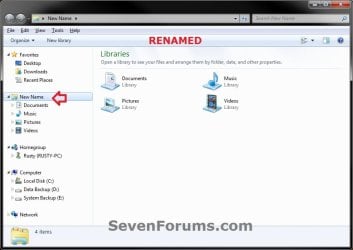
EXAMPLE: Libraries in Navigation Pane
NOTE: This is the Libraries group default name (left screenshot below) and renamed (right screenshot below) in the Navigation Pane.

Here's How: 1. Press the Windows + R keys to open the Run dialog, type regedit, then press Enter.
2. If prompted by UAC, then click/tap on Yes.
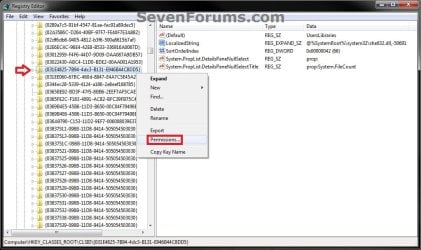
3. In regedit, navigate to the location below: (see screenshot below step 4)
HKEY_CLASSES_ROOT\CLSID\{031E4825-7B94-4dc3-B131-E946B44C8DD5}
4. In the left pane of regedit, right click on the {031E4825-7B94-4dc3-B131-E946B44C8DD5} key, and click/tap on Permissions. (see screenshot below)
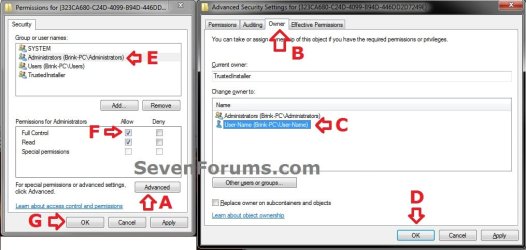
5. In Windows 7, do the following in order below to take ownership and full control of this registry key, and go to step 7 below. (see example screenshot below) A) Click on the Advanced button.
B) Click on the Owner tab.
C) Select your Administrator account.
D) Click on OK.
E) At the top, select the Administrators group.
F) At the bottom, check the Allow box to the right of Full Control.
G) Click on OK.
6. In Windows 8, Windows RT, Windows 8.1, or Windows RT 8.1, you will need to take ownership (step 3 of Option Three at link) of the DefaultIcon key, set permissions (step 4 of Option Two at link) to "Allow" Administrators "Full Control" of the DefaultIcon key, and go to step 7 below.
7. In the right pane of regedit, double click/tap on LocalizedString to modify it, and do step 8 or 9 below for what you would like to do. (see screenshot below)
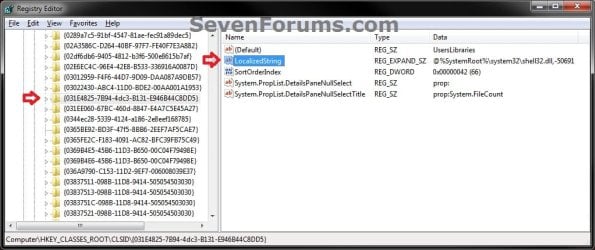
8. To Rename "Libraries" in the Navigation Pane A) Type in any name that your would like, click/tap on OK, and go to step 10 below. (see screenshot below)
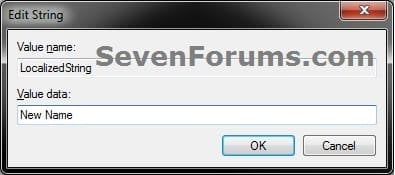
9. To Restore the Default "Libraries" Name in the Navigation Pane
NOTE: This is the default setting. A) Copy and Paste the value below, click/tap on OK, and go to step 10 below. (see screenshot below) @%SystemRoot%\system32\shell32.dll,-50691
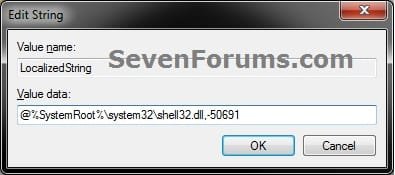
10. Close regedit.
11. If Windows Explorer (Windows 7/8) or File Explorer (Windows 8.1) is open, then close and reopen them to see the change.
That's it,
Shawn
Related Tutorials
- How to Fix Cannot Rename Library in Windows 7 and Windows 8
- How to Change the Default Libraries Icon in Windows 7
- How to Add or Remove the Libraries Desktop Icon in Windows 7
- How to Add or Remove the Windows 7 Libraries Folder from the Navigation Pane
- How to Rename "Favorites" in Navigation Pane in Windows 7 and Windows 8
- How to Rename "Homegroup" in Navigation Pane in Windows 7 and Windows 8
- How to Rename "Computer" in Navigation Pane in Windows 7
- How to Rename "Network" in Navigation Pane in Windows 7 and Windows 8
- How to Rename "Control Panel" in Navigation Pane in Windows 7 and Windows 8
- How to Rename the "Recycle Bin" in Windows 7
Last edited:


