Windows 7 Forums


Windows 7: Task Manager - Create Elevated Shortcut


Task Manager - Create Elevated Shortcut

How to Create a Elevated Windows 7 Task Manager Shortcut
Published 19 May 2009
Published by

Featured Tutorial

Clean Up Factory Bloatware


System Preparation Tool - Use to Customize Windows

How to Use Sysprep to Customize Windows 7 and Windows 8

Microsoft Account - Sign up for and Create

How to Sign up for and Create a Microsoft Account

Safe Internet Browsing

How to safely operate on the internet and stay free from malware infections

Microsoft Accounts - Link

How to Link your Microsoft Accounts

Microsoft Account Display Name - Change

How to Change your Microsoft Account Display Name
Task Manager - Create Elevated Shortcut

information   Information
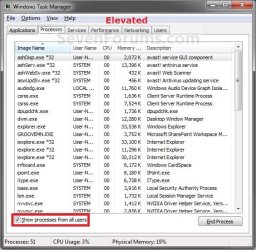
This will show you how to create a elevated Task Manager shortcut that will "run as an administrator" in Windows 7 when opened. It will open as if you clicked Show processes from all users in the default Task Manager.

You can also Pin to Taskbar or Pin to Start Menu this shortcut, or move where you like in Windows 7 for easy use.

EXAMPLE: Default Task Manager and Elevated Task Manager
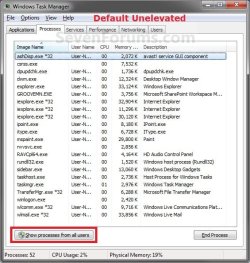
Task Manager - Create Elevated Shortcut-unelevated.jpgTask Manager - Create Elevated Shortcut-elevated.jpg


Here's How:
1. Right click on a empty space on the desktop and click on New and Shortcut.

2. Copy and Paste the location below into the location box, then click on the Next button. (see screenshot below)
C:\Windows\System32\taskmgr.exe
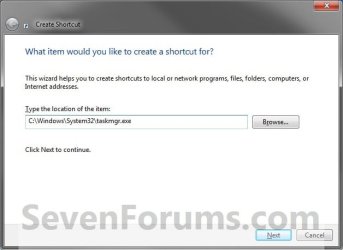
Task Manager - Create Elevated Shortcut-stepa.jpg
3. Type in Task Manager for a name, and click on the Finish button. (see screenshot below)
NOTE: You can name this shortcut anything you like though.
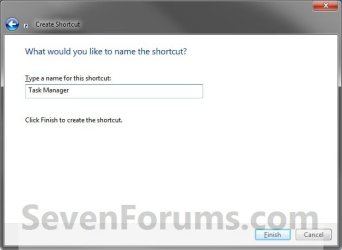
Task Manager - Create Elevated Shortcut-stepb.jpg
4. Right click on the new Task Manager shortcut on the desktop, then click on Properties, Shortcut tab, and the Advanced button. (see screenshot below)
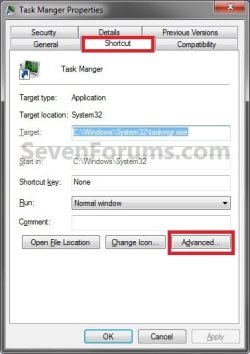
Task Manager - Create Elevated Shortcut-step1.jpg
5. Select (check) the Run as administrator box, then click on OK. (see screenshot below)
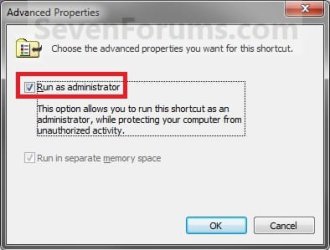
Task Manager - Create Elevated Shortcut-step2.jpg
6. Click on OK. (see screenshot below step 4)

7. You now have a elevated Task Manager shortcut.

That's it,
Shawn


Need more help? Try searching our extensive help and support site.
Loading
19 May 2009   #1
Captain Zero

Windows 7 Home Premium x64 7600 [MSDN]
Los Angeles


Another great tutorial, thanks much! Now if we could only get it started minimized!


Might be helpful to add that option in the tutorial, 'Run/Start Minimized'.
My System SpecsSystem Spec

19 May 2009   #2
Brink

64-bit Windows 7 Ultimate SP1 & Windows 8 Enterprise
Texas


You're welcome Captain Zero. Thank you.
My System SpecsSystem Spec
19 Jun 2009   #3
OEM

OS3.5


If you'd like to have this new taskman shortcut start up upon system startup/reboots automatically...

1. goto start (orb)
2. all programs
3. right click on "Startup" folder and choose "Open" (or for all pc account users, choose "Open all users")
4. drag taskman icon into the startup folder (or right drag and choose "Copy here" to keep one on the desktop; for when you might accidental close taskman)

While there you can right click on taskman shortcut, choose properties and then choose "Minimized" from the Run drop down.

If you'd prefer to have it startup this way and only see it in the tray, use the taskman option tab and choose "hide when minimized".

Now it will start up automatically to only the system tray on system startup/reboots.
My System SpecsSystem Spec
.


12 Feb 2010   #4
TeXaCo

Windows 7


This is a lifesaver.

Thank you
My System SpecsSystem Spec
12 Feb 2010   #5
CarlTR6

Windows 7 Ultimate 32 bit
Orlando, Florida


Excellent. Thank you, Shawn

It never occurred to me that Task Manager was not showing all of the processes via CTR-ALT- Delete
My System SpecsSystem Spec
12 Feb 2010   #6
Brink

64-bit Windows 7 Ultimate SP1 & Windows 8 Enterprise
Texas


You're most welcome Carl.
My System SpecsSystem Spec
25 Aug 2010   #7
bigbazza

Windows 7 Ultimate 32 bit
 
 
Create Elevated Shortcut

Hi folks. Brand new member.I've only just upgraded my old Toshiba Satellite Pro P100 from XP pro to Windows 7 Ultimate, and still sorting out some annoyances.

I'd like to thank your Forum guys (Shawn) for Task Manager - Create Elevated Shortcut

I was able, via Task Manager, to "Create Elevated Shortcut" and solve my problem of "Show Processes from all Users", not sticking on when I ticked (checked) it.

Thanks again

Bazza
My System SpecsSystem Spec
25 Aug 2010   #8
Brink

64-bit Windows 7 Ultimate SP1 & Windows 8 Enterprise
Texas


You're most welcome Bazza, and welcome to Seven Forums. Thank you.
My System SpecsSystem Spec
03 Oct 2010   #9
Freakie

Windows 7 Home Premium/Pro x64 (Two drives, one from older computer)


Great instructions, I somehow got it to work when I first installed Windows 7, but I just reinstalled and forgot what it was that I did! You made it easy though

Quick question, any point in using the C:\Windows\SysWOW64\taskmgr.exe?
My System SpecsSystem Spec
Comment

 Task Manager - Create Elevated Shortcut problems?


Tutorial Tools


Similar help and support threads for: Task Manager - Create Elevated Shortcut
Windows 7 Tutorial Category
Elevated Program Shortcut - Create for Standard User Tutorials
Elevated Program Shortcut without UAC Prompt - Create Tutorials
Game runs from Task Manager with New Task, not from shortcut or exe Gaming
elevated task scheduler shortcut for standard user General Discussion
Elevated Task manager without UAC-prompt for a user-account ? General Discussion


All times are GMT -5. The time now is 02:30 PM.


Seven Forums Android App Seven Forums IOS App Follow us on Facebook

Windows 7 Forums is an independent web site and has not been authorized,
sponsored, or otherwise approved by Microsoft Corporation.
"Windows 7" and related materials are trademarks of Microsoft Corp.
© Designer Media Ltd
  

1 2 3 4 5 6 7 8 9 10 11 12 13 14 15 16 17 18 19 20 21 22 23 24 25 26 27 28 29 30 31 32