How to Change How Long Notifications Stay Open in Windows 7
Information
Notifications are small pop-up windows that are displayed in the notification area of the taskbar. They provide information about a variety of things, including status, progress, and the detection of new devices. Action Center also displays messages about recommended security and maintenance tasks next to its flag icon in the notification area.
This will show you how to change how long notifications or messages in the Windows 7 taskbar notification area are displayed on the screen before they close automatically.
This will show you how to change how long notifications or messages in the Windows 7 taskbar notification area are displayed on the screen before they close automatically.
Warning
When you make any changes in the Ease of Access Center, the visual effects settings will get reset back to default settings automatically.
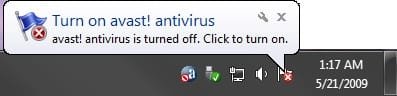
EXAMPLE: Notification dialog box
OPTION ONE
Through Ease of Access Center
Note
This option will let you choose to have the notifications stay open for either 5, 15, 30, 60 (1 minute), or 300 (5 minutes) seconds until they close automatically.
If you wanted to specify the amount of time in seconds you want instead, then see OPTION TWO below.
If you wanted to specify the amount of time in seconds you want instead, then see OPTION TWO below.
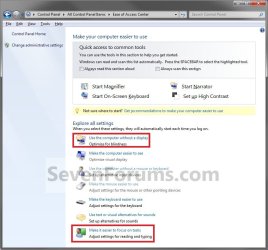
2. Click on either the Use the computer without a display or Make it easier to focus on tasks link. (See screenshot below)
3. Scroll down to where it says How long should Windows notification dialog boxes stay open, then click on the drop down arrow menu. (See screenshots below)
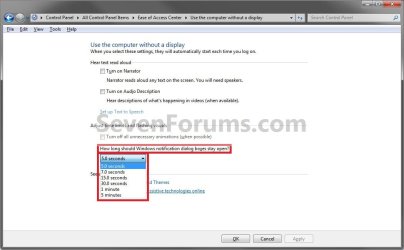
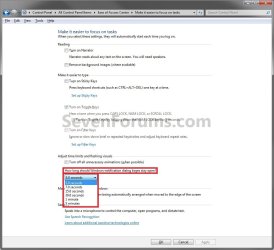
4. Select how long you would like to have the notifications stay open for until they close automatically, then click on OK. (See screenshots above)
NOTE: The default time is 5 seconds.
5. When done, close the Ease of Access Center window. (See screenshot below step 2)
OPTION TWO
Manually in Registry Editor
Note
This option will let you specify any amount of time in seconds you want to have the notifications stay open for until they close automatically.
Special thanks to Jeff (aka: Orbital Shark) for finding the location in the registry for this and posting it to share.
Special thanks to Jeff (aka: Orbital Shark) for finding the location in the registry for this and posting it to share.
2. If prompted by UAC, click on Yes.
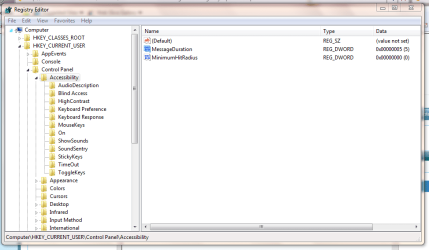
3. In regedit, navigate to: (See screenshot below) HKEY_CURRENT_USER\Control Panel\Accessibility
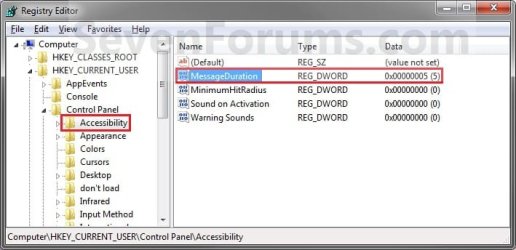
4. In the right pane, right click on MessageDuration and click on Properties. (See screenshot above)
5. Select (dot) Decimal. (See screenshot below)
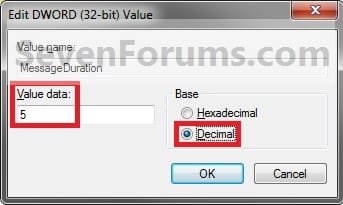
6. Type in how many seconds that you want to have the notifications stay open for until they close automatically, then click on OK. (See screenshots above)
NOTE: The default time is 5 seconds. Entering anything lower will still have a 5 second wait though.
7. Close Regedit. (See screenshot below step 3)
8. Log off and log on, or restart the computer to apply.
That's it,
Shawn
Related Tutorials
- How to Hide or Show System Icons and Notifications in Windows 7
- How to Change the Action Center Message Settings in Windows 7
- How to Enable or Disable Windows 7 Balloon Notifications
- How to Reset and Clean Out Old Windows 7 Notification Area Icons
- How to Enable or Disable Windows 7 Notification System Icons
- How to Add or Remove the Notification Area from the Taskbar in Windows 7
- How to Turn System Icons On or Off in Windows 7
- How to Change the Mouse Hover Time before Pop-up Displays in Windows 7
- How to Enable or Disable Windows 7 Pop-up Descriptions
- How to Change the Windows 7 Aero Peek Mouse Hover Delay Time to Preview Desktop
- How to Change the Windows 7 Taskbar Thumbnail Live Preview Delay Time
- How to Change Windows 7 Taskbar Thumbnail Previews Display Delay Time
- How to Enable or Disable Changing "Notification Area Icons" Settings in Windows 7
Last edited: