
How to Uninstall Windows Update from Console Level
Information
This article will show you how to uninstall hotfixes or service packs if unable to do that through "Programs and Features".This article applies to Vista/Windows Server 2008/Windows 7/Windows Server 2008 R2 (all versions).Methods can be divided into two groups -by using wusa and pkgmgr commands
Note
These methods work properly only in normal mode
USING WUSA COMMAND (work only in Windows 7/Windows Server 2008 R2)
//all methods work both normal updates and service packs//
METHOD I
Run cmd.exe with elevated previlliges (right click on cmd.exe and choose "run as administrator") and type:
wusa /uninstall /kb:{update ID}
e.g
To uninstall update KB980302 the command will be following
wusa /uninstall /kb:980302
and then appear uninstaller...

METHOD II
1.Download problematic update from Microsoft Download Center and place it to any folder i.e C:\Temp
2.Run cmd.exe with elevated previlliges (right click on cmd.exe and choose "run as administrator") and type:
wusa /uninstall {full hotfix name}
e.g
To uninstall update KB980302 32bit and in C:\Temp folder you have standalone version the command will be following
wusa /uninstall C:\Temp\Windows6.1-KB980302-x86.msu
and then appear uninstaller...
USING PKGMGR COMMAND
UNINSTALLING UPDATE
1.Download problematic update from Microsoft Download Center and place it to any folder i.e C:\Temp
2.Run cmd.exe with elevated previlliges (right click on cmd.exe and choose "run as administrator")
3.Unpack update by using command prompt
the proper commands are following:
expand -f:*{update name}.msu {destination folder}
i.e
To unpack update Windows6.1-KB980302-x86.msu which is stored in C:\Temp folder and you want to unpack it to C:\Temp2 folder the command will be following
expand -f:* C:\TEMP\Windows6.1-KB980302-x86.msu C:\TEMP2
press ENTER
4.Choose any unused empty folder or create new folder i.e C:\Sandbox for temporary installation files.
5.Now you can uninstall update,the proper command have following form:
start /w pkgmgr /m:{full hotfix name}.cab /up /s:{sandobox folder}
where {sandbox folder} -any unused folder
For our example,the proper command will be following:
start /w pkgmgr /m:C:\Temp2\Windows6.1-KB980302-x86.cab /up /s:C:\Sandbox
press ENTER
Dependce from what kind of update it is -sometimes after a while appear popup to prompt reboot to apply changes (image)
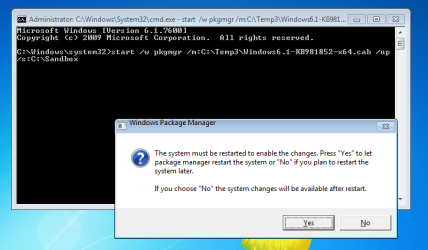
or if any update doesn't require reboot to apply changes no messages are returned.Don't close command prompt until it finish (images below)
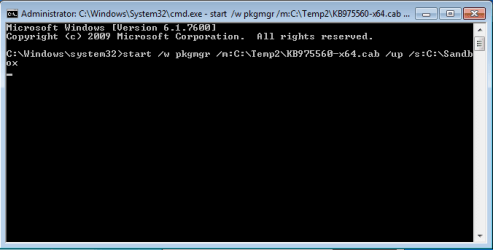
Deinstallation in progress.Sometimes it may take many minutes...
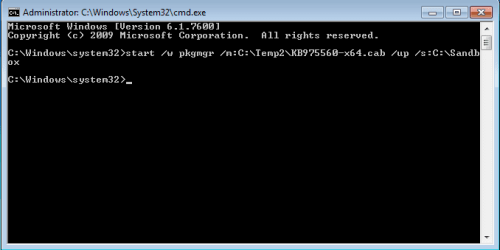
Deinstallation complete succesfully.
UNINSTALLING SERVICE PACK
1.Download service pack from Microsoft Download Center and place it to any folder i.e C:\Temp
2.Run cmd.exe with elevated previlliges (right click on cmd.exe and choose "run as administrator")
3.Unpack update by using command prompt
the proper commands are following:
{service pack name} /x:{destination folder}
i.e
for Vista SP1 32bit which is stored in C:\Temp folder and you want to unpack it to C:\Temp2 folder the command will be following
C:\Temp\Windows6.0-KB936330-X86.exe /x:C:\Temp2
4.Choose any unused empty folder or create new folder i.e C:\Sandbox for temporary installation files
5.Now you can uninstall service pack,the proper command have the same form as for updates:
start /w pkgmgr /m:{full service pack name}.cab /up /s:{sandobox folder}
where {sandbox folder} -any unused folder
here for Vista SP1 32bit,the proper command will be following:
start /w pkgmgr /m:C:\Temp2\Windows6.0-KB936330-X86.cab /up /s:C:\Sandbox
press ENTER
After a while appear popup to request reboot to apply changes.
Last edited by a moderator:


