
How to Change the "Get more gadgets online" Link in Windows 7
Information
This will show you how to change the default Get more gadgets online URL website link for specific or all users on the computer to any URL link that you would like it to open to in the defailt web browser instead.
You must be logged in as an administrator to be able to do this tutorial.
You must be logged in as an administrator to be able to do this tutorial.
EXAMPLE: "Get more gadgets online" Link in Gadgets
NOTE: You will see this by right clicking on the desktop and clicking on Gadgets.
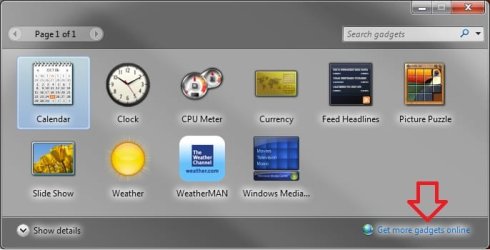
OPTION ONE
Through the Local Group Policy Editor
1. Open the all users, specific users or groups, or all users except administrators Local Group Policy Editor for how you want this policy applied.
2. In the left pane, click on to expand User Configuration, Administrative Templates, Windows Components, and Desktop Gadgets. (See screenshot below)
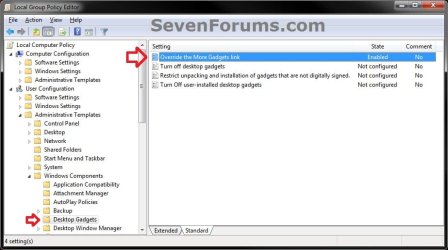
3. In the right pane, right click on Override the More Gadgets link and click on Edit. (See screenshot above)
4. To Restore Default "Get more gadgets online" Link
A) Select (dot) either Not Configured or Disabled. (See screenshot below step 6)
B) Go to step 6.
5. To Change Default "Get more gadgets online" Link
A) Select (dot) Enabled. (See screenshot below step 6)
B) Under Override Gadget Location, type or Copy and Paste the full URL website link that you want to use.
6. Click on OK. (See screenshot below)
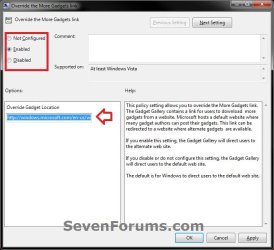
7. Close the Local Group Policy Editor window.
8. Log off and log on, or restart the computer to apply.
Option Two
Manually in Registry Editor
1. Open the Start Menu and type regedit.exe in the search line, then press enter.
2. If prompted by UAC, then click on Yes.
3. To Change Default "Get more gadgets online" Link for Only Current User
A) In regedit, go to the location below: (see screenshot below)
HKEY_CURRENT_USER\Software\Microsoft\Windows\CurrentVersion\Policies
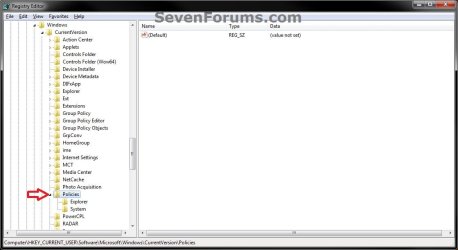
A) In the left pane, right click on Policies and click on New and Key. Type Windows and press Enter. (see screenshot above and below)
NOTE: If you already have the Windows key, then go to step 3B instead.

B) In the left pane, right click on Windows and click on New and Key. Type Sidebar and press Enter. (see screenshot above and below)
NOTE: If you already have the Sidebar key, then go to step 3C instead.
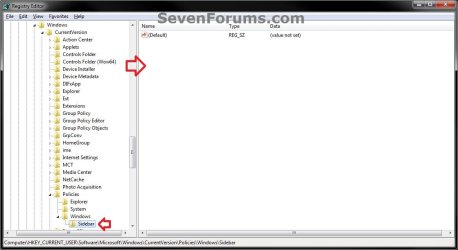
C) In the right pane of Sidebar, right click on a empty area and click on New and String Value. (see screenshot above)
D) Type OverrideMoreGadgetsLink and press enter, then right click on OverrideMoreGadgetsLink and click on Modify. (see screenshot below)
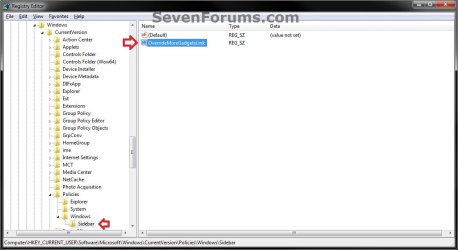
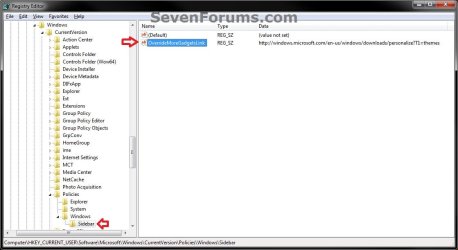
E) type or Copy and Paste the full URL website link that you want to use, and click on OK. (see screenshot below)

F) The registry should now look similar to his with your website link instead. (see screenshot below)
G) Go to step 6.
5. To Restore Default "Get more gadgets online" Link for Only Current User
A) In regedit, go to the location below: (see screenshot below)
HKEY_CURRENT_USER\Software\Microsoft\Windows\CurrentVersion\Policies\Windows\Sidebar
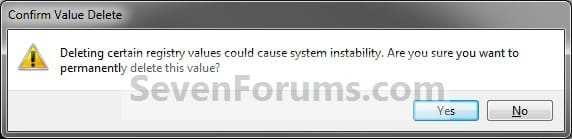
B) In the right pane of Sidebar, right click on OverrideMoreGadgetsLink and click on Delete. (see screenshot above)
C) Click on Yes to confirm deletion. (see screenshot below)
6. Close regedit.
7. Log off and log on, or restart the computer to apply.
That's it,
Shawn
Related Tutorials
- How to Turn Windows 7 Gadgets Feature On or Off
- How to Enable or Disable Gadgets in Windows 7
- How to Add or Remove Desktop Gadgets in Windows 7
- How to Reinstate the Vista Sidebar on Windows 7
- How to Hide or Show Desktop Gadgets in Windows 7
- How to Allow or Prevent User Installed Gadgets in Windows 7
- How to Allow or Prevent Installation of Unsigned Gadgets in Windows 7
- How to Restore the Default Windows 7 Gadgets
- How to Customize Existing Windows 7 Gadgets
- How to Create a Gadgets Shortcut in Windows 7
- How to Fix Gadgets not Displaying Correctly in Windows 7
- How to Add or Remove "Gadgets" from Desktop Context Menu in Windows
Last edited: