
Windows 7 Forums


Windows 7: Install or Uninstall Display Languages Shortcut - Create


Install or Uninstall Display Languages Shortcut - Create

How to Create a "Install or Uninstall Display Languages" Shortcut in Windows 7
Published 16 Sep 2010
Published by

Featured Tutorial

User Profiles - Create and Move During Windows 7 Installation

How to Create User Accounts on another Partition or Disk During Windows 7 Installation

Microsoft Account - Sign up for and Create

How to Sign up for and Create a Microsoft Account

Troubleshooting Windows 7 Failure to Boot


Safe Internet Browsing

How to safely operate on the internet and stay free from malware infections

SF Diagnostic Tool - Using for Troubleshooting

Using SF Diagnostic Tool for Troubleshooting

Restore Point - Add "Create Restore Point" to Context Menu in Windows

How to Add "Create Restore Point" to Context Menu in XP, Vista, Windows 7, and Windows 8
How to Create a "Install or Uninstall Display Languages" Shortcut in Windows 7

information   Information
In the Windows 7 Ultimate and Windows 7 Enterprise editions, you are able to install and uninstall a Language Interface Pack (LIP) used to change the display language with.

This will show you how to create or download a Install or Uninstall Display Languages shortcut. You can also Pin to Taskbar or Pin to Start Menu this shortcut, or move where you like for easy use in Windows 7.

EXAMPLE: Install or Uninstall Display Languages
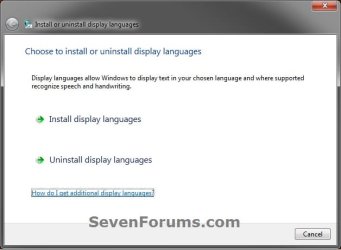
Install or Uninstall Display Languages Shortcut - Create-example.jpg


OPTION ONE
Download the "Install or Uninstall Display Languages" Shortcut
1. Click on the download button below to download the file below.
Install_or_Uninstall_Display_Languages.zip

download
2. Click on Save, and save the .zip file to the desktop.

3. Open the downloaded .zip file and extract the Install or Uninstall Display Languages shortcut to the desktop.

4. Right click on the Install or Uninstall Display Languages shortcut, and click on Properties, General tab, and on the Unblock button. (see screenshot below)
NOTE: If you do not have a Unblock button under the General tab, then the shortcut is already unblocked and you can continue on to step 5.
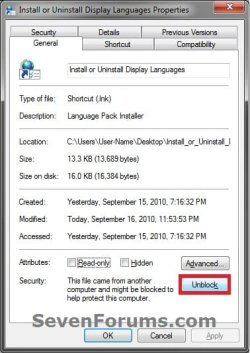
Install or Uninstall Display Languages Shortcut - Create-unblock.jpg
5. Move or pin the shortcut to where you like for easy use.

6. When done, you can delete the downloaded .zip file if you like, or save it to use again.


OPTION TWO
Manually Create "Install or Uninstall Display Languages" Shortcut
1. Right click on a empty area on desktop, and click on New and Shortcut.

2. Type the location below into the location area, and click on the Next button. (see screenshot below)
C:\Windows\System32\lpksetup.exe
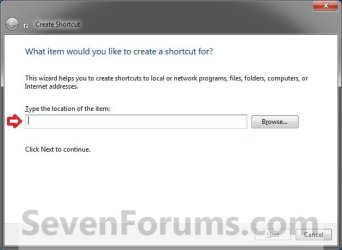
Install or Uninstall Display Languages Shortcut - Create-step1.jpg
3. Type Install or Uninstall Display Languages for the name, and click on the Finish button. (see screenshot below)
NOTE: You can name this anything you would like though.
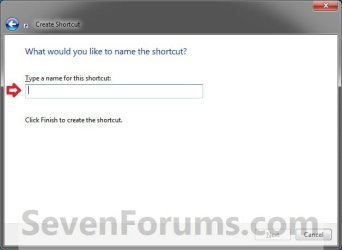
Install or Uninstall Display Languages Shortcut - Create-step2.jpg
4. Move or pin the shortcut to where you like for easy use.
That's it,
Shawn


Need more help? Try searching our extensive help and support site.
Loading
Comment

 Install or Uninstall Display Languages Shortcut - Create problems?


Tutorial Tools


Similar help and support threads for: Install or Uninstall Display Languages Shortcut - Create
Windows 7 Tutorial Category
Display Language Packs - Install and Uninstall Tutorials
Display Switch Shortcut - Create Tutorials
Multiple Display Languages General Discussion
Display Shortcut - Create Tutorials
Install Program from Network Shortcut - Create Tutorials


All times are GMT -5. The time now is 12:59 AM.


Seven Forums Android App Seven Forums IOS App Follow us on Facebook

Windows 7 Forums is an independent web site and has not been authorized,
sponsored, or otherwise approved by Microsoft Corporation.
"Windows 7" and related materials are trademarks of Microsoft Corp.
© Designer Media Ltd
  

1 2 3 4 5 6 7 8 9 10 11 12 13 14 15 16 17 18 19 20 21 22 23 24 25 26 27 28 29 30 31 32