
How to Create IExpress Wizard Shortcut in Windows 7 and Windows 8
Information
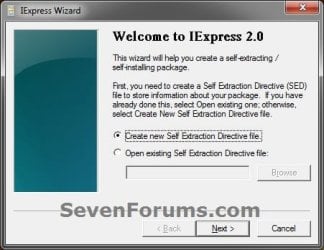
The IExpress Wizard will help you to create a self-extracting/self-installing package file.
EXAMPLE: IExpress Wizard
OPTION ONE
To Download "IExpress Wizard" Shortcut
1. Click/tap on the download button below to download the file below.
IExpress_Wizard.zip
Download
2. Save the .zip file to your desktop.
3. Open the downloaded .zip file, and extract (drag and drop) the IExpress Wizard shortcut to your desktop.
4. Unblock the IExpress Wizard shortcut.
5. In Windows 7, you can now Pin to Taskbar or Pin to Start Menu, add to Quick Launch, assign a keyboard shortcut to it, or move this shortcut to where you like for easy use.
6. In Windows 8 and 8.1, you can Pin to Taskbar on desktop, Pin to Start screen, add to Quick Launch, assign a keyboard shortcut to it, or move this shortcut to where you like for easy use.
7. When done, you can delete the downloaded .zip file if you like, or save it to use again.
OPTION TWO
To Manually Create "IExpress Wizard" Shortcut
1. Right click or press and hold on an empty area on your desktop, and click/tap on New and Shortcut.
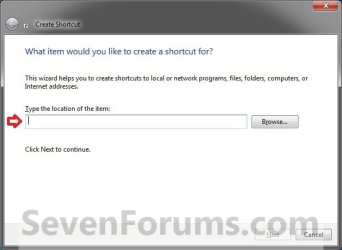
2. Copy and paste the location below into the location area, and click/tap on the Next button. (see screenshot below)
%windir%\System32\iexpress.exe
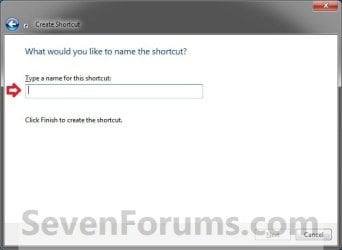
3. Type IExpress Wizard for the name, and click/tap on the Finish button. (see screenshot below)
NOTE: You can name this anything you would like though.
4. In Windows 7, you can now Pin to Taskbar or Pin to Start Menu, add to Quick Launch, assign a keyboard shortcut to it, or move this shortcut to where you like for easy use.
5. In Windows 8 and 8.1, you can Pin to Taskbar on desktop, Pin to Start screen, add to Quick Launch, assign a keyboard shortcut to it, or move this shortcut to where you like for easy use.
That's it,
Shawn
Attachments
Last edited: