
Notifications - Enable or Disable Message Balloons

How to Enable or Disable Balloon Notifications in Vista, Windows 7, and Windows 8

   Information
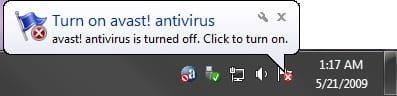
The notification area is located at the far right side of the taskbar. A notification informs users of events that are unrelated to the current user activity, by briefly displaying a balloon from an icon in the notification area. The notification could result from a user action or significant system event, or could offer potentially useful information from Windows or an application.

For more information about balloon notifications, see: Notifications


This tutorial will show you how to enable or disable displaying all balloon notifications in the taskbar notification area for all or specific users in Vista, Windows 7, and Windows 8.

   Note
This can be handy since the only options available in the customize Notification Area Icon settings are Show icon and notifications, Hide icon and notifications, or Only show notifications, and no Only show icons option. When Notifications is disabled, it will let you show all notification icons without showing any balloon notifications for any of the icons.


EXAMPLE: Balloon Notification
Notification.jpg


OPTION ONE

To Enable or Disable Balloon Notifications using a REG File


1. To Enable Balloon Notifications for Only Current User
NOTE: This is the default setting.
A) Click/tap on the Download button below to download the file below, and go to step 3 below.
Enable_Notifications.reg


Download


2. To Disable Balloon Notifications for Only Current User
A) Click/tap on the Download button below to download the file below, and go to step 3 below.
Disable_Notifications.reg

Download


3. Save the .reg file to your desktop.

4. Double click/tap on the downloaded .reg file to merge it.

5. Click/tap on Run, Yes (UAC Windows 7/8) or Continue (UAC Vista), Yes, and OK when prompted.

6. Log off and log on, or restart the computer to apply.

7. When finished, you can delete the downloaded .reg file if you like.

8. If enabled, don't forget to set your Notification Area Icons customize settings how you like.


OPTION TWO

To Enable or Disable Balloon Notifications Using Group Policy


1. Open the all users, specific users or groups, or all users except administrators Local Group Policy Editor for how you want this policy applied.

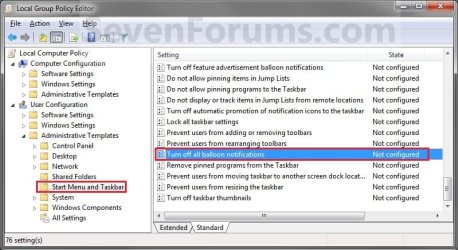
2. In the left pane, click/tap on the arrow to expand User Configuration, Administrative Templates, then click/tap on Start Menu and Taskbar. (See screenshot below)
Group_Policy.jpg
3. In the right pane of Start Menu and Taskbar, double click/tap on Turn off all balloon notifications to edit it. (See screenshot above)

4. To Enable Balloon Notifications
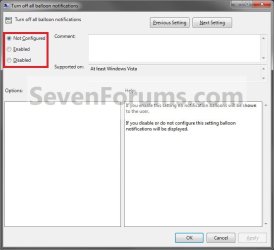
A) Select (dot) Not Configured or Disabled, and go to step 6 below. (See screenshot below step 6)
NOTE: Not Configured is the default setting.
5. To Disable Balloon Notifications
A) Select (dot) Enabled, and go to step 6 below. (See screenshot below step 6)
6. Click/tap on OK. (See screenshot below)
Properties.jpg
7. Close the Local Group Policy Editor.

8. If enabled, don't forget to set your Notification Area Icons customize settings how you like.

That's it,
Shawn


Attachments

Last edited:
You're welcome Bert, and welcome to Seven Forums. Glad it could help. :)
 

My Computer

Computer type
PC/Desktop
Computer Manufacturer/Model Number
Self built custom
OS
64-bit Windows 11 Pro for Workstations
CPU
Intel i7-8700K OC'd to 5 GHz
Motherboard
ASUS ROG Maximus XI Formula Z390
Memory
64 GB (4x16GB) G.SKILL TridentZ RGB DDR4 3600 MHz
Graphics Card(s)
ASUS ROG-STRIX-GTX1080TI-O11G-GAMING
Sound Card
Integrated
Monitor(s) Displays
2 x Samsung Odyssey G7 27"
Screen Resolution
2560x1440
Hard Drives
1TB Samsung 990 PRO M.2,
4TB Samsung 990 PRO PRO M.2,
TerraMaster F8 SSD Plus NAS
PSU
Seasonic Prime Titanium 850W
Case
Thermaltake Core P3
Cooling
Corsair Hydro H115i
Keyboard
Logitech wireless K800
Mouse
Logitech MX Master 4
Internet Speed
2 Gb/s Download and 100 Mb/s Upload
Antivirus
Malwarebyte Anti-Malware Premium
Browser
Google Chrome
Other Info
Logitech Z625 speaker system,
Logitech BRIO 4K Pro webcam,
HP Color LaserJet Pro MFP M477fdn,
APC SMART-UPS RT 1000 XL - SURT1000XLI,
Galaxy S23 Plus phone
Disabling notifcation balloon messages for certain services only.

I apologise in advance if I am posting wrong in nethod or section.

I wish to keep all my notification area icons yet disable balloon messages for most but not all of them.

Isee the option if gpedit to perform this task globally and in the customise notification area dialog there is a hide icons and show notifications though not a show "icon only" in the per icon options.
 

My Computer

Computer type
PC/Desktop
Computer Manufacturer/Model Number
Custom Build
OS
Windows 7 Ultimate x64 SP1.
CPU
AMD FX8150
Motherboard
Asus Crosshair V Formula Z
Memory
Corsair 2x 8GB Vengeance Pro (CMY16GX3M2A2400C10R)
Graphics Card(s)
Saphire Radeon HD5400
Sound Card
integrated.
Monitor(s) Displays
~2010 model Bauhn 46" edge LED LCD panel (16:10 native)
Screen Resolution
1080p (using hardware scaling)
Hard Drives
Western Digital Sata 80GB internal (WD800JD)
PSU
AeroCool V12XT 1000W
Case
Thermaltake GT10
Cooling
Corsair Hydro Series H90 140mm
Keyboard
Logitech K260 (Wireless Bundle)
Mouse
Logitech M210 (Wireless Bundle)
Internet Speed
ADSL2. Real transfer @ aprrox 6.5Mbps(d) /0.2Mbps(u)
Antivirus
Comodo Internet Security 2013 (v 6.2.xxxxxxx....)
Browser
Mozilla Firefox 22.0
Other Info
Also use a laptop:

Compaq Presario CQ62 355-TU upgraded to 8GB RAM with removed OEM Win7.

OS: Dual Boot Ubuntu 12.04LTS AMD64 / Windows 7 x64 Home Premium SP1.
Hello Rastergasm, and welcome to Seven Forums.

You might check to see if the program itself may have settings to only show it's icon and no messages.

In addition, check using the tutorial below to see if any of the Action Center messages may fit for what you want to turn off.

Action Center Messages - Turn On or Off in Windows 8

Hope this may help some, :)
Shawn
 

My Computer

Computer type
PC/Desktop
Computer Manufacturer/Model Number
Self built custom
OS
64-bit Windows 11 Pro for Workstations
CPU
Intel i7-8700K OC'd to 5 GHz
Motherboard
ASUS ROG Maximus XI Formula Z390
Memory
64 GB (4x16GB) G.SKILL TridentZ RGB DDR4 3600 MHz
Graphics Card(s)
ASUS ROG-STRIX-GTX1080TI-O11G-GAMING
Sound Card
Integrated
Monitor(s) Displays
2 x Samsung Odyssey G7 27"
Screen Resolution
2560x1440
Hard Drives
1TB Samsung 990 PRO M.2,
4TB Samsung 990 PRO PRO M.2,
TerraMaster F8 SSD Plus NAS
PSU
Seasonic Prime Titanium 850W
Case
Thermaltake Core P3
Cooling
Corsair Hydro H115i
Keyboard
Logitech wireless K800
Mouse
Logitech MX Master 4
Internet Speed
2 Gb/s Download and 100 Mb/s Upload
Antivirus
Malwarebyte Anti-Malware Premium
Browser
Google Chrome
Other Info
Logitech Z625 speaker system,
Logitech BRIO 4K Pro webcam,
HP Color LaserJet Pro MFP M477fdn,
APC SMART-UPS RT 1000 XL - SURT1000XLI,
Galaxy S23 Plus phone
Tnx Brink.

Did the trick within program.

Ignoring the obvious again I guess.
 

My Computer

Computer type
PC/Desktop
Computer Manufacturer/Model Number
Custom Build
OS
Windows 7 Ultimate x64 SP1.
CPU
AMD FX8150
Motherboard
Asus Crosshair V Formula Z
Memory
Corsair 2x 8GB Vengeance Pro (CMY16GX3M2A2400C10R)
Graphics Card(s)
Saphire Radeon HD5400
Sound Card
integrated.
Monitor(s) Displays
~2010 model Bauhn 46" edge LED LCD panel (16:10 native)
Screen Resolution
1080p (using hardware scaling)
Hard Drives
Western Digital Sata 80GB internal (WD800JD)
PSU
AeroCool V12XT 1000W
Case
Thermaltake GT10
Cooling
Corsair Hydro Series H90 140mm
Keyboard
Logitech K260 (Wireless Bundle)
Mouse
Logitech M210 (Wireless Bundle)
Internet Speed
ADSL2. Real transfer @ aprrox 6.5Mbps(d) /0.2Mbps(u)
Antivirus
Comodo Internet Security 2013 (v 6.2.xxxxxxx....)
Browser
Mozilla Firefox 22.0
Other Info
Also use a laptop:

Compaq Presario CQ62 355-TU upgraded to 8GB RAM with removed OEM Win7.

OS: Dual Boot Ubuntu 12.04LTS AMD64 / Windows 7 x64 Home Premium SP1.
You're most welcome Rastergasm.

Don't worry about it. It's always the little things that get us anyway. :)
 

My Computer

Computer type
PC/Desktop
Computer Manufacturer/Model Number
Self built custom
OS
64-bit Windows 11 Pro for Workstations
CPU
Intel i7-8700K OC'd to 5 GHz
Motherboard
ASUS ROG Maximus XI Formula Z390
Memory
64 GB (4x16GB) G.SKILL TridentZ RGB DDR4 3600 MHz
Graphics Card(s)
ASUS ROG-STRIX-GTX1080TI-O11G-GAMING
Sound Card
Integrated
Monitor(s) Displays
2 x Samsung Odyssey G7 27"
Screen Resolution
2560x1440
Hard Drives
1TB Samsung 990 PRO M.2,
4TB Samsung 990 PRO PRO M.2,
TerraMaster F8 SSD Plus NAS
PSU
Seasonic Prime Titanium 850W
Case
Thermaltake Core P3
Cooling
Corsair Hydro H115i
Keyboard
Logitech wireless K800
Mouse
Logitech MX Master 4
Internet Speed
2 Gb/s Download and 100 Mb/s Upload
Antivirus
Malwarebyte Anti-Malware Premium
Browser
Google Chrome
Other Info
Logitech Z625 speaker system,
Logitech BRIO 4K Pro webcam,
HP Color LaserJet Pro MFP M477fdn,
APC SMART-UPS RT 1000 XL - SURT1000XLI,
Galaxy S23 Plus phone
Back
Top