Windows 7 Forums Search

Go Back Windows 7 Forums > Windows 7 help and support > Tutorials » Windows Easy Transfer - Transfer To & From Computers

Welcome to Windows 7 Forums. Our forum is dedicated to helping you find solutions with any problems, errors or issues you are experiencing with Windows 7. The Windows 7 forum also covers news and updates and has an extensive Windows 7 tutorial section that covers a wide range of tips and tricks.

Windows 7 - Windows Easy Transfer - Transfer To & From Computers


View Poll Results: Was this Tutorial helpfull?
Yes 30 100.00%
No (please post why) 0 0%
Voters: 30. You may not vote on this poll


Windows Easy Transfer - Transfer To & From Computers

How to Transfer Files from One Computer to Another Computer with Windows Easy Transfer
Published by Orbital Shark
05-29-2009
Default Windows Easy Transfer - Transfer To & From Computers

How to Transfer Files from One Computer to Another Computer with Windows Easy Transfer


information   Information
This tutorial will show you how to transfer your user files and settings from one computer to another using the Windows Easy Transfer tool.
Note   Note
This feature is available in Vista and Windows 7. It can also be used as a handy backup if you are thinking about installing a new build of Windows 7 on your current machine.


STEP ONE

Save Transfer File from Old Computer

1. Open the start menu and type transfer in the search line, or navigate to All Programs, Accessories, System Tools, and click on Windows Easy Transfer.
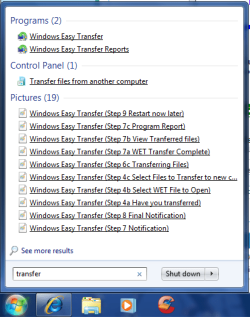
Windows Easy Transfer - Transfer To & From Computers-start-menu-2.pngWindows Easy Transfer - Transfer To & From Computers-start-menu-1.png
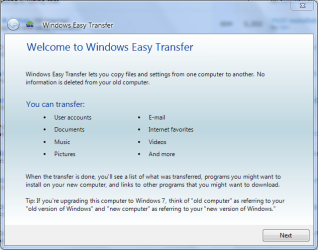
2. Click on Next when the application opens.
Windows Easy Transfer - Transfer To & From Computers-windows-easy-transfer-step-1-.png
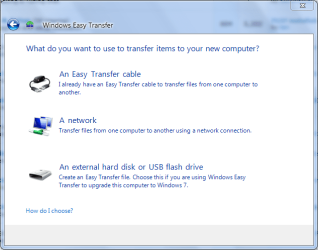
3. Choose destination to save the Transfer file and click on Next.
NOTE: Please note for the purpose of this tutorial I have selected the external hard disk or USB flash drive.
Windows Easy Transfer - Transfer To & From Computers-windows-easy-transfer-step-2-choose-destination-.png
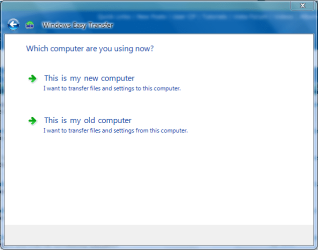
4. Select This is my old computer from the list.
Windows Easy Transfer - Transfer To & From Computers-windows-easy-transfer-step-3-choose-computer-.png
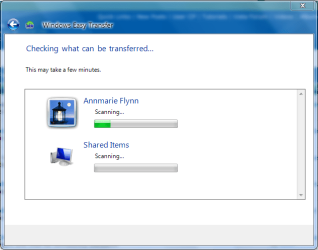
5. Windows Easy Transfer will scan for files that can be transferred.
Windows Easy Transfer - Transfer To & From Computers-windows-easy-transfer-step-3a-scanning-user-files-.png
6. Select which files you wish saved suring the transfer process, then click on Next.
Windows Easy Transfer - Transfer To & From Computers-windows-easy-transfer-step-4-select-files-transfer-.png
7. You will be prompted for a password in the next screen, but this is optional.
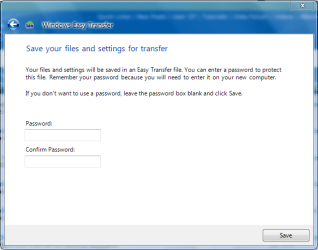
Windows Easy Transfer - Transfer To & From Computers-windows-easy-transfer-step-5-choose-password-.png
8. Choose where to save your Transfer file and what to name it, then click Save.
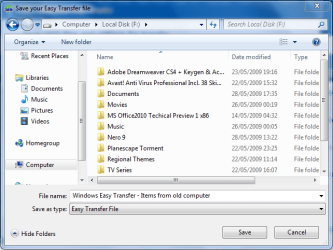
Windows Easy Transfer - Transfer To & From Computers-windows-easy-transfer-step-6-save-wet-file-.png
9. Windows will begin the saving process.
WARNING: This can take some time depending on the overall size of the data being saved.
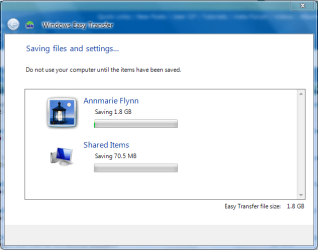
Windows Easy Transfer - Transfer To & From Computers-windows-easy-transfer-step-6a-saving-wet-file-.png
10. Windows will prompt when saving has finished.
Windows Easy Transfer - Transfer To & From Computers-windows-easy-transfer-step-6b-wet-save-complete-.png

Windows Easy Transfer - Transfer To & From Computers-windows-easy-transfer-step-7-notification-.png

Windows Easy Transfer - Transfer To & From Computers-windows-easy-transfer-step-8-final-notification-.png


STEP TWO

Transfer Files to New Computer

1. Follow steps 1, 2 & 3 in the STEP ONE section above.


2. Select This is my new computer from the list.
Windows Easy Transfer - Transfer To & From Computers-windows-easy-transfer-step-3-choose-computer-.png
3. Windows will display a notification asking if you have already saved files from your old computer, select Yes.
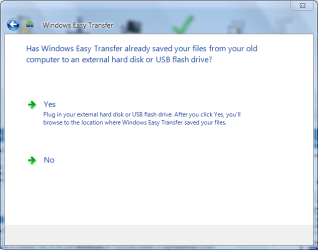
Windows Easy Transfer - Transfer To & From Computers-windows-easy-transfer-step-4a-have-you-transferred-.png
4. Select the Transfer file previously saved in the STEP ONE (step 6) section and click on Open.
Windows Easy Transfer - Transfer To & From Computers-windows-easy-transfer-step-4b-select-wet-file-open-.png
5. You will be shown a selection of options that can be transferred. Choose which the options you want and click on Transfer.
Windows Easy Transfer - Transfer To & From Computers-windows-easy-transfer-step-4c-select-files-transfer-new-computer-.png
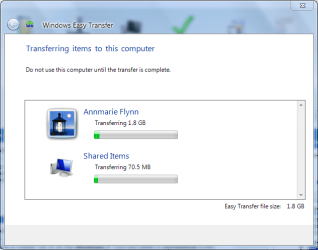
6. Windows will start transferring user files and settings to your new computer.
Windows Easy Transfer - Transfer To & From Computers-windows-easy-transfer-step-6c-transferring-files-.png
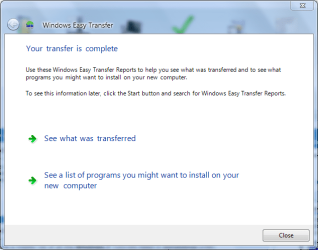
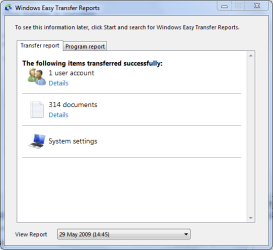
7. Once finished, Windows will give the option to view which files have been transfered....
Windows Easy Transfer - Transfer To & From Computers-windows-easy-transfer-step-7b-view-tranferred-files-.png
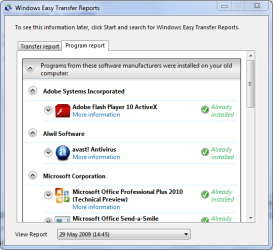
and which programs you will need to install for some settings to work correctly.
Windows Easy Transfer - Transfer To & From Computers-windows-easy-transfer-step-7c-program-report-.png
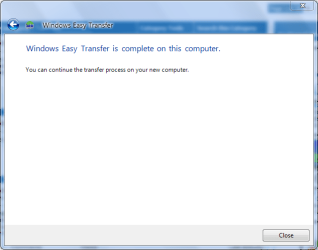
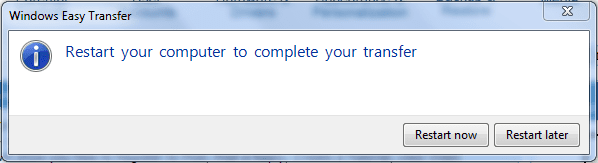
8. You will recieve a final completion notification and asked if you wish to restart your computer.
Windows Easy Transfer - Transfer To & From Computers-windows-easy-transfer-step-8-final-notification-.pngWindows Easy Transfer - Transfer To & From Computers-windows-easy-transfer-step-9-restart-now-later-.png
Note   Note
Once Windows restarts, you can now access all the files and folders that have been transferred.
Published by
Orbital Shark's Avatar
Proud new father :p


Join Date: Mar 2009
Location: Milton Keynes, United Kingdom
Posts: 4,264
Orbital Shark has a reputation beyond reputeOrbital Shark has a reputation beyond reputeOrbital Shark has a reputation beyond reputeOrbital Shark has a reputation beyond reputeOrbital Shark has a reputation beyond reputeOrbital Shark has a reputation beyond reputeOrbital Shark has a reputation beyond reputeOrbital Shark has a reputation beyond reputeOrbital Shark has a reputation beyond reputeOrbital Shark has a reputation beyond reputeOrbital Shark has a reputation beyond reputeOrbital Shark has a reputation beyond repute

Tutorial Tools
06-01-2009   #1
The Cool Guy


Windows 7 Ultimate 7600 RTM x64, Windows Vista Ultimate SP2 x86
India


Nice tut, Orbital Shark. +Rep to you

My System SpecsSystem Spec
06-25-2009   #2
praveengps


Windows XP


thnx
My System SpecsSystem Spec
06-25-2009   #3
Orbital Shark


Windows 7 x86
Milton Keynes, United Kingdom


You're welcome & welcome to the forums
My System SpecsSystem Spec
.
07-22-2009   #4
Old Guy


windows 7 ultimate


Need help in migrating from XP-pro to Windows 7 Ultimate. This tutorial is for computers with window Vista. Help, Help, Help!!!!

Thanks,

Old Guy
My System SpecsSystem Spec
07-22-2009   #5
Orbital Shark


Windows 7 x86
Milton Keynes, United Kingdom


Hi Old Guy, welcome to the forums.

There is an XP version of the same software available for DOWNLOAD from Microsoft.

Hope that helps


Jeff
My System SpecsSystem Spec
07-22-2009   #6
xrey


Windows 7


Just a question regarding this, can you tell me which directories this will save?
My System SpecsSystem Spec
07-22-2009   #7
Orbital Shark


Windows 7 x86
Milton Keynes, United Kingdom


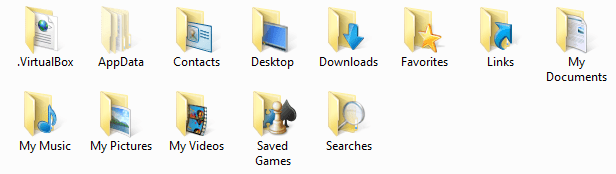
It should save all files in the Users folder

Windows Easy Transfer - Transfer To & From Computers-capture.png
My System SpecsSystem Spec
07-28-2009   #8
Codfish


Windows 7 32bit(main) and Windows XP


Would it transfer the installed files too? Or would I need to reinstall them manually by going to the manufacturer's website, etc.
My System SpecsSystem Spec
07-29-2009   #9
Orbital Shark


Windows 7 x86
Milton Keynes, United Kingdom


Sorry for the late reply

It will only transfer user files & settings. Drivers and applications will still need to be re-installed.
My System SpecsSystem Spec
Comment

Tutorial Tools


Similar Threads for: Windows Easy Transfer - Transfer To & From Computers
Windows 7 Tutorial Category
Problem with Windows Easy Transfer General Discussion
Windows easy transfer General Discussion
Windows Easy Transfer Software
Windows 7 Easy Transfer General Discussion
Using Windows 7 Easy Transfer Installation & Setup


All times are GMT -5. The time now is 08:18 AM.


Windows 7 Forums is an independent web site and has not been authorized,
sponsored, or otherwise approved by Microsoft Corporation.
"Windows 7" and related materials are trademarks of Microsoft Corp.
© Designer Media Ltd

1 2 3 4 5 6 7 8 9 10 11 12 13 14 15 16 17 18 19 20 21 22 23 24 25 26 27 28