
Safe Internet Browsing How to safely operate on the internet and stay free from malware infections
How to Dual Boot Windows 7 and Ubuntu
This tutorial is a simple guide that will explain the two easiest ways to setup and install Ubuntu to dual-boot with your current installation of Windows. One option describes how to do this via WUBI. Another describes how to do this as a native dual-boot.
Warning
Neither Designer Media Ltd (Sevenforums) nor myself are responsible for any problems that occur from the following tutorial.
Note
Please bear in mind that the WUBI installation method installs Ubuntu as if it is an application on Windows. It does NOT use its own partitions.
OPTION ONE
Using Wubi Installer
Step 1: Go to this website, download and run the Wubi installer.
Step 2: Select the hard drive you wish to install it on. Keep in mind it will NOT erase Windows.
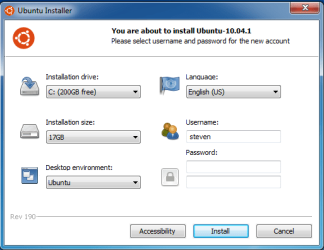
Step 3: Select the amount of space you want to give tos Ubuntu to use. I recommend 3GB.
Step 4: Select your desktop enviornment. This is personal prefernce, if you are new to Linux I suggest sticking with Ubuntu.
Step 5: Select your language.
Step 6: Set your screenname. Note that this cannot contain capitalized letters of any kind.
Step 7: Set your password. When you have completed that hit the install button and wait!
Step 8: When it finishes downloading and installing Ubuntu, just restart to boot into Ubuntu!
OPTION TWO
Native Install
Step 1: Burn a CD/DVD with the Ubuntu ISO through Windows.
Step 2: Boot from the CD/DVD when you start up your computer.
Step 3:
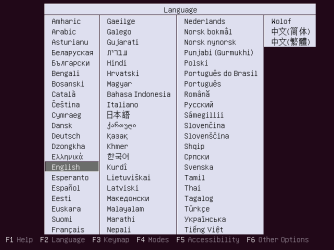
Press the up button the moment something appears on that screen and select a language.
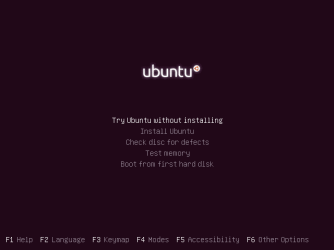
Step 4: Select the option 'Try ubuntu without installing'.
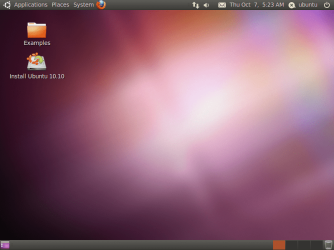
Step 5: When the desktop appears double click the icon on the desktop called 'Install Ubuntu'.
Step 6: When the installer launches fully, select your language and hit the foward button.
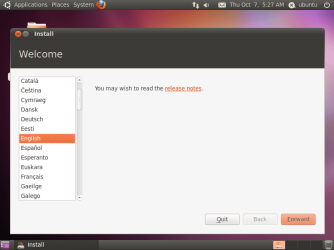
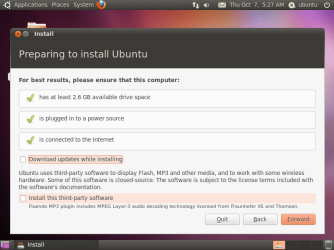
Step 7: On this screen you'll want to choose that options you want. I suggest selecting them both. Hit the foward button again after you select what you want.
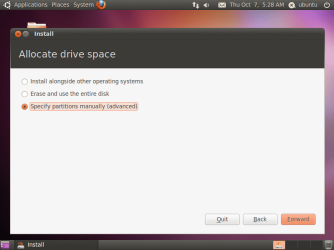
Step 8: On this screen you'll want to select the 'specify partitions' option and click foward.
Step 9: Here as you can see we already have some unallocated space, click it and select the 'Add' button. (Note: You can select an already created partition, make sure not to overwrite your Windows partition!)
Step 10: A window should pop up, you should make the mount point '/' and the 'Use as' EXT4 filesystem. Click Ok when done.
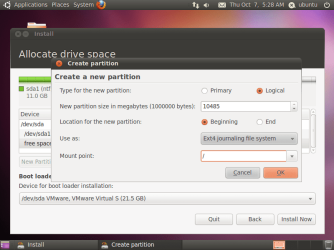
Step 11: After that click the 'Install Now' button and follow the onscreen instructions.
Step 12: You'll be prompted to reboot after its finished, reboot and select the top option in the Grub 2 Boot Loader and you're now in Ubuntu!
System Manufacturer/Model Number Custom OS Win7 HP (x64)/Win7 Ultimate (x64) CPU Core i7 920 Motherboard Intel X58 Memory 6 x 2GB Corsair XMS3 Graphics Card CF HD4890 Sound Card Asus Xonar Monitor(s) Displays Dell 2408WFP Screen Resolution 1920 x 1200
Keyboard Razer Lycosa/N52te Mouse Razer Lachesis PSU Corsair HX1000W Case Antec 1200 Hard Drives 2 x 150GB WDC Velociraptors (Raid 0)
1 x 1TB Seagate
1 x 1.5TB Seagate
System Manufacturer/Model Number Custom OS Win7 HP (x64)/Win7 Ultimate (x64) CPU Core i7 920 Motherboard Intel X58 Memory 6 x 2GB Corsair XMS3 Graphics Card CF HD4890 Sound Card Asus Xonar Monitor(s) Displays Dell 2408WFP Screen Resolution 1920 x 1200
Keyboard Razer Lycosa/N52te Mouse Razer Lachesis PSU Corsair HX1000W Case Antec 1200 Hard Drives 2 x 150GB WDC Velociraptors (Raid 0)
1 x 1TB Seagate
1 x 1.5TB Seagate
Good tutorial. Two recommendations I would make for people doing a full native installation... if you don't establish an internet connection before before beginning the install, the average first time user will not be able to get drivers for hardware that wasn't included in the cd... this includes some wireless adapters adapters and hardware that is very old, very new, or isn't commonly used
Also Ubuntu installs much more quickly from a flash drive than from a cd/dvd and the process is no more difficult than burning a CD in windows 7
if you just want to try it for a few days, I would recommend using one of the other tutorials to make a bootable flash drive, rather than using wubi..on the average system, it works better as a portable OS booted from a flash drive than when installed inside windows as a program
Good tutorial. Two recommendations I would make for people doing a full native installation... if you don't establish an internet connection before before beginning the install, the average first time user will not be able to get drivers for hardware that wasn't included in the cd... this includes some wireless adapters adapters and hardware that is very old, very new, or isn't commonly used
Also Ubuntu installs much more quickly from a flash drive than from a cd/dvd and the process is no more difficult than burning a CD in windows 7
if you just want to try it for a few days, I would recommend using one of the other tutorials to make a bootable flash drive, rather than using wubi..on the average system, it works better as a portable OS booted from a flash drive than when installed inside windows as a program
System Manufacturer/Model Number Custom OS Win7 HP (x64)/Win7 Ultimate (x64) CPU Core i7 920 Motherboard Intel X58 Memory 6 x 2GB Corsair XMS3 Graphics Card CF HD4890 Sound Card Asus Xonar Monitor(s) Displays Dell 2408WFP Screen Resolution 1920 x 1200
Keyboard Razer Lycosa/N52te Mouse Razer Lachesis PSU Corsair HX1000W Case Antec 1200 Hard Drives 2 x 150GB WDC Velociraptors (Raid 0)
1 x 1TB Seagate
1 x 1.5TB Seagate
Whats the maximum number of partitions in Windows 7 for one drive?
I have Ubuntu as a virtual machine on vmworkstation and I have a backup of the two drive partitions using paragon drive manager 2010 this includes the swap partition. I want to create this on my current installation but I am not sure if you can create a logical partition with the two partitions within or if you have to create two seperate partitions? I already have four partitions so can I create one more partition?
Paragon drive manager allows the set up of dual boot configurations so I think that this will work but I need some advice on the current situation.
System Manufacturer/Model Number Sony Z series OS Windows 7 64 bit CPU intel i7 Motherboard Sony custom model Memory 8 GB Graphics Card nvidia Sound Card n/a Monitor(s) Displays lcd
You get 3 primary partitions and a logical partition..
however, the best way I've found to dual boot ubuntu (or any other current free version of linux) with any version of windows since xp is with a clean install of both operating systems on their own primary partitions
use the windows install disk to:
Create a windows system partition of at least 40GB but no more than 20% of the HDD
Create a 2nd NTFS media partition that leaves 10-20% of the end of the HDD unformatted and unpartitioned, for sharing files between windows and linux
Delete the system reserved partition before installing windows 7
After windows is installed.. boot the linux install cd/dvd/usb key drive and install using the "use the largest contiguous free space" option.. and let linux determine the size of the SWAP partition.
any attempts to prepare the linux portion of the HDD using a windows utility or with a third party partition tool, other than just creating free unpartitioned space at the end of the drive, is doomed to fail miserably if you are someone who needs to ask how to do it
Looks like it doomed to fail so I've created a new install with the original Windows 7 now on a logical partition the same size in total as my original which had two primary partitions for the C and D drives. I use the paragon dual boot software to boot up between the two os's. I've deleted the windows 100 Mb partition and installed the paragon os bootup software and so far it boots up Winows ok.
The rest is free space so now doing a fresh install of ubuntu, but because I want to have a existing ubuntu install which I backed up as a partition which 30 Gb is it ok to specify the same size partition for the new install and then over write this with the previous backup partition? If I create a swap partition of the same size as the original then will this configuration work ok?
System Manufacturer/Model Number Sony Z series OS Windows 7 64 bit CPU intel i7 Motherboard Sony custom model Memory 8 GB Graphics Card nvidia Sound Card n/a Monitor(s) Displays lcd
You may want to add Part #3 in sometime as well. The "install in Windows" option is seen when first placing the live cd in the drive or when browsing to the wubi.exe on the cd you burn.
The other option for setting a dual boot with ubuntu is assigning the mount point "/" to the main root parition and then seeing a new entry added in the 7 BCD using the EasyBCD program's form of NeoGrub which also works quite well. The advantage of the wubi installer however is seeing the latest release installed while in Windows to another partition(root), another hard drive, or even a usb flash drive.
These are a few other options to mention here. Still looks good however!
OS Windows 7 Ultimate x64, XP Mode, W8 RP VM, Linux Mint Debian 2nd OS HD- 7 Pro x64 second case CPU AMD Phenom II X4 975 Deneb 3.6ghz - 965 on new mini tower Motherboard Gigabyte GA-790XTA-UD4 Memory Kingston Hyper X DDR3 1600 1.5v 16gb - Mushkin on 2nd build Graphics Card MSI HD Radeon 5750 1gb - MSI HD Radeon 6450 on mini tower Sound Card Creative Labs X-Fi XtremeGamer - Realtek onooard 2nd case Monitor(s) Displays 2 x Acer P191W 19" widesscreen - HP 20" widescreen mini towe Screen Resolution 1440x900 native - 1600x1024 on 7 Pro x64 build
Keyboard Microsoft Recusa Razor - MS Comfort 3000 on second build Mouse MS Trackball Explorer - A4TECH dual scroll wheel trackball PSU Corsair 750TX - primary / Corsair CX600 - second Case Antec 900-2 - SSD compatible / NZXT Vulcan mini tower Cooling Zalman CNPS9900A Hard Drives Primary Ultimate x64 build-
WD Black Edition 1tb Sata 6.0 = 2
WD Black Edition 1tb Sata 3.0 = 2 (OS drives)
WD 1tb Green Power sata = 2 1 external
usb flash drives = 18
Second 7 Pro x64 mini tower-
WD Caviar SE 500gb sata II single drive presen Internet Speed 30mbps upgrade - primary hard wired - mini tower usb WiFi