| | Welcome to Windows 7 Forums. Our forum is dedicated to helping you find solutions with any problems, errors or issues you are experiencing with Windows 7. The Windows 7 forum also covers news and updates and has an extensive Windows 7 tutorial section that covers a wide range of tips and tricks. | Windows 7 - Thumbnail Previews - Enable or Disable
Thumbnail Previews - Enable or Disable How to Enable or Disable Thumbnail Previews in Windows 7 Explorer
Published by Brink
06-01-2009
| Thumbnail Previews - Enable or Disable How to Enable or Disable Thumbnail Previews in Windows 7 Explorer  Information This will show you how to enable or disable thumbnail previews in Windows Explorer for just your account or all users in Windows 7 Windows Explorer displays thumbnails by default in Windows 7.  Note Displaying thumbnails in Windows Explorer will require that Windows Photo Viewer is set as the default program with all of it's default associations (except .gif files) set with it as well.  Tip If there are a lot of thumbnails in a Windows Explorer window, then it can slow down your computer while you wait for the thumbnails to load. If this happens, then disabling thumbnails will speed up how fast a Windows Explorer window will open by displaying only icons instead of thumbnails.  Warning When thumbnail previews is enabled, you will need to have the icon view size in the Windows Explorer window set to either Medium Icons, Large Icons, or Extra Large Icons to see a thumbnail of the file or folder. EXAMPLE: Thumbnails Enabled in Windows Explorer  EXAMPLE: Thumbnails Disabled in Windows Explorer OPTION ONE


Through Folder Options
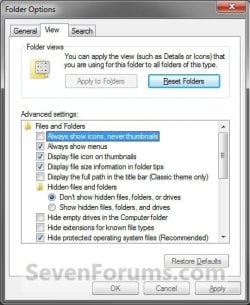
NOTE: This option will only enable or disable thumbnails in the current user account. If this option is not available in Folder Options, then you will need to enable either OPTION THREE or OPTION FOUR below to enable for all users. 1. Open Folder Options. 2. Click on the View tab. (See screenshot below) 3. To Turn Off ThumbnailsA) Check Always show icons, never thumbnails, then click on OK. (See screenshot above) 4. To Turn On Thumbnails A) Uncheck Always show icons, never thumbnails, then click on OK. (See screenshot below step 2) OPTION TWO
Through Visual Effects
NOTE: This option will only enable or disable thumbnails in the current user account. 1. Open Visual Effects settings. (See screensho below) 2. To Turn Off Thumbnails A) Uncheck Show thumbnails instead of icons, then click on OK. (See screenshot above) 3. To Turn On Thumbnails A) Check Show thumbnails instead of icons, then click on OK. (See screenshot below step 1) NOTE: If this option will not stay checked when you reopen this window, then you will need to enable either OPTION THREE or OPTION FOUR below. OPTION THREE
Using a REG File Download
1. To Disable All Users Thumbnails NOTE: This option will disable thumbnails for all users on the computer and overrides step 3 and 4 below. This is the same as doing OPTION FOUR with Group Policy.A) Click on the Download button below to download the file below.Disable_Explorer_Thumbnails_All_Users.reg  B) Go to step 5. 2. To Enable All Users Thumbnails NOTE: This option will enable thumbnails for all users on the computer and overrides step 3 and 4 below. This is the same as doing OPTION FOUR with Group Policy.A) Click on the Download button below to download the file below.Enable_Explorer_Thumbnails_All_Users.reg  B) Go to step 5. 3. To Disable Only Current Logged On User Thumbnails NOTE: This option will disable thumbnails for only the currently logged in user. This is the same as doing OPTION ONE or OPTION TWO above.A) Click on the Download button below to download the file below.Disable_Explorer_Thumbnails_Current_User.reg  B) Go to step 5. 4. To Enable Only Current Logged On User Thumbnails NOTE: This option will enable thumbnails for only the currently logged in user. This is the same as doing OPTION ONE or OPTION TWO above.A) Click on the Download button below to download the file below.Enable_Explorer_Thumbnails_Current_User.reg 
5. Click on Save, and save the .reg file to the desktop. 6. Right click on the downloaded .reg file and click on Merge. 7. Click on Run, Yes, Yes, and OK when prompted. 8. Log off and log on, or restart the computer to apply. 9. When done, you can delete the downloaded .reg file if you like. OPTION FOUR
Through the Local Group Policy Editor
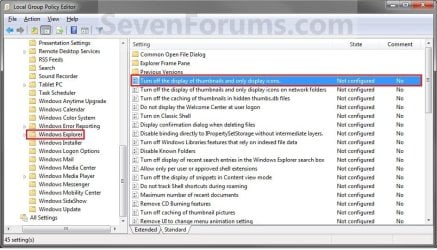
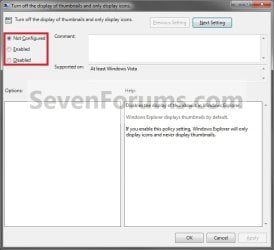
1. Open the all users, specific users or groups, or all users except administrators Local Group Policy Editor for how you want this policy applied. 2. In the left pane, click on the arrow to expand User Configuration, Administrative Templates, then click on Start Menu and Taskbar. (See screenshot below) 3. In the right pane, right click on Turn off the display of thumbnails and only display icons and click on Edit. (See screenshot above) 4. To Enable ThumbnailsA) Select (dot) Not Configured or Disabled. (See screenshot below step 6)
B) Go to step 6. 5. To Disable ThumbnailsA) Select (dot) Enabled. (See screenshot below step 6) 6. Click on OK. (See screenshot below) 7. Close the Local Group Policy Editor. (See screenshot below step 2) That's it,
Shawn |  Published by | | Administrator Join Date: Oct 2008 Location: Texas Posts: 34,826 | |
 Tutorial Tools | | | | | | | | | |
11-08-2009
|
#1 | | XP MCE .... XP Pro 64 .... W7 U x64 |
Any way to disable thumbnail viewing on the Desktop only ???
| My System Specs | | System Manufacturer/Model Number HP d4996t (upgraded) OS XP MCE .... XP Pro 64 .... W7 U x64 CPU E6750, 2.67GHz C2D Memory 4GB, PC2 6400 Graphics Card GeForce 9400GT Monitor(s) Displays Twin Samsung 2443BWT Screen Resolution 1920x1200 PSU 460W Hard Drives Many .. 3 Installed Internet Speed Cable |
11-08-2009
|
#2 | | Windows 7 Ultimate x64 SP1 |
Not that I know of. | My System Specs | | System Manufacturer/Model Number Self built custom OS Windows 7 Ultimate x64 SP1 CPU Intel i7-980X 3.3 Ghz (3.48 Ghz OC'd) Motherboard ASUS P6X58D Premium Memory 12 GB (2GBx6) DDR3 PC3-16000 2000 MHz Kingston HyperX Graphics Card Sapphire HD5870 Eyefinity 6 2GB Sound Card Realtek HD Audio ALC889 Integrated Chip Monitor(s) Displays 3x 27" Asus VE278Q Screen Resolution 1920x1080 Keyboard Logitech Cordless Desktop MX 5500 Revolution Mouse Logitech Cordless Desktop MX 5500 Revolution PSU OCZ Series Gold OCZZ1000M 1000W Case Corsair Obsidian 800D Cooling Thermalright Ultra 120 Extreme Copper CPU heat sink w/120 MM Hard Drives 160GB OCZ RevoDrive X2
** 2 x 1TB Samsung HDD HD154UI SATA Internet Speed 50 Mb/s Download and 2 Mb/s Upload Other Info Microsoft LifeCam Cinema
** Lite-On iHBS212 12x BD Writer
** Samsung CLX-3175FW Printer
** Netgear WNDR3800 Router
** Motorola SBG6580 Cable Modem
** 2x APC Back-UPS XS 1500 |
12-19-2009
|
#3 | | |
Tried Option 3 Tried both with no changes, but now I can't get it back to what it was prior. Can someone help me with the exact registry files so I can get in there and remove both.
Thank you. | My System Specs | | |
12-19-2009
|
#4 | | Windows 7 Ultimate x64 SP1 |
Hello HulaLady, and welcome to Seven Forums.
I would be happy to help, but could you give more details on exactly what problem you are having with thumbnails and if you are wanting to enable or disable them?
Also, check the NOTE box at the top of the tutorial to see if that may be the issue for now. | My System Specs | | System Manufacturer/Model Number Self built custom OS Windows 7 Ultimate x64 SP1 CPU Intel i7-980X 3.3 Ghz (3.48 Ghz OC'd) Motherboard ASUS P6X58D Premium Memory 12 GB (2GBx6) DDR3 PC3-16000 2000 MHz Kingston HyperX Graphics Card Sapphire HD5870 Eyefinity 6 2GB Sound Card Realtek HD Audio ALC889 Integrated Chip Monitor(s) Displays 3x 27" Asus VE278Q Screen Resolution 1920x1080 Keyboard Logitech Cordless Desktop MX 5500 Revolution Mouse Logitech Cordless Desktop MX 5500 Revolution PSU OCZ Series Gold OCZZ1000M 1000W Case Corsair Obsidian 800D Cooling Thermalright Ultra 120 Extreme Copper CPU heat sink w/120 MM Hard Drives 160GB OCZ RevoDrive X2
** 2 x 1TB Samsung HDD HD154UI SATA Internet Speed 50 Mb/s Download and 2 Mb/s Upload Other Info Microsoft LifeCam Cinema
** Lite-On iHBS212 12x BD Writer
** Samsung CLX-3175FW Printer
** Netgear WNDR3800 Router
** Motorola SBG6580 Cable Modem
** 2x APC Back-UPS XS 1500 |
12-20-2009
|
#5 | | |
I used to use Thumbnail Handler which automatically showed my Paint Shop Pro tubes (versus just a PSP icon), but have been unsuccessful locating a program that will do this. I found this site and downloaded both and installed both. Nothing worked, so I am wondering if I should delete the registry files that these downloads installed (thus my asking if anyone had the exact file name that I should delete).
If anyone does have a PSP Thumbnail Handler that works with Windows 7 64 bit, for all versions of PSP, I would appreciate hearing back. Thank you Brink for your prompt response.
I spent hours at this site, thank you so much for sharing your knowledge....
Aloha all | My System Specs | | |
12-20-2009
|
#6 | | Windows 7 Ultimate x64 SP1 |
Aloha HulaLady,
I'm sorry, but I do not know of one for Paint Shop Pro files. Hopefully someone may though.
If you wanted to use the default thumbnail handler again for them, then using Windows Photo Gallery as described in the blue NOTE box at the top of the tutorial will restore that for you. The downloads in the tutorial are just default settings, so installing on or the other will either enable or disable thumbnails. No need to do anything with them other than to make sure that you have it enabled again.
Hope this helps,
Shawn | My System Specs | | System Manufacturer/Model Number Self built custom OS Windows 7 Ultimate x64 SP1 CPU Intel i7-980X 3.3 Ghz (3.48 Ghz OC'd) Motherboard ASUS P6X58D Premium Memory 12 GB (2GBx6) DDR3 PC3-16000 2000 MHz Kingston HyperX Graphics Card Sapphire HD5870 Eyefinity 6 2GB Sound Card Realtek HD Audio ALC889 Integrated Chip Monitor(s) Displays 3x 27" Asus VE278Q Screen Resolution 1920x1080 Keyboard Logitech Cordless Desktop MX 5500 Revolution Mouse Logitech Cordless Desktop MX 5500 Revolution PSU OCZ Series Gold OCZZ1000M 1000W Case Corsair Obsidian 800D Cooling Thermalright Ultra 120 Extreme Copper CPU heat sink w/120 MM Hard Drives 160GB OCZ RevoDrive X2
** 2 x 1TB Samsung HDD HD154UI SATA Internet Speed 50 Mb/s Download and 2 Mb/s Upload Other Info Microsoft LifeCam Cinema
** Lite-On iHBS212 12x BD Writer
** Samsung CLX-3175FW Printer
** Netgear WNDR3800 Router
** Motorola SBG6580 Cable Modem
** 2x APC Back-UPS XS 1500 |
12-21-2009
|
#7 | | |
Thank you Shawn, for now I have the icon feature turned off (default), so I can see what's in my folders. I have ISOs in the PSP community regarding this issue, if I am successful, I will be sure to post back here.
Happy Holidays | My System Specs | | |
12-21-2009
|
#8 | | Windows 7 Ultimate x64 SP1 |
Happy Holidays HulaLady. I hope it goes well. | My System Specs | | System Manufacturer/Model Number Self built custom OS Windows 7 Ultimate x64 SP1 CPU Intel i7-980X 3.3 Ghz (3.48 Ghz OC'd) Motherboard ASUS P6X58D Premium Memory 12 GB (2GBx6) DDR3 PC3-16000 2000 MHz Kingston HyperX Graphics Card Sapphire HD5870 Eyefinity 6 2GB Sound Card Realtek HD Audio ALC889 Integrated Chip Monitor(s) Displays 3x 27" Asus VE278Q Screen Resolution 1920x1080 Keyboard Logitech Cordless Desktop MX 5500 Revolution Mouse Logitech Cordless Desktop MX 5500 Revolution PSU OCZ Series Gold OCZZ1000M 1000W Case Corsair Obsidian 800D Cooling Thermalright Ultra 120 Extreme Copper CPU heat sink w/120 MM Hard Drives 160GB OCZ RevoDrive X2
** 2 x 1TB Samsung HDD HD154UI SATA Internet Speed 50 Mb/s Download and 2 Mb/s Upload Other Info Microsoft LifeCam Cinema
** Lite-On iHBS212 12x BD Writer
** Samsung CLX-3175FW Printer
** Netgear WNDR3800 Router
** Motorola SBG6580 Cable Modem
** 2x APC Back-UPS XS 1500 |
02-22-2010
|
#9 | | |

Quote: Originally Posted by noyb Any way to disable thumbnail viewing on the Desktop only ??? That's my problem
They work for a second user and in all my sub folders - just not on the desktop. | My System Specs | | System Manufacturer/Model Number Novatech (UK) iRush Pro OS MSDN Home Premium CPU Intel i5 Motherboard Intel DP55WB Memory 4Gb Graphics Card ATI Radeon HD 5770 Sound Card On Board Monitor(s) Displays Philips 170B Keyboard Microsoft 3000 Wireless Mouse Microsoft 5000 Wireless BlueTrack PSU 750W Case Antec 300 Cooling Tricool Fans Hard Drives 1 x 1Tb
(7 Partitions) Internet Speed 6.1 Mbps Thumbnail Previews - Enable or Disable problems? All times are GMT -5. The time now is 05:07 AM. |  |