How to Change the Default Fonts in Windows 7
Information
This will show you how to change most or all of the default fonts in Windows 7 for Active Title Bar, Icon, Inactive Title Bar, Menu, Message Box, Palette Title, Selected Items, ToolTip, and various Dialog Box text and buttons.
:warn:Changing a Windows 7 font doesn't change your program fonts.
For a list of all default fonts that come supplied with Windows 7, see: Fonts supplied with Windows 7
:warn:Changing a Windows 7 font doesn't change your program fonts.
For a list of all default fonts that come supplied with Windows 7, see: Fonts supplied with Windows 7
OPTION ONE
Through Advanced Appearance Settings
Note
This will let you change the default font, font size, and font color for the Active Title Bar, Icon, Inactive Title Bar, Menu, Message Box, Palette Title, Selected Items, and ToolTip text. See this link under step 8 there for the default Advanced Appearance settings: http://www.sevenforums.com/tutorials/282-window-color-appearance-change.html
Tip
All Advanced Appearance settings for a single user are stored in the three registry keys below.
- HKEY_CURRENT_USER\Control Panel\Colors
- HKEY_CURRENT_USER\Control Panel\Desktop\Colors
- HKEY_CURRENT_USER\Control Panel\Desktop\WindowMetrics
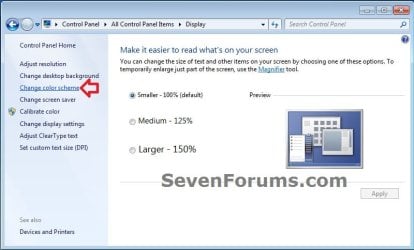
A) Open the Control Panel (icons view), and click on the Display icon.
B) In the left blue pane, click on the Change color scheme link. (see screenshot below)
C) Click on the Advanced button. (see screenshot below)
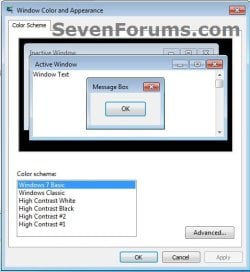
D) Go to step 3.
2. If you have Windows 7 Home Premium, Professional, Ultimate, or Enterprise
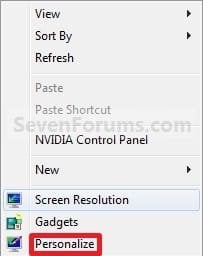
A) Right click on a empty space on the desktop and click on Personalize. (see screenshot below)
B) Click on the Window Color link at the bottom of the window. (See screenshot below)
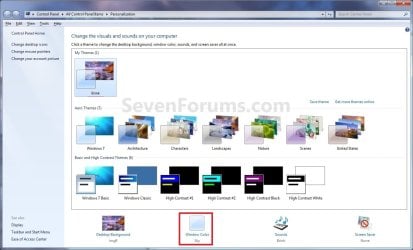
C) Click on the Advanced appearance settings link. (See screenshot below)
Warning
- If you have selected a Basic and High Contrast Themes, then you will not see the screenshot. Instead, you will see the screenshot below step 4.
- If you have selected a Aero Themes, then you will see the screenshot. Continue to step 4.
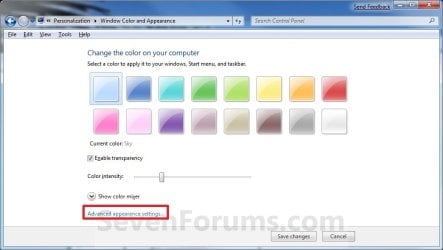
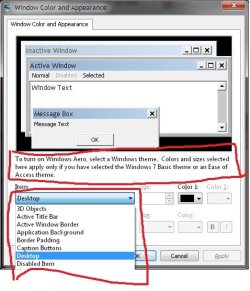
3. Select a Item that you want to change the font for. (see screenshots below)
NOTE: Not all of these items will have a font for them.
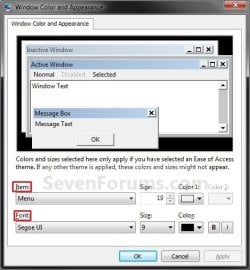
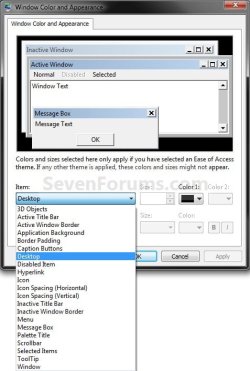
4. To Change the Item Font
A) Click on the Font drop down menu and select a font. (see screenshot below)
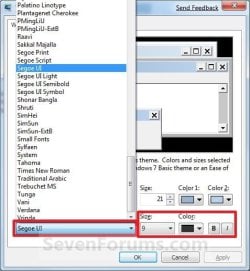
5. To Change the Item Font Size
A) Click on the Size drop down menu and select a number for the size. The higher the number, the larger the size. (see screenshot above)
6. To Change the Item Font Color
A) Click on the Color drop down menu and select a color. (see screenshot below step 4)
7. To Have the Item Font in Bold
A) Click the B button to highlight it. If it is not highlighted, then the font will not be in bold. (see screenshot below step 4)
8. To Have the Item Font in Italic
A) Click on the I button to highlight it. If it is not highlighted, then the font will not be in italic. (see screenshot below step 4)
9. Repeat steps 3 to 8 until you have changed all of the fonts for the select items that you wanted.
10. When done, click on OK. (see screenshots below step 3)
11. Close the Window Color and Appearance window. (see screenshot below step 2B)
NOTE: You will not have this to do if you have a Basic and High Contrast Themes selected.
OPTION TWO
To Change or Restore Default Dialog Box Text and Buttons Fonts
NOTE: This will let you change the default fonts for most of the Windows 7 dialog box text and button text through the registry.
1. To Change the Dialog Box Text and Buttons Fonts
A) Open the Start Menu, type regedit in the search box, and press Enter.
B) If prompted by UAC, then click on Yes.
C) In regedit, navigate to the location below (See screenshots below)
NOTE: The default fonts are the ones displayed below.
Code:
HKEY_LOCAL_MACHINE\SOFTWARE\Microsoft\Windows NT\CurrentVersion\FontSubstitutes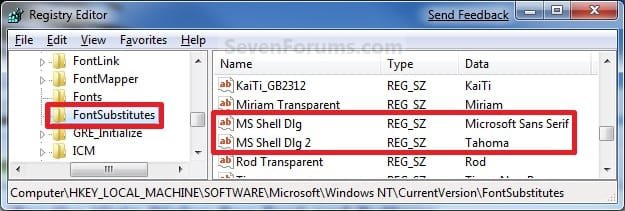
D) In the right pane, right click on MS Shell Dlg and click on Modify. (See screenshot above)
E) Type in the name of the font you want to use and click on OK. (See left screenshot below)
NOTE: You can get the name of the font from the Font Folder Location C:\Windows\Fonts. Right click on the single font and click on Properties to see the file name. For a font group, you will need to open it first to see the single fonts in it. Be sure that you use the exact same font name that is listed. Do not include the Regular part or file extension in the font name. For example, I would type Impact instead of Impact Regular or Impact.ttf.

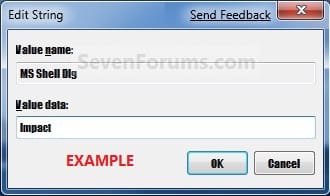
F) In the right pane, right click on MS Shell Dlg 2 and click on Modify. (See screenshot below step 1C)
G) Type in the name of the font you want to use and click on OK. (See left screenshot below)
NOTE: You can get the name of the font from the Font Folder Location C:\Windows\Fonts. Be sure that you use the exact same font name that is listed. Do not include the Regular part in the font name. For example, I would type Impact instead of Impact Regular.


H) Close regedit.
I) Go to step 3.
2. To Restore Default Dialog Box Text and Buttons Fonts
A) Click on the Download button below, and download the file below.
Restore_Default_Dialog_Box_Fonts.reg
Download
B) Save the .reg file to the desktop.
C) Right click the downloaded .reg file, and click on Merge.
D) Click on Run, Yes (UAC), Yes, and OK when prompted.
E) Continue on to step 3.
3. Log off and log on, or restart the computer to apply the font changes.
OPTION THREE
To Change All Default Fonts
NOTE: This will let you change the default fonts used by Windows 7 using the registry.
1. To Change Default Fonts Using a REG File Download
NOTE: This changes the default fonts in Windows 7 to the Tahoma font. You could use this REG file download to make doing step 2 below easier by editing the REG file for the font you want to use instead of Tahoma.
A) Click on the Download button below, and download the file below.
Set_Tahoma_Default_Font.reg
Download
B) Save the .reg file to your desktop.
C) Double click on the downloaded .reg file to merge it.
D) Click on Run, Yes (UAC), Yes, and OK when prompted to approve the merge.
E) Log off and log on, or restart the computer to apply changes.
F) When done, you can delete the downloaded .reg file if you like.
2. To Manually Change Default Fonts by Creating a REG File
NOTE: The REG file in step 1 is the same as in step 2B below. You can use it and just edit the font that you would like to use instead of Tahoma in step below.
A) Open Notepad.
B) Copy and Paste the code below into Notepad.
Code:
Windows Registry Editor Version 5.00

[HKEY_LOCAL_MACHINE\SOFTWARE\Microsoft\Windows NT\CurrentVersion\Fonts]
"Segoe UI (TrueType)"=""
"Segoe UI Bold (TrueType)"=""
"Segoe UI Italic (TrueType)"=""
"Segoe UI Bold Italic (TrueType)"=""
"Segoe UI Semibold (TrueType)"=""
"Segoe UI Light (TrueType)"=""

[HKEY_LOCAL_MACHINE\SOFTWARE\Microsoft\Windows NT\CurrentVersion\FontSubstitutes]
"Segoe UI"="[B][COLOR=red]Tahoma[/COLOR][/B]"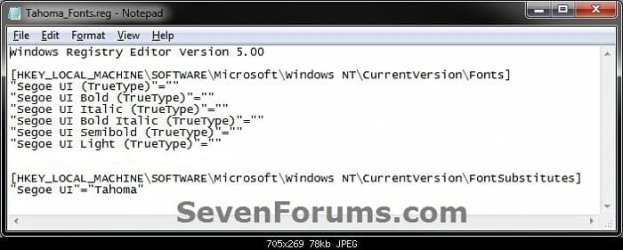
C) In Notepad, edit Tahoma in quotes with the name of the font that you would like to use in instead with it still in quotes. (see screenshot below)
NOTE: You can get the name of the font from the Font Folder Location C:\Windows\Fonts. Be sure that you use the exact same font name that is listed. Do not include the Regular part in the font name. For example, I would type Impact instead of Impact Regular.


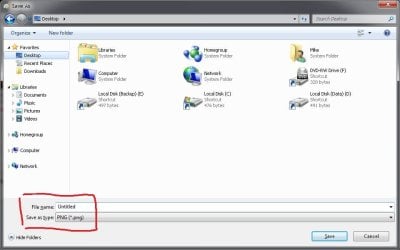
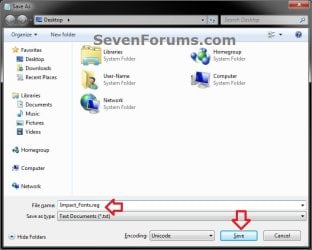
D) In Notepad, click on File (Menu bar) and Save As. (see screenshot below)
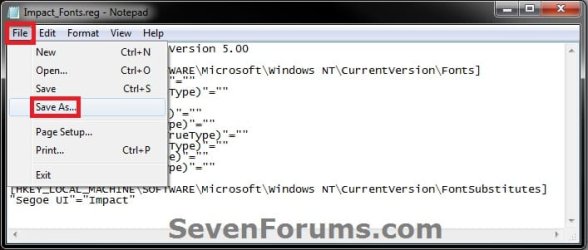
E) Type in a name you would like with a .reg file extension (ex: Impact-Fonts.reg), then click on the Save button. (see screenshot below)
D) Double click on the downloaded .reg file to merge it.
E) Click on Run, Yes (UAC), Yes, and OK when prompted to approve the merge.
F) Log off and log on, or restart the computer to apply changes.
3. To Restore the Default Fonts
NOTE: This will ONLY undo all changes that you made using either step 1 or step 2 in OPTION THREE above, and restore the original default fonts used by Windows 7.
A) Click on the Download button below, and download the file below.
Default_Fonts.reg
Download
B) Save the .reg file to your desktop.
C) Double click on the downloaded .reg file to merge it.
D) Click on Run, Yes (UAC), Yes, and OK when prompted to approve the merge.
E) Log off and log on, or restart the computer to apply changes.
F) When done, you can delete the downloaded .reg file if you like.
That's it,
Shawn
Related Tutorials
- How to See a Preview of the Fonts in Windows 7 and Windows 8
- How to Delete Fonts in Windows 7 and Windows 8
- How to Install a Font in Windows 7 and Windows 8
- How to Show and Hide Fonts in Windows 7 and Windows 8
- How to Change the Display DPI Size in Windows 7
- How to Change the Window Color and Appearance in Windows 7
- How to Create a Font Settings Shortcut in Windows 7 and Windows 8
- How to Change Font Styles Used for Webpages in Internet Explorer
- How to Open and Use ClearType Text Tuner in Windows 7
- How to Enable or Disable "Smooth Edges of Screen Fonts"
Attachments
Last edited:

 Thanks.