
How to Turn Internet Explorer
Compatibility View On or Off for a Website
Compatibility View On or Off for a Website
Information
Websites that were designed for earlier versions of Internet Explorer might not display correctly in IE8, IE9, IE10, or IE11. When you turn on Compatibility View, the webpage you're viewing, as well as any other webpages within the website's domain, will be displayed as if you were using an earlier version of Internet Explorer.
This tutorial will show you how to add (turn on) and remove (turn off) websites to be displayed in Compatibility View.
This tutorial will show you how to add (turn on) and remove (turn off) websites to be displayed in Compatibility View.
Note
Not all website display problems are caused by browser incompatibility. Interrupted Internet connections, heavy traffic, or website bugs can also affect how a webpage is displayed.
OPTION ONE
Through the Internet Explorer Address Bar
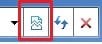
NOTE: If Internet Explorer recognizes a webpage that is not compatible, you will see the Compatibility View icon button

1. To Turn On Compatibily View for a Website in Internet Explorer
A) Click/tap on the unhighlighted Compatibility View icon button. (See screenshot below)
NOTE: The webpage will now reload with Compatibility View turned on for it, and the website will be added to the list in compatibility view settings (Option Three below).
2. To Turn Off Compatibily View for a Website in Internet Explorer
A) Click/tap on the highlighted (blue) Compatibility View icon button. (See screenshot below)
NOTE: The webpage will now reload with Compatibility View turned off for it, and the website will be removed from the list in compatibility view settings (Option Three below).

OPTION TWO
Through the Tools Menu
NOTE: This will let you turn on or off Compatibility View for the current webpage.
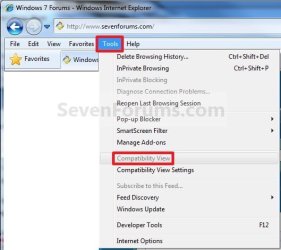
1. Click/tap on the Tools Menu Bar (ALT+T) item. (See screenshot below)
NOTE: If Compatibiliy View is grayed out, then the webpage has no compatibility issues and does not need to have Compatibility View turned on for it. You can still use METHOD THREE below to turn on Compatibility View for it though if you like.
A) Go to step 3.
OR
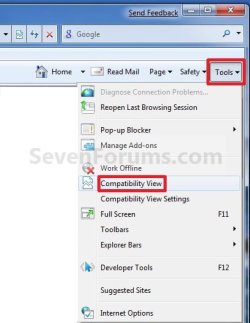
2. Click/tap on the Tools Command Bar button. (See screenshot below)
NOTE: If Compatibiliy View is grayed out, then the webpage has no compatibility issues and does not need to have Compatibility View turned on for it. You can still use METHOD THREE below to turn on Compatibility View for it though if you like.
3. To Turn On Compatibily View for a Website in Internet Explorer
A) Click/tap on Compatibiliy View to check it. (See screenshots above)
NOTE: The webpage will now reload with Compatibility View turned on for it, and the website will be added to the list in compatibility view settings (Option Three below).
4. To Turn Off Compatibily View for a Website in Internet Explorer
A) Click/tap on Compatibiliy View to uncheck it. (See screenshots above)
NOTE: The webpage will now reload with Compatibility View turned off for it, and the website will be removed from the list in compatibility view settings (Option Three below).
OPTION THREE
Through Compatibily View Settings
NOTE: This will let you turn on or off Compatibility View for a webpage by adding or removing the webpage address from the Compatibility View list.
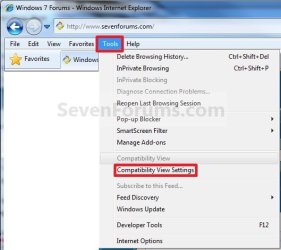
1. Click/tap on the Tools Menu Bar (ALT+T) item, and go to step 3 below. (See screenshot below)
OR
2. Click/tap on the Tools Command Bar button. (See screenshot below)
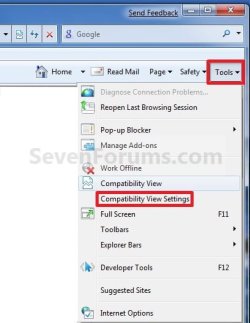
3. Click/tap on Compatibility View Settings. (See screenshots above)
4. To Add a Website to the Compatibility View List in Internet Explorer
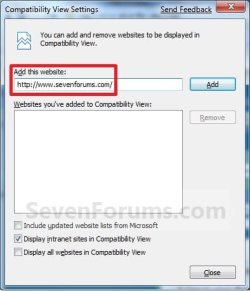
A) Type in the webpage address that you want to turn on Compatibility View for, and click/tap on the Add button. (See screenshot below)
NOTE: The current webpage address will automatically be filled in for you. Just clear it if you want to add a different address instead.
B) Go to step 6.
5. To Remove a Website from the Compatibility View List in Internet Explorer
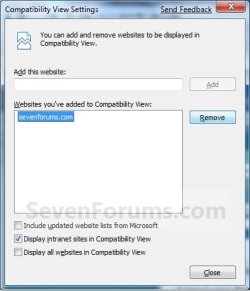
A) Select a listed webpage address that you want to turn off Compatibility View for, and click/tap on the Remove button. (See screenshot below)
6. Click/tap on the Close button. (See screenshots above)
That's it,
Shawn
Related Tutorials
- How to Run a Program in Compatibility Mode in Windows 7
- How to Receive Internet Explorer Compatibility View Updates
- How to Display All Websites in Compatibility View in Internet Explorer
- How to Import and Export Compatibility View Websites in Internet Explorer
- How to Fix Google Search and Google+ Notifications Not Loading Properly in IE11
- How to Enable or Disable Users to Turn On and Off Enterprise Mode in Internet Explorer 11
- How to Turn On or Off Enterprise Mode for Sites in Internet Explorer 11
Attachments

Last edited:

