
How Use the Windows 7 SP1 Disk Cleanup Tool
Information
This will show you how to run the Windows 7 SP1 cleanup tool to permanently remove the backed up files created during the installation of the Windows 7 SP1 to gain back more hard drive space, and remove the Service Pack for Microsoft Windows (KB976932) entry in Installed Updates.
You must be logged in as an administrator to be able to do this tutorial.
You must be logged in as an administrator to be able to do this tutorial.
Note
The Windows 7 SP1 disk cleanup tool gave me back around 1.5 GB on my hard drive. This amount may vary on your computer.
To see how much space you recovered, make a note of how much free space you have on the C:/ drive in Computer before and after you run the Windows 7 SP1 cleanup tool. Afterwards, please post and let us know how much space you have recovered.
To see how much space you recovered, make a note of how much free space you have on the C:/ drive in Computer before and after you run the Windows 7 SP1 cleanup tool. Afterwards, please post and let us know how much space you have recovered.
Warning
It is recommended to wait about a week after installing SP1 to see how your Windows 7 is running with SP1 installed before deleting the SP1 backups as in the tutorial below. This way if you discover a issue, you will still have the option to uninstall SP1 if need be.
Once you delete the SP1 backup files, you will no longer be able to uninstall the Windows 7 SP1 afterwards. The only option would be a clean install or custom install.
Once you delete the SP1 backup files, you will no longer be able to uninstall the Windows 7 SP1 afterwards. The only option would be a clean install or custom install.
OPTION ONE
Delete Windows 7 SP1 Backup Files Using Disk Cleanup
2. Select the drive (ex: C: ) that your Windows 7 is installed on, and click on OK. (see screenshot below)

3. Click on the Clean up system files button. (see screenshot below)
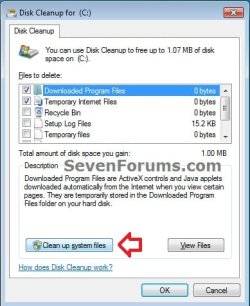
4. If prompted by UAC, then click on Yes.
5. Select the drive (ex: C: ) that your Windows 7 is installed on, and click on OK. (see screenshot below)
6. Check the Service Pack Backup Files box and click on OK. (see screenshot below)
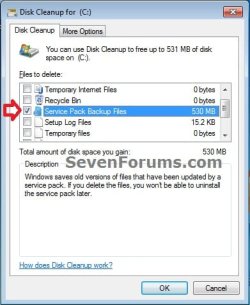
7. Click on Delete Files. (see screenshot below)
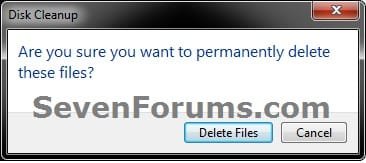
8. The SP1 backup files will now be deleted. You will now no longer be able to uninstall the Windows 7 SP1, but have gained around 1 GB of hard drive space back.
OPTION TWO
Delete Windows 7 SP1 Backup Files Using a Elevated Command Prompt
2. In the elevated command prompt, copy and paste the command below and press enter. (see screenshot below) dism /online /cleanup-image /spsuperseded /hidesp

3. After a few moments, you will see the The Operation completed successfully message. (see screenshot above)
4. Close the elevated command prompt. You will now no longer be able to uninstall the Windows 7 SP1, but have gained around 1 GB of hard drive space back.
OPTION THREE
Delete Windows 7 SP1 Backup Files Using a Command Prompt at Boot
NOTE: This option will also work on a slipstream Windows 7 SP1 installation at boot. 1. Open a command prompt at boot. (click on link for how)
2. To Verify the Windows 7 Drive Letter at Boot
NOTE: This needs to be done since the Windows 7 drive letter may not be C: if you have the 100 MB System Reserver partition created during installation, or if you multiboot with more than one operating system. A) In the command prompt, type diskpart and press Enter. (see screenshot below)
B) In the command prompt, type list volume and press Enter.
C) Make note of the drive letter (ex: D ) that you have Windows 7 installed on.
NOTE: It helps to look at the drive size and label to help ID the Windows 7 partition/drive.
D) In the command prompt, type exit and press Enter.
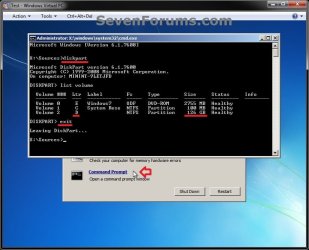
E) Continue on to step 3.
3. To Delete the Windows 7 SP1 Backup Files at Boot A) In the command prompt, type the command below and press Enter. (see screenshot below)
NOTE: Substitute D: in the command below with the drive letter of your Windows 7 from step 2C above instead.
Code:
dism /image:[COLOR=red][B]D:[/B][/COLOR] /cleanup-image /spsuperseded /hidesp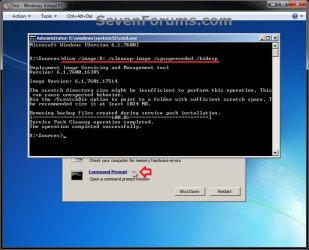
B) After a few moments, you will see the The Operation completed successfully message. (see screenshot above)
C) Close the command prompt window, and restart the computer. You will now no longer be able to uninstall the Windows 7 SP1, but have gained around 1 GB of hard drive space back.
That's it,
Shawn
Related Tutorials
- How to Uninstall Windows 7 Service Pack 1 (SP1) Beta, RC, and RTM
- How to Free Up and Recover Hard Drive Space in Windows 7
- How to Slipstream Windows 7 SP1 and Updates to Create a Bootable USB, Installation DVD, or ISO File
- Windows 7 Service Pack 1 FAQs and helpful links
- How to Remove Outdated Windows Updates in Disk Cleanup in Windows 7
Last edited:


