
Information
Auditing access to your shared folders makes it possible to keep track of what's happening; who visits your shared folders, when, doing what. It might not be needed on a "Me and my laptop" networks, although in my opinion it adds a bit to general security to your system and network. When needed, the information is there. Auditing logs are very small files, taking almost no space on hard disk. Auditing does not "eat" the resources of your computer, does not make it slower.
Auditing options can be edited using Windows 7 built-in Group Policy Editor, included in Seven Professional, Ultimate and Enterprise editions. There are also several third party alternatives, for instance ShareAlarmPro. This tutorial is however about how to do it with gpedit.
Audit access to shared folders:
- Open Group Policy Editor by typing gpedit.msc to Start menu's search field or Run dialog window and hit Enter
. - Go to Local Computer Policy > Computer Configuration > Windows Settings > Security Settings > Local Policies Audit Policy, double click to open Audit Object Access

. - Check both options (Success and Failure) under Audit these objects, click OK
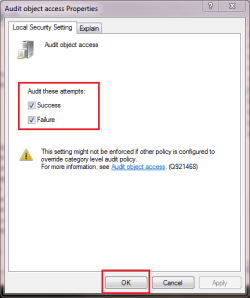
. - Close Group Policy Editor
. - Open the Properties of a shared folder you want to audit, choose Security tab, click Advanced
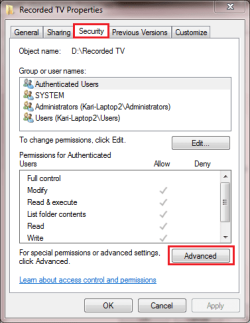
. - Choose Audit tab, click Continue
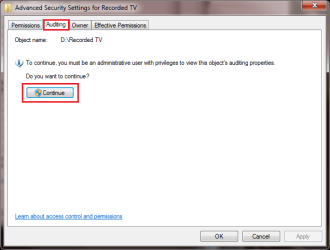
. - Click Add, click Locations to choose from which location you want to audit, write the computer name and name of a user or group you want to audit, for instance PC-3\Administrators or XPPro-upstairs\Kari. Click Check names to "spellcheck", to check validity of your input

. - Click OK to close Select User or Group dialog, click OK to close Advanced Security Settings, click OK to close Folder Properties
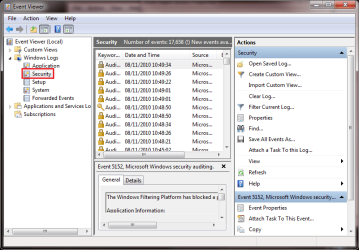
Any further questions, don't hesitate to ask.
Kari
Related Tutorials
- How to Allow or Deny Permissions to Users and Groups
- How to Create a Take Ownership Shortcut in Windows 7
- How to Take Ownership of a Item in Vista and Windows 7
- How to Add or Remove User Accounts from Groups in Windows 7 and Vista
- How to Turn Public Folder Sharing On or Off in Windows 7
- How to Create a Shared Folders Shortcut in Vista, Windows 7, and Windows 8
Last edited by a moderator:


