How to Unblock a File to Stop "Open File - Security Warning" and "Windows 8 SmartScreen" Prompt
Information
This will show you how to unblock a file that you have downloaded or copied from the internet or external source to no longer get the "Open File - Security Warning" or "Windows 8 SmartScreen" prompt when you open or run the file.
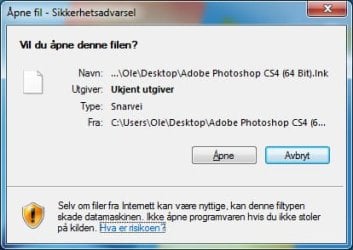
The Open File - Security Warning prompt is a security measure in Vista, Windows 7, and Windows 8 to ask for your permission (like UAC) before allowing a downloaded or copied file from the internet or another computer to be opened or run on your computer.
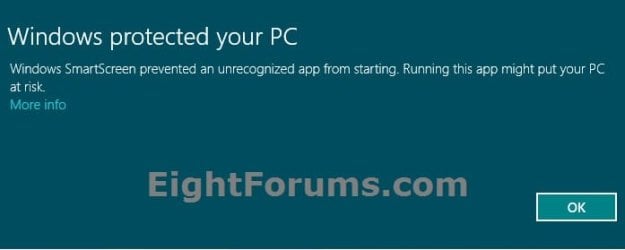
Windows SmartScreen, like the SmartScreen Filter in Internet Explorer, can help keep your whole computer safer by warning you before running unrecognized programs downloaded from the internet in Windows 8.
The Open File - Security Warning prompt is a security measure in Vista, Windows 7, and Windows 8 to ask for your permission (like UAC) before allowing a downloaded or copied file from the internet or another computer to be opened or run on your computer.
Windows SmartScreen, like the SmartScreen Filter in Internet Explorer, can help keep your whole computer safer by warning you before running unrecognized programs downloaded from the internet in Windows 8.
Warning
You should only unblock files that you trust.
EXAMPLE: "Windows protected your PC" from Windows 8/8.1 SmartScreen
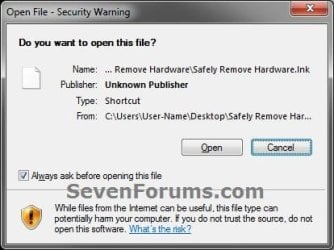
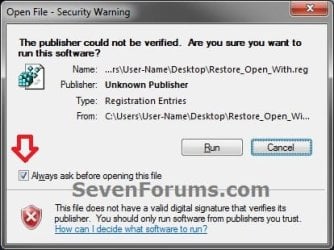
EXAMPLE: Open File - Security Warning
- Do you want to open this File? Unknown Publisher
- The Publisher could not be verified. Are you sure you want to run this software? Unknown Publisher
- Do you want to run this file? Application
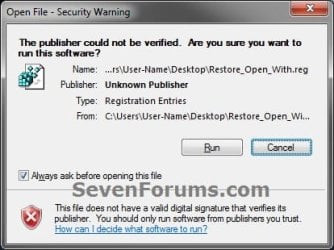
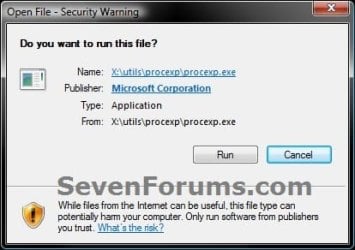
OPTION ONE
To Unblock the File Through Properties Page
NOTE: This option can only be done when the file or folder is still in one of your C:\Users\(user-name) folder locations. For example, your Desktop or Downloads folder. If it's not, then you will need to move the file to this location first, unblock it, then move it back.
1. While the file is on your desktop or in one of your user folders, right click or press and hold on the file, and click/tap on Properties.
2. Under the General tab, click/tap on the Unblock button, and click/tap on OK. (see screenshot below)
NOTE: If you do not see an Unblock button, then the file has already been unblocked.
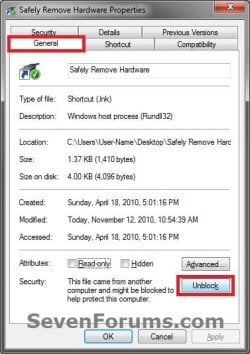
3. You will now no longer get a Open File - Security Warning prompt when you try to open or run this specific file.
OPTION TWO
Unblock File when you Open or Run it and get "Open File - Security Warning"
NOTE: This option will unblock the file no matter where it's located.
1. Open or Run the file to trigger the Open File - Security Warning prompt.
2. In the Open File - Security Warning prompt, uncheck the Always ask before opening this file box, then click/tap on either the Open or Run button. (see screenshots below)
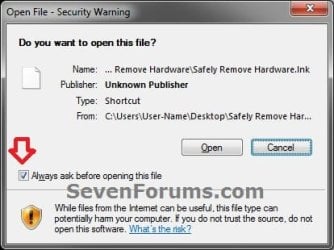
3. If prompted by UAC, then click/tap on Yes (Windows 7/8) or Continue (Vista), or enter the administrator's password (standard user).
NOTE: You will only be prompted by UAC if the file is not in one of the C:\Users\(user-name) folder locations, and in a system folder (ex: C:\Windows) instead.
4. The file will now open or run, and you will now no longer get a Open File - Security Warning prompt when you try to open or run this specific file next time.
OPTION THREE
Unblock File when you Open or Run it and get "Windows 8/8.1 SmartScreen"
NOTE: This option only applies to Windows 8 or 8.1. Doing OPTION ONE or OPTION TWO above will also unblock the file to no longer get the "Windows protected your PC" prompt from Windows 8/8.1 SmartScreen.
1. Open or Run the file to trigger the Windows protected your PC prompt.
NOTE: If you do not get this prompt, then the file has already been unblocked, and there's nothing else that needs to be done.
2. Click/tap on the More info link. (see screenshot below)
3. Click/tap on the Run anyway button. (see screenshot below)
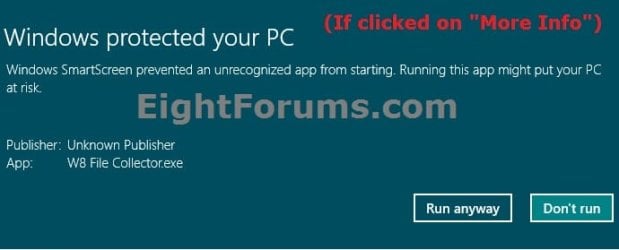
4. The file will now open or run, and you will now no longer get a Windows protected your PC prompt when you try to open or run this specific file next time.
That's it,
Shawn
Related Tutorials
- How to Disable Downloaded Files from being Blocked in Windows
- Allow or Prevent to Unblock a File to Stop the "Open File - Security Warning" Prompt
- How to Disable the "Open File Security Warning" in Windows
- How to Change UAC Notification Settings in Windows 7
- How to Change User Account Control (UAC) Settings in Windows 8 and 8.1
- How to Turn "Windows SmartScreen" On or Off in Windows 8 and 8.1
Last edited: