How to Create a Automated Task that Runs at a Set Time in Windows 7
Information
A very handy feature within Vista, Windows Server 2008 & now Windows 7 is the Task Scheduler. This app will allow the automated running of files and programs at a user designated time.
Here's How:
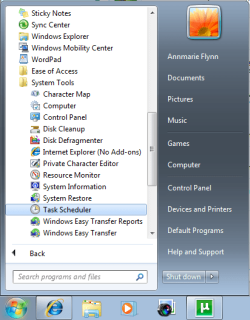
1. Open up Task Scheduler by either typing "task" into the Start Menu search bar, or by opening All Programs - Accesories - System Tools.
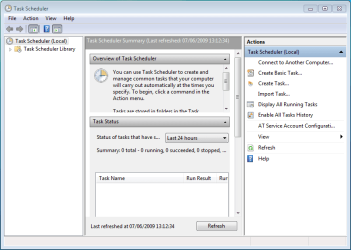
2. Select 'Create Basic Task' from the right hand pane and the 'Create Basic Task Wizard will open.
3. With the Wizard open, type a 'Name' and 'Description' for your new task and click Next. NOTE:The Next button will only be accessible once a 'Name' has been entered.
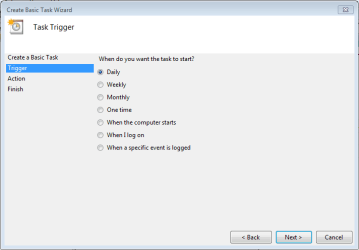
4. Select when you would like the event/task to run and click Next. NOTE:For this tutorial i've selected 'Daily'.
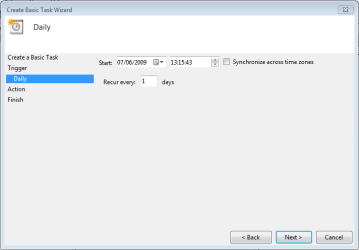
5. Select the exact time and date at which you wish the first task to start (each task afterward will run based on your selection in step 4) then click Next.
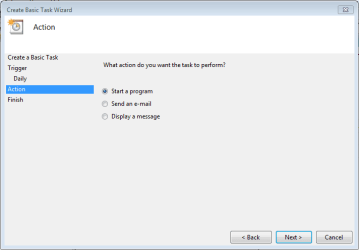
6. Choose the action you with the task to execute from the list then click Next. NOTE:For this tutorial i've selected 'Start a program'.
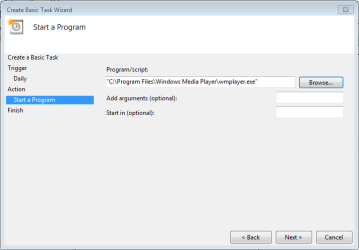
7. Click 'Browse' and navigate to the executable (exe) file of the program you wish to run then click Next. NOTE:I've chosen to ignore 'Add arguments' and 'Start in'.
8. Review the task and make sure that you've set all your required information correctly. If satisfied click Finish.
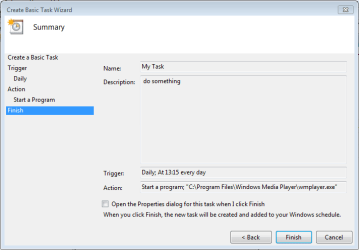
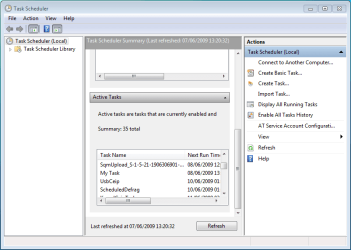
9. Your new task has been created and will run at the user specified time. Click 'Refresh' and scroll the list to see your new task (in this case 'My Task'.
Note
You can create a new task with the 'Create Task' option in the right hand pane, this will just open the 'Create New Task' windows without the Wizard
10. If you Created a Task to Wake Up the Computer and Run
A) You would need to change how long Windows 7 will wait to go back to sleep mode automatically after waking up unattended (no activity made by the actual user) and idle. The default time is only 120 seconds (2 minutes), so you would need to set this for how long it may take for the program or task to run instead. The tutorial below can help show you how to. It will be the same in Windows 7. For how, see:
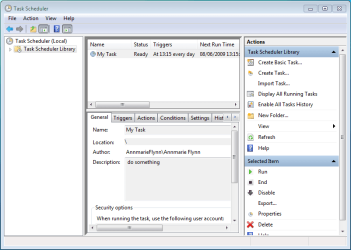
1. You can change you task settings at any time, just double-click the new task.
OR
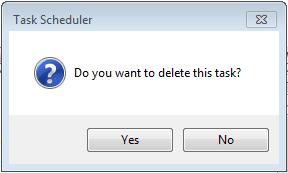
2. If you wish to delete the task you can just click the 'Delete' button in the right hand pane. You will get the confimation dialog upon clicking 'delete'
To me two of the most useful features of Vista or higher Task Scheduler are:
1- Allow you to run tasks with administrative rights at startup. This is great for apps that require admin rights and would previously run at startup via registry or start menu.
2- Triggers. You can trigger tasks (i.e. emails) based on event log errors or other events.
Some programs might need 'Run as Administrator' privileges.
In the task properties, General tab, near the bottom check the 'Run with highest privileges' box.
I followed this step by step, but Task Manager refuses to start the program.
Just to make sure, I followed each step for Paint.net, set a time, but no program. As I use a User account, I had to give admin privileges to open Task Manager, and I went to settings and selected to start whether admin was logged in or not and with highest privileges. This is the error log:
I would like to know how to access the event low battery. I am planning to initiate a program when the trigger = low battery takes place. I have searched high and low about this and just get dead-ends.
Thanks for any response.
The easiest way to get battery notifications is via the RegisterPowerSettingNotification API
System Manufacturer/Model Number Toshiba Satellite A215-S4757 OS Windows 7 Home Premium x86 Motherboard AMD Turion™ 64 X2 Dual-Core Mobile Technology TL56 1.8 GHz Memory 4096MB (2 x 2048) DDR2 667mhz Corsair Graphics Card ATI Radeon® X1200 128MB-319MB dynamically allocated shared g Sound Card Realtek Monitor(s) Displays 15.4” diagonal widescreen TruBrite®TFT LCD display at 1280x8 Screen Resolution 1280x800
Mouse Logitech G7 Case Targus Hard Drives Internal HD: 250GB (4200RPM); Serial ATA HDD
External HD: Western Digital 320GB My Passport Elite WDMLZ3200TN USB 2.0 Portable Hard Drive (Bronze) Internet Speed 6meg
Okay, so I have never been able browse for programs (Ex. Want to open a pdf file, need to browse for program, want to open adobe reader) What is the proper way to search for a program? Do I go into Program Files or some other path? For this particular issue, I what task scheduler to run a defrag at 3am (I put my computer to sleep so I want it to wake up and then run the defrag that is built into Windows 7). How do I browse for Disk Defrag (the path to get there in browse)?
System Manufacturer/Model Number Toshiba Satellite A215-S4757 OS Windows 7 Home Premium x86 Motherboard AMD Turion™ 64 X2 Dual-Core Mobile Technology TL56 1.8 GHz Memory 4096MB (2 x 2048) DDR2 667mhz Corsair Graphics Card ATI Radeon® X1200 128MB-319MB dynamically allocated shared g Sound Card Realtek Monitor(s) Displays 15.4” diagonal widescreen TruBrite®TFT LCD display at 1280x8 Screen Resolution 1280x800
Mouse Logitech G7 Case Targus Hard Drives Internal HD: 250GB (4200RPM); Serial ATA HDD
External HD: Western Digital 320GB My Passport Elite WDMLZ3200TN USB 2.0 Portable Hard Drive (Bronze) Internet Speed 6meg
System Manufacturer/Model Number Toshiba Satellite A215-S4757 OS Windows 7 Home Premium x86 Motherboard AMD Turion™ 64 X2 Dual-Core Mobile Technology TL56 1.8 GHz Memory 4096MB (2 x 2048) DDR2 667mhz Corsair Graphics Card ATI Radeon® X1200 128MB-319MB dynamically allocated shared g Sound Card Realtek Monitor(s) Displays 15.4” diagonal widescreen TruBrite®TFT LCD display at 1280x8 Screen Resolution 1280x800
Mouse Logitech G7 Case Targus Hard Drives Internal HD: 250GB (4200RPM); Serial ATA HDD
External HD: Western Digital 320GB My Passport Elite WDMLZ3200TN USB 2.0 Portable Hard Drive (Bronze) Internet Speed 6meg