
How to Use Resource Monitor to View Handles and Modules in Windows 7 and Windows 8
Information
This tutorial will show you how to use Resource Monitor to see which handles and modules are in use by a selected process that is running in Windows 7 and Windows 8.
Note
Handles are pointers that refer to system elements including (but not limited to) files, registry keys, events, or directories.
Modules are helper files or programs including (but not limited to) dynamic-link library (DLL) files.
Modules are helper files or programs including (but not limited to) dynamic-link library (DLL) files.
Here's How:
1. Open Resource Monitor.
2. Click/tap on the CPU tab. (See screenshot below)
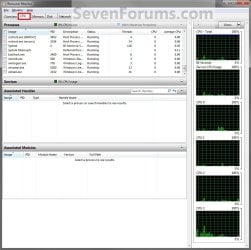
3. Under the Processes bar under the Images column, check the box next to the process or processes that you want to see all of the associated handles and modules for. For example, the wlmail.exe process for Windows Live Mail. (See screenshot below)
NOTE: Selected processes are moved to the top of the Images column. To clear all listed processes check boxes, uncheck the Images box. To select all processes, check the Images box.
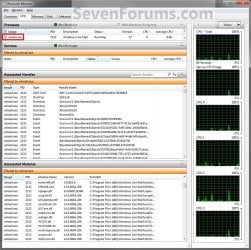
4. Click/tap on the drop down arrow to expand the Associated Handles and Associated Modules table sections to review the results of the selected processes. (See screenshot above)
5. To Search for Specific Handles
NOTE: This will allow you to search for specific handles in the Associated Handles table to refine the results from step 4.
A) In the title bar of the Associated Handles table, click/tap on the Search Handles box. (See screenshot below step 3)
B) Type the name of the handle you want to search for, and click/tap on the search icon (small magnifying glass). (See screenshot below)
NOTE: The search string is not case-sensitive, and wildcards are not supported. You can type all or part of a string to search handles. For example, searching for c:\program files will return all handles with c:\program files as part of the handle name for the selected processes.

C) Check or uncheck more processes (step 3) to also filter them with this same handle search.
Tip
Click on the swirled arrows icon to refresh the search. Click/tap on the X to go back to seeing all of the associated handles and modules for the selected processes.
That's it,
Shawn
Last edited:

