
How to Use Resource Monitor to Troubleshoot Unresponsive Applications in Windows 7 and Windows 8
Information
This will show you how to anaylze a process Wait Chain with Resource Monitor to troubleshoot applications that are not responding, waiting for other processes to finish, or waiting for system resources to become available before they can continue in Windows 7 and Windows 8.
Note
A process that is not responding will appear as a red entry in the CPU table of the Overview tab, and in the Processes table of the CPU tab in Resource Monitor.
Warning
You should use Resource Monitor to end a process only if you are unable to close the program by normal means. If an open program is associated with the process, it will close immediately and you will lose any unsaved data. Ending a system process might result in system instability and data loss. If system instability occurs, then you can restart the computer to reload the default processes.
Here's How:
1. Open Resource Monitor.
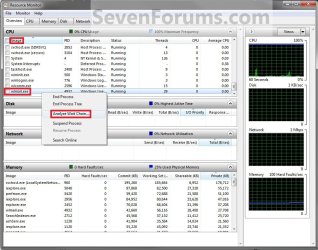
2. In the CPU table of the Overview tab, or in the Processes table of any other tab, right click on the executable (.exe) name of the process you want to analyze under the Image column, and then click/tap on Analyze Wait Chain. (See screenshot below)
3. If the Process is Running Normally
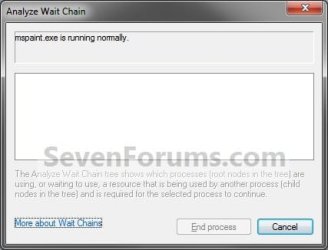
A) If the selected process is running normally and is not waiting for any other processes, no wait chain information will be displayed. (See screenshot below)
B) No action is required for this selected process by you.
C) Go to step 5.
4. If the Process is Waiting
A) If the selected process is waiting for another process, a tree organized by dependency on other processes will be displayed. (See screenshot below)
NOTE: Many system processes depend on other processes and services for normal operation. Resource Monitor will display wait chain information for any process. If a process entry in the table is not red, if the process status is Running, and if the program is operating normally, then no action should be required by you.

B) If a wait chain tree is displayed, then you can end one or more of the processes in the tree by selecting the check boxes next to the process names and click on End Process. (See screenshot below)
WARNING: See the red warning box at the top of the tutorial first.
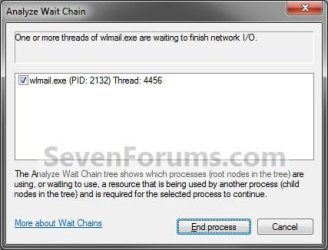
C) Click/tap on End Process. (See screenshot below)
WARNING: See the red warning box at the top of the tutorial first.

5. When done, close Resource Monitor.
That's it,
Shawn
Related Tutorials
- How to Open Resource Monitor in Windows 7 and Windows 8
- How to Use Resource Monitor to View Handles and Modules in Windows 7 and Windows 8
- How to See Services Running Under svchost.exe Process in Windows 7
- How to See Windows 7 Reliability and Problem History with Reliability Monitor
- How to Troubleshoot a Problem by Performing a Clean Startup in Windows 7 or Vista
Last edited:

