
Internet Explorer InPrivate Browsing Shortcut

How to Create an Internet Explorer "InPrivate Browsing" Shortcut


   Information
InPrivate Browsing enables you to surf the web without leaving a trail in Internet Explorer. This includes cookies, temporary Internet files, history, and other data. Toolbars and extensions are disabled by default. This helps prevent anyone else who might be using your computer from seeing where you visited and what you looked at on the web.

This tutorial will help show you how create a shortcut to open a Internet Explorer InPrivate Browsing window in Windows 7.
   Note
For more information about InPrivate Browsing, see the information in this tutorial.

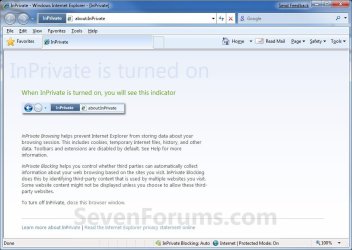
EXAMPLE: Internet Explorer InPrivate Browsing Window
NOTE: This is the default window you will see when you open a InPrivate Browsing window. Notice how you will have a InPrivate indicator to the left of the address bar to let you know that you have InPrivate Browsing turned on.
InPrivate.jpg


OPTION ONE

To Download the "InPrivate Browsing" Shortcut


NOTE: For how to tell if Windows is a 32-bit or 64-bit System Type.
1. For a 32-bit Windows
A) Click on the Download button below to download the file below.
32-bit_W7_32-bit_IE_(InPrivate Browsing).zip

Download


B) Go to step 4.
2. For a 64-bit Windows
A) To use the 32-bit Internet Explorer, click on the Download button below to download the file below.
64-bit_W7_32-bit_IE_(InPrivate Browsing).zip

Download


B) To use the 64-bit Internet Explorer, click on the Download button below to download the file below.
64-bit_W7_64bit_IE_(InPrivate Browsing).zip

Download


4. Click on Save and save the .zip file to the Desktop.

5. Right click on the downloaded .zip file and click on Open.

6. If prompted, click on Allow in the UAC prompt.

7. Select and extract (drag and drop) the IE (InPrivate Browsing) shortcut to the desktop.

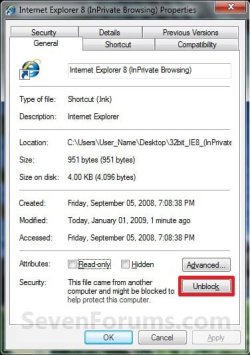
8. Right click on the extracted IE (InPrivate Browsing) shortcut and click on Properties, General tab, and the Unblock button. (See screenshot below)
NOTE: If the Unblock button is not there, then the shortcut is already unblocked. Continue on to step 8.
Unblock.jpg
9. You can now Pin to Taskbar or Pin to Start Menu this shortcut, assign a keyboard shortcut to it, or move it where you like for easy use.


10. You can now delete the downloaded .zip file (on desktop) if you would like to.


OPTION TWO

To Manually Create the "InPrivate Browsing" Shortcut


NOTE: For how to tell if Windows is a 32-bit or 64-bit System Type.
1. Right click on a empty space on your desktop, and click on New and Shortcut.

2. For a 32-bit Windows
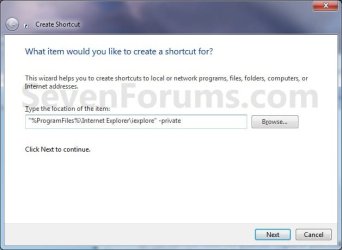
A) Type this for the location: (See screenshot below step 4)

"%ProgramFiles%\Internet Explorer\iexplore.exe" -private

   Tip
To have a Inprivate shortcut that opens directly to a specific website, you can add the website's address after -private. For example, to have it open to Seven Forums, I would use this location:

Code:
"%ProgramFiles%\Internet Explorer\iexplore.exe" -private [URL]http://www.sevenforums.com/[/URL]
B) Go to step 4.
3. For a 64-bit Windows
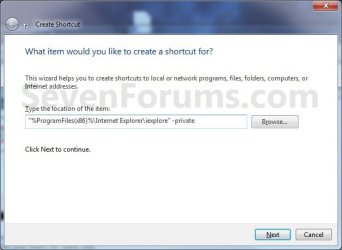
A) To use the 32-bit Internet Explorer, type this for the location: (See screenshot below step 4)

"%ProgramFiles(x86)%\Internet Explorer\iexplore.exe" -private

   Tip
To have a Inprivate shortcut that opens directly to a specific website, you can add the website's address after -private. For example, to have it open to Seven Forums, I would use this location:

Code:
"%ProgramFiles(x86)%\Internet Explorer\iexplore.exe" -private [URL]http://www.sevenforums.com/[/URL]

B) To use the 64-bit Internet Explorer, type this for the location: (See screenshot below step 4)

"%ProgramFiles%\Internet Explorer\iexplore.exe" -private

   Tip
To have a Inprivate shortcut that opens directly to a specific website, you can add the website's address after -private. For example, to have it open to Seven Forums, I would use this location:

Code:
"%ProgramFiles%\Internet Explorer\iexplore.exe" -private [URL]http://www.sevenforums.com/[/URL]
4. Click on the Next button. (See screenshots below)
Location.jpg

Location2.jpg
5. Type Internet Explorer (InPrivate Browsing) for the name, and click on the Finish button. (See screenshot below)
NOTE: You can type any name you would like for the shortcut though.
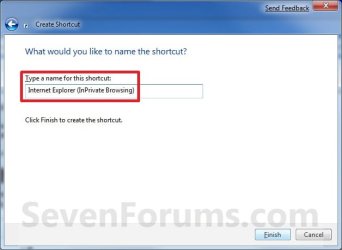
Name.jpg
6. You can now Pin to Taskbar or Pin to Start Menu this shortcut, assign a keyboard shortcut to it, or move it where you like for easy use.
That's it,
Shawn


Attachments

Last edited:
Corrections for shortcut creation

The above post only points the user to the InPrivateabout screen without actually enabling InPrivate browsing.

The correct way to creat teh shortcut would be to use the following shortcut

"%ProgramFiles%\Internet Explorer\iexplore" -private

Simon
 

My Computer

OS
VISTA
Thank you Simon. The tutorial has been updated. I have also added the option of using the 32-bit or 64-bit IE8 shortcut in a 64-bit Windows 7.

Shawn
 

My Computer

Computer type
PC/Desktop
Computer Manufacturer/Model Number
Self built custom
OS
64-bit Windows 11 Pro for Workstations
CPU
Intel i7-8700K OC'd to 5 GHz
Motherboard
ASUS ROG Maximus XI Formula Z390
Memory
64 GB (4x16GB) G.SKILL TridentZ RGB DDR4 3600 MHz
Graphics Card(s)
ASUS ROG-STRIX-GTX1080TI-O11G-GAMING
Sound Card
Integrated
Monitor(s) Displays
2 x Samsung Odyssey G7 27"
Screen Resolution
2560x1440
Hard Drives
1TB Samsung 990 PRO M.2,
4TB Samsung 990 PRO PRO M.2,
TerraMaster F8 SSD Plus NAS
PSU
Seasonic Prime Titanium 850W
Case
Thermaltake Core P3
Cooling
Corsair Hydro H115i
Keyboard
Logitech wireless K800
Mouse
Logitech MX Master 4
Internet Speed
2 Gb/s Download and 100 Mb/s Upload
Antivirus
Malwarebyte Anti-Malware Premium
Browser
Google Chrome
Other Info
Logitech Z625 speaker system,
Logitech BRIO 4K Pro webcam,
HP Color LaserJet Pro MFP M477fdn,
APC SMART-UPS RT 1000 XL - SURT1000XLI,
Galaxy S23 Plus phone
InPrivate Browsing

Hey Gary

When InPrivate browsing is working correctly you will see (InPrivate) after Windows Internet Explorer at the top of IE. You will also see a logo to the left of the address that says InPrivate similar to the attached image.

Simon
 

Attachments

  • inprivate.png
    inprivate.png
    39.1 KB · Views: 31,416

My Computer

OS
VISTA
Yea, I just caught that. Thanks. Deleted my post.

Gary
 

My Computer

Computer Manufacturer/Model Number
Dell XPS420
OS
Vista Ult 64 bit Seven Ult RTM x64
CPU
Intel Core2 Quad Q6600 2.40 gigahertz
Memory
Crucial Ballistix 4x2GB PC2 6400
Graphics Card(s)
NVIDIA GeForce 8600 GTS 256 MB
Sound Card
Creative SB X-Fi audio
Monitor(s) Displays
HP w2207 + HPvs15
Screen Resolution
1680x1050 + 1024x768
Hard Drives
2-WD5000AAKS-500 GB
WD5000AAV-500 GB external
Keyboard
Microsoft Comfort Curve
Mouse
MX Revolution
Other Info
Wacom Intuos 2 Graphics Tablet
Experience Index=5.5
InPrivate Browsing

Another trick for creating the shortcut.

If you get fed up with having the about:InPrivate screen popup every time you open an inprivate session, you can modify your shortcut to fix that also.

"%ProgramFiles(x86)%\Internet Explorer\iexplore.exe" -private www.google.com

In case it isn't clear, tack the address of your preferred home page after the -private tag and that will open automatically.

Simon
 

My Computer

OS
VISTA
Thanks....but i cannot pin this to taskbar .I created shortcut on desktop as above tutorial and tried to Pin it to taskbar but when i do this always default browser pinned not Inprivate shorcut(Newone)
any help ??
 

My Computer

OS
Windows 7
Pin to task bar help.

Not sure what you are seeing here.

On my current build (7137 x86) I have no issue with this.

I can either drag and drop or right click and choose pin to taskbar and the icon attaches to the taskbar.

Also, if you already have the default IE icon on the taskbar, you should be able to right click and choose Task - Start InPrivate Browsing

Sorry I can't be more help here.
 

My Computer

OS
VISTA
Not sure what you are seeing here.

On my current build (7137 x86) I have no issue with this.

I can either drag and drop or right click and choose pin to taskbar and the icon attaches to the taskbar.

Also, if you already have the default IE icon on the taskbar, you should be able to right click and choose Task - Start InPrivate Browsing

Sorry I can't be more help here.

I dont understand what you mean by "Not sure what you are seeing here"
I know this is very plain and easy english.....but which way you mean thats the question....

Okey problem solved ....Thanks anyway.........
 

My Computer

OS
Windows 7
Hello BMB,

I'm happy to hear that you got it sorted. :)
 

My Computer

Computer type
PC/Desktop
Computer Manufacturer/Model Number
Self built custom
OS
64-bit Windows 11 Pro for Workstations
CPU
Intel i7-8700K OC'd to 5 GHz
Motherboard
ASUS ROG Maximus XI Formula Z390
Memory
64 GB (4x16GB) G.SKILL TridentZ RGB DDR4 3600 MHz
Graphics Card(s)
ASUS ROG-STRIX-GTX1080TI-O11G-GAMING
Sound Card
Integrated
Monitor(s) Displays
2 x Samsung Odyssey G7 27"
Screen Resolution
2560x1440
Hard Drives
1TB Samsung 990 PRO M.2,
4TB Samsung 990 PRO PRO M.2,
TerraMaster F8 SSD Plus NAS
PSU
Seasonic Prime Titanium 850W
Case
Thermaltake Core P3
Cooling
Corsair Hydro H115i
Keyboard
Logitech wireless K800
Mouse
Logitech MX Master 4
Internet Speed
2 Gb/s Download and 100 Mb/s Upload
Antivirus
Malwarebyte Anti-Malware Premium
Browser
Google Chrome
Other Info
Logitech Z625 speaker system,
Logitech BRIO 4K Pro webcam,
HP Color LaserJet Pro MFP M477fdn,
APC SMART-UPS RT 1000 XL - SURT1000XLI,
Galaxy S23 Plus phone

My Computer

Computer Manufacturer/Model Number
POS
OS
OS3.5
CPU
celery
Motherboard
Good Question ...Unknown
Memory
memory never forgets
Graphics Card(s)
OB
Sound Card
OB
Monitor(s) Displays
HUGE
Screen Resolution
168000000x105000000
Hard Drives
full
PSU
OEM 65watt
Case
N/A
Cooling
OB
Keyboard
OB
Mouse
mouse
Internet Speed
1 Trillion MBps
Other Info
Still An Awesome Forum!

My Computer

Computer type
PC/Desktop
Computer Manufacturer/Model Number
Home Built Desktop By DataTech
OS
Windows 7 Ultimate X64 SP1
CPU
Intel i5-2550K, Differing ~4.4-4.8GHz No built in GPU
Motherboard
ASUS P8Z68-V PRO/GEN3
Memory
16GB G.Skill Sniper 1866MHz @ 2133MHz 2x8GB
Graphics Card(s)
ASUS GTX650TIB-DC2OC-2GD5, (650TI Boost)
Sound Card
Onboard Realtek 5-1
Monitor(s) Displays
Samsung P2570HD
Screen Resolution
1920x1080
Hard Drives
Samsung 840 Pro 256GB SSD for OS, 500GB Seagate Constellation (Enterprise drive) for Data
PSU
Corsair HX650W
Case
Inwin Dragon Rider
Cooling
Hyper 212 EVO w/two Noctua fans, push-pull, @1300 RPM
Keyboard
E-Z Eyes, bright yellow keys with large characters
Mouse
steelseries SENSEI Laser Pro Gaming
Internet Speed
48-51Mbs Mbs down, 11 Mbs up Xfinity Cable
Antivirus
Norton Internet Security 2013
Browser
IE 10, Opera, Pale Moon if needed
Other Info
4 case fans, LG BluRay-RE, ASUS DVD-RW, Mr. Fusion power supply, 1.21 gigawatts.
Hello Gary,

If you just wanted to create a shortcut to open 64-bit IE8, then you could use the path below to create it with.
%ProgramFiles%\Internet Explorer\iexplore.exe
If you meant a internet website shortcut that would open in 64-bit IE8, then step 4B in OPTION THREE of the tutorial below can help show you more on how.
http://www.sevenforums.com/tutorials/60274-internet-website-shortcut-create.html

Hope this helps. :)
 

My Computer

Computer type
PC/Desktop
Computer Manufacturer/Model Number
Self built custom
OS
64-bit Windows 11 Pro for Workstations
CPU
Intel i7-8700K OC'd to 5 GHz
Motherboard
ASUS ROG Maximus XI Formula Z390
Memory
64 GB (4x16GB) G.SKILL TridentZ RGB DDR4 3600 MHz
Graphics Card(s)
ASUS ROG-STRIX-GTX1080TI-O11G-GAMING
Sound Card
Integrated
Monitor(s) Displays
2 x Samsung Odyssey G7 27"
Screen Resolution
2560x1440
Hard Drives
1TB Samsung 990 PRO M.2,
4TB Samsung 990 PRO PRO M.2,
TerraMaster F8 SSD Plus NAS
PSU
Seasonic Prime Titanium 850W
Case
Thermaltake Core P3
Cooling
Corsair Hydro H115i
Keyboard
Logitech wireless K800
Mouse
Logitech MX Master 4
Internet Speed
2 Gb/s Download and 100 Mb/s Upload
Antivirus
Malwarebyte Anti-Malware Premium
Browser
Google Chrome
Other Info
Logitech Z625 speaker system,
Logitech BRIO 4K Pro webcam,
HP Color LaserJet Pro MFP M477fdn,
APC SMART-UPS RT 1000 XL - SURT1000XLI,
Galaxy S23 Plus phone
You're welcome Dbanimate, and welcome to Seven Forums. :)
 

My Computer

Computer type
PC/Desktop
Computer Manufacturer/Model Number
Self built custom
OS
64-bit Windows 11 Pro for Workstations
CPU
Intel i7-8700K OC'd to 5 GHz
Motherboard
ASUS ROG Maximus XI Formula Z390
Memory
64 GB (4x16GB) G.SKILL TridentZ RGB DDR4 3600 MHz
Graphics Card(s)
ASUS ROG-STRIX-GTX1080TI-O11G-GAMING
Sound Card
Integrated
Monitor(s) Displays
2 x Samsung Odyssey G7 27"
Screen Resolution
2560x1440
Hard Drives
1TB Samsung 990 PRO M.2,
4TB Samsung 990 PRO PRO M.2,
TerraMaster F8 SSD Plus NAS
PSU
Seasonic Prime Titanium 850W
Case
Thermaltake Core P3
Cooling
Corsair Hydro H115i
Keyboard
Logitech wireless K800
Mouse
Logitech MX Master 4
Internet Speed
2 Gb/s Download and 100 Mb/s Upload
Antivirus
Malwarebyte Anti-Malware Premium
Browser
Google Chrome
Other Info
Logitech Z625 speaker system,
Logitech BRIO 4K Pro webcam,
HP Color LaserJet Pro MFP M477fdn,
APC SMART-UPS RT 1000 XL - SURT1000XLI,
Galaxy S23 Plus phone
Back
Top