
How to Do an Upgrade Install from XP to Windows 7
As you have certainly heard, Windows XP cannot be directly in-place upgraded to Windows 7. However, it is completely possible, legal and valid using Windows Vista as "springboard" to Seven.
Warning
Even though I belong to that amazingly small minority speaking for in-place upgrade, I seriously do not recommend you to do this without a strong motivation and need. For the first, it takes time; I've done this now almost 20 times and the shortest project took a bit over 5 hours. Secondly, when in-place upgrading not only to one operating system but also to one after that, so much can go wrong. Not necessarily, but the possibility exists.
Don't misunderstand me. A well planned and done in-place upgrade on a well maintained system is not a bad alternative, and I for instance have never met any problems. The key is to do exactly as things should be done, without shortcuts. Prepare by backing up, read this short memo before starting: A simple guide to a successful in-place upgrade
OK, that was the required warning part. When to do this then? You might for instance have an extensive amount of software installed, half of them missing original install media. You might have very complicated settings for a specific application, or maybe you don't have enough external backup capacity to transfer all your music and videos.
That said, it's time to begin. What you need is the Windows 7 install media, and a copy of Vista (DVD or ISO) that you can borrow for a couple of hours. You can use any valid Vista install media, you do not need the product key. Key is not needed because you are only going to have Vista on your computer for a couple of hours; as an owner of a legal and valid XP, you are entitled to upgrade to Windows 7.
The table below shows possible scenarios. Notice please: This method is not possible if you have a 64-bit XP Professional or XP Media Center 2002 Edition. Because of this limitation, this method can only be used when upgrading to a 32-bit Windows 7.

How to read the table? Let's start with the in-place upgrade principle #1: "No downgrading when upgrading". It simply means that the new OS has to be the same edition or better than the old one. Vista Home Premium can be in-place upgraded to Seven Home Premium or Ultimate but not to Seven Home Basic. One curiosity of Windows upgrade paths is that to in-place upgrade to Seven Professional is only possible from Vista Business, so if your goal is to get Seven Professional, you need to start with upgrading your XP with Vista Business.
The table shows which XP editions can be in-place upgraded to which Vista and further to Seven editions. Two examples:
- You have XP Home Edition. You can use first any other version of Vista but Starter, to be then upgraded to to the same or better version of Seven
- You have XP Tablet Edition. You can use Vista Business to then upgrade to Seven Professional or Ultimate, or you can use Vista Ultimate to then upgrade to Seven Ultimate
STEP 1: Upgrade XP to Vista
This is where we start. An XP Professional Service Pack 3. About 40 odd applications, some 10+ old games, nothing special. Joined my home network, four user accounts:


Start installing Vista:
- Uninstall, or at least turn off, any antivirus, malware and Firewall applications
- Run Vista Setup from XP's desktop. Select Install Now:
.

. - To speed things up as much as possible, select Do not get the latest updates for installation. (You might also want to check I want to make Windows installation better.):
.

. - You don't have to enter the product key. Unselect Automatically activate Windows when I'm online:
.

. - If you chose not to enter product key, confirm it here by clicking No:
.

. - If you chose not to enter product key, you have to choose the right Vista version here:
.

. - Accept the license terms:
.

. - Select Upgrade installation:
.

. - At this point you get warning if setup finds errors or incompatible hardware. Our goal is Seven and Seven is known to be really good to find correct drivers, so I decided to continue even though setup warned me that the NIC driver might not work:
.

. - Setup starts. Depending on your system, this can take anything from half an hour to several hours. My average is very close to an hour:
.

. - Finally, after a few reboots, Vista starts for the first time. Because our Vista visit is going to be very short, you can tell your computer to Ask me later:
.

. - Confirm the time zone:
.

. - Say "You are welcome!" and click Start:
.

. - Surprise surprise! Vista has even found the four old XP user accounts, with the correct avatars:
.

. - Once again Ask me later, I will install the network driver manually, having downloaded it already earlier to an external drive:
.

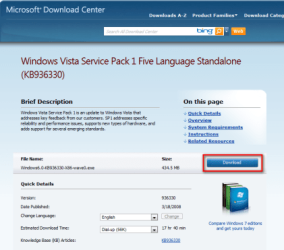
. - To upgrade install Seven on top of Vista, we need Service Pack 1. If Vista found the correct NIC drivers, or if you installed them manually as I did, you can now download the needed Vista Service Pack 1 from Microsoft. You can also use another rig to download it. The address is: http://www.microsoft.com/downloads/en/details.aspx?familyid=b0c7136d-5ebb-413b-89c9-cb3d06d12674&displaylang=en
- Click Download button:
.
. - No need to save, click Run:
.

. - You have to click Run again:
.

. - User Account Control (UAC) is one of the new things you have to get used to. Give Vista a permission to install service pack by clicking Continue:
.

. - Three next steps are self explaining:
.

.

.

. - Good time to go to your local pub now, this takes an hour, give or take ten minutes:
.

. - Vista reboots several times and you are getting used to see this:
.

. - Finally:
.

.
Reboot your computer, insert Seven DVD and continue as told in this tutorial:
Upgrade Install with Windows 7
After doing as told in that excellent tutorial by Brink, you have finally upgraded your XP to Seven. This test PC of mine had everything working from the first moment, I only had to find and install the sound card drivers. It's a very nice feeling to see this after over five hours project:

Clicking my avatar to log in first time:

Looks good. All desktop icons from XP still there, although reorganized:

Network found straight away, I just had to change global sharing prefences for other rigs to see this:

All programs, even the old games, installed on XP still working:

One of the most used arguments against in-place upgrade is how "bloated" it makes your computer, keeping old no longer needed files and trash. Here's to those spreading this untrue rumor, compare this to your Windows folder:

And this after XP Pro was upgraded to Vista Ultimate, which in turn was upgraded to Seven Ultimate. Honestly, geeks, how bloated is that?
Everything is possible!
Kari
Last edited:


