Windows 7 Installation - Transfer to a New Computer

How to Transfer your Complete Windows 7 Installation to New Computer

To start, a warning from Microsoft:

   Note
Important

You must use the Sysprep /generalize command to generalize a complete Windows installation before you can use the installation for deployment to a new computer, whether you use imaging, hard disk duplication, or another method. Moving or copying a Windows image to a different computer without running the Sysprep /generalize command is not supported.

This tutorial will show you how to do the transfer.

   Information
Windows 7 System Preparation Tool is a powerful, native Windows tool. When for instance used in so called Audit Mode, it let's you to freely configure Windows 7 to be then deployed to other computers as hardware independent image.

In this tutorial we use System Preparation Tool (sysprep) to prepare your Windows 7 installation to be moved to a new computer, keeping all your installed applications, program settings and user profiles. You can use this method for instance when you have bought a new PC and want to transfer your existing setup completely, without need to reinstall everything, or when you want to make major hardware changes like change the motherboard or GPU, which would usually cause Windows to stop booting normally.

   Warning
Using this method causes Windows 7 to lose all activation information, and it needs to be reactivated afterwards. If your Windows 7 is an OEM version, you might not be able to reactivate it, at least not without phone activation option.

I do not recommend to use this method on RAID systems. All experiments on RAID I know have failed.

With the speed of today's hardware evolution, most of us geeks are upgrading the hardware more often than operating system. Upgrading hardware can be painfully slow process if we need to reinstall the operating system and all our installed applications, plus transfer program settings and user profiles.

Using sysprep makes this easy. Changing the motherboard, or for instance an old ATI GPU to a new nVidia GPU quite often causes Windows 7 not to be able to boot anymore. This fact is usually accepted by the user, who then reinstalls the OS and all applications and transfers user profiles from a backup location.

Same thing when buying a new computer with completely different hardware setup compared to the old one, or trying to restore a system image to different hardware setup. Normally this would include a complete reinstallation of Windows 7 and all applications.

Why not use sysprep to avoid reinstalling? Here are the different scenarios where you can use it.


   Warning

An upgraded Windows cannot be sysprepped. As this method is based in sysprepping, this tutorial is valid only for Windows setups which have not been upgraded.

This means that if you have for instance in-place upgraded Vista to Seven, or using Anytime Upgrade upgraded for instance a Home Premium to Ultimate, you cannot sysprep and this tutorial cannot be used in your case.

Notice that a repair install is also an upgrade install, so if you have ever done a repair install (= in-place upgrade to same edition), you cannot sysprep.


PLEASE DO NOT FORGET TO CREATE A SYSTEM IMAGE BEFORE PROCEEDING!​


As you can read on this thread, on rare occasions this method does not work. If this happens, you can always restore your system using your backup image.

Backup Complete Computer - Create an Image Backup
System Image Recovery

IE10 Users: Please read this article first: Sysprep Fatal Error With IE 10 (FIX) | System Administration


METHOD ONE

Changing hardware components but keeping old hard disk(s)


Use this method if you:
- Change other hardware components but keep your old HD containing Windows 7
- Move the HD containing Windows 7 to another computer
  1. Before installing new hardware, boot Windows 7 normally
  2. Disconnect all external hardware except mouse, keyboard and main display. If your system folders are located only on C: drive, disconnect all other hard disks except that containing the C:. In case of relocated system folders, for instance the profile folder Users located in another drive and other system folders on C:, first move the relocated system folders back to C: then disconnect all other drives. Reboot after this
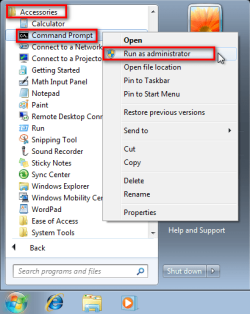
  3. Run Command Prompt as administrator
    .
    Audit_1.png
    .
  4. Type to Command Prompt: %windir%\System32\Sysprep\Sysprep.exe, and hit Enter
    .

    sysprep_start.png
    .
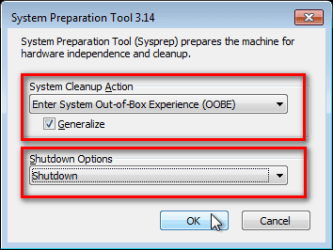
  5. In sysprep dialog that opens, choose System Cleanup Action as Enter System Out-of-Box-Experience (OOBE), select Generalize, select Shutdown Options Shutdown. Click OK
    .
    Sysprep_Run_and_generalize.png
    .
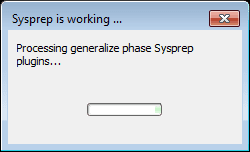
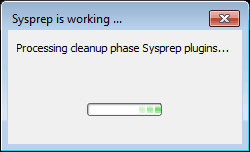
  6. Sysprep generalizes now your Windows 7 setup and shuts down your computer. Do not run any other programs during this phase!
    .
    Sysprep_Run_and_generalize_2.png
    .
    Sysprep_Run_and_generalize_3.png
    .
  7. Switch the main power of your PC off and install the new hardware OR dismount the hard disk(s) and mount it (them) to a new computer
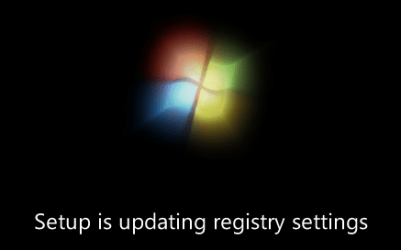
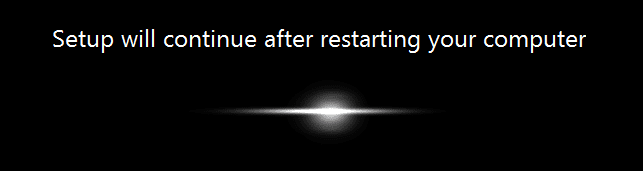
  8. Boot the PC from sysprep generalized hard disk. You will notice Windows booting as if it was the first boot after installation, installing default drivers and updating registry. One or two reboots are needed, depending on your system specifications
    .

    Sysprep_Reinstalling_devices.png
    .
    Sysprep_Registry_settings.png
    .
    Sysprep_Reboot_needed.png
    .
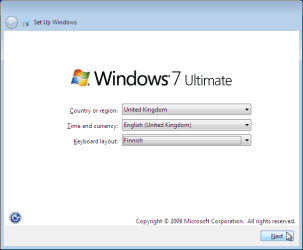
  9. When Windows finally boots up, you will need to enter all information as if this really was a new, fresh installation
    .
    Sysprep_First_boot_2.png
    .
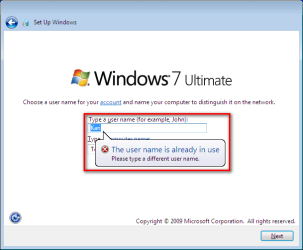
  10. Because your old user profiles already exist, Windows does not accept your normal username, but instead you have to create a new temporary user. I use username Test for this purpose
    .
    Sysprep_First_boot_3.png
    .
  11. When login screen appears, choose your old user account to login
    .

    Sysprep_First_boot_5.png
    .
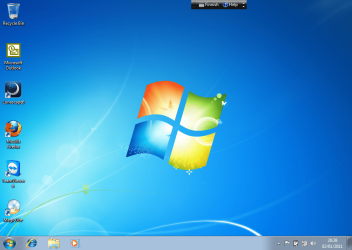
  12. Windows boots now to default OOBE first boot desktop, with default 800*600 resolution and default theme. All your installed applications are there, as well as your old user profiles and folders. Windows has installed the default drivers for your setup, you can update them if needed
    .
    Sysprep_First_boot_6.png
    .
  13. Go to Control Panel > User Accounts and delete the temporary user account (in this case Test) that you just created


METHOD TWO

Change the hard disk(s) or move Windows 7 setup to a new computer using third party imaging software

Use this method if you:
- Replace the HD containing Windows 7 on your old computer
- Move Windows 7 to a new HD on another computer
  1. Follow steps 1 through 5 above (method 1)
  2. Boot PC with an imaging CD/DVD (Paragon, Macrium etc.). See Macrium Reflect Free:at our sister site TenForums.com: Backup and Restore with Macrium Reflect Windows 10 Backup Restore Tutorials . Also see this post for a practical tip to create a Macrium system image.
  3. Create an image of your system
  4. Turn PC off, change the hard disk(s) and reboot with imaging application, restoring the image OR boot the new computer with imaging software and restore the image
  5. Continue from step 7 above (method 1)

This procedure is failsafe, and works every time. There is nothing to worry, but of course it is recommended to make a backup before trying this. I have even used this method when some serious driver issues caused the PC to constantly crash (BSOD), to reset all drivers to Windows defaults and then reinstalling them one by one to find the culprit.

   Note
What does Sysprep generalizing do to my Windows 7 setup?
  • All system specific information is removed or uninstalled
  • Security ID (SID) of your hardware setup is reseted
  • All system restore points are deleted
  • All event logs are deleted
  • All personalization is removed (taskbar, toolbars, folder options, start orb etc.)
  • Built-in administrator account is disabled (if it was enabled) and needs to be re-enabled after the transfer if needed

What happens when booting first time after sysprep generalizing?
  • First boot configuration is run
  • New SID is created
  • Re-arm counter is reseted if not already re-armed three times
  • Windows 7 is booted using first boot default drivers and settings


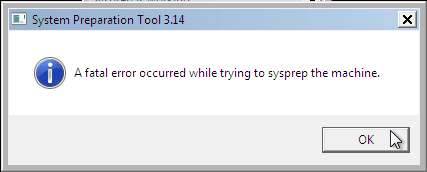
I have tested all above mentioned methods with all versions of Windows 7, from Starter to Enterprise. It works every time, with one exception: for reasons unknown to me, sysprep seems sometimes dislike Windows Media Player networking service, which is by default started every time Windows 7 starts. In about every third time I've done this, I've got an error message when trying to generalize:
Sysprep_Fatal_Error.png

However, this is not a big problem. You just need to stop the WMP networking service, and run sysprep with generalize option again. You can stop the service in question by typing net stop WMPNetworkSvc to command prompt, and hitting Enter:

Sysprep_Stop_WMP_service.png

If you have any questions, do not hesitate to ask.

Happy computing!

Kari

EDIT: A Useful tip from xxxwea, as later confirmed by Victor:
Kari, just a suggestion.

You might note in the tutorial that if on first booting Windows can't finish configuring, a reboot into safe mode, then a normal reboot will allow it to finish successfully.

This has happened to me both times I used a sysprepped system drive in a new computer. I found the answer to this problem buried deep in this thread the first time I ran into it, and the same thing happened yesterday on a different computer.

It's a seemingly very silly solution, but it works. I do believe many people have abandoned their sysprep work when they encounter the problem.

I think the solution deserves more visibility.
 
Last edited:
"All unique system information" can mean a lot. For me, it could mean like everything that I want to keep, and the reason for which I don't want to reinstall.
 

My Computer

OS
Windows 7 Pro x64
I am sorry my answer to your question was not what you expected :rolleyes:.

Last try to explain it so that even you could understand it: Generalizing resets Windows as it was when first installed. Your own theme, personalized Start buttons and menus, color and sound schemes, desktop customization, customized desktop icon set, everything is gone. Installed applications and software remains, generalizing only affects Windows and its native elements.

In other words, everything you have done to personalize and customize your Windows is gone after sysprep /generalize.

Kari
 

My Computer

Computer type
Laptop
Computer Manufacturer/Model Number
HP ENVY 17-1150eg
OS
Windows 10 Pro x64 EN-GB
CPU
1.6 GHz Intel Core i7-720QM Processor
Memory
6 GB
Graphics Card(s)
ATI Mobility Radeon HD 5850 Graphics
Sound Card
Beats sound system with integrated subwoofer
Monitor(s) Displays
17" laptop display, 22" LED and 32" Full HD TV through HDMI
Screen Resolution
1600*900 (1), 1920*1080 (2&3)
Hard Drives
Internal: 2 x 500 GB SATA Hard Disk Drive 7200 rpm
External: 2TB for backups, 3TB USB3 network drive for media
Cooling
As Envy runs a bit warm, I have it on a Cooler Master pad
Keyboard
Logitech diNovo Media Desktop Laser (bluetooth)
Mouse
Logitech Performance Mouse MX
Internet Speed
50/10 Mbps VDSL
Antivirus
Windows Defender 4.3.9431.0
Browser
Maxthon 3.5.2., IE11
Thank you for your reply.

Can I somehow save my personalization and reload it after? I have removed system sounds, changed themes, folder views, power profiles, etc, etc.

What about desktop files? stickies?
 

My Computer

OS
Windows 7 Pro x64
I understood from your earlier post you will not use sysprep /generalize, that you will instead manually remove drivers. If this is the case you of course do not lose your personalization completely. However what you lose and what you can keep is a question I can not answer, it depends so much on hardware setup.

Sysprep /generalize does not delete any of your personal files, folders and installed software. For instance if you have downloaded files to desktop, they will be there also after generalizing.

Kari
 

My Computer

Computer type
Laptop
Computer Manufacturer/Model Number
HP ENVY 17-1150eg
OS
Windows 10 Pro x64 EN-GB
CPU
1.6 GHz Intel Core i7-720QM Processor
Memory
6 GB
Graphics Card(s)
ATI Mobility Radeon HD 5850 Graphics
Sound Card
Beats sound system with integrated subwoofer
Monitor(s) Displays
17" laptop display, 22" LED and 32" Full HD TV through HDMI
Screen Resolution
1600*900 (1), 1920*1080 (2&3)
Hard Drives
Internal: 2 x 500 GB SATA Hard Disk Drive 7200 rpm
External: 2TB for backups, 3TB USB3 network drive for media
Cooling
As Envy runs a bit warm, I have it on a Cooler Master pad
Keyboard
Logitech diNovo Media Desktop Laser (bluetooth)
Mouse
Logitech Performance Mouse MX
Internet Speed
50/10 Mbps VDSL
Antivirus
Windows Defender 4.3.9431.0
Browser
Maxthon 3.5.2., IE11
Need Help!! I think I made a boo boo.....

I recently built a cheap HTPC out of some old parts I had lying around and decided that I didn't wanna waste money on an ssd so I went with a Raid Stripe set instead on a couple of 150GB laptop drives. It was working fine except for a bunch of bsods and errors that I traced to a bad motherboard. So, I got a new motherboard and preceded to do as suggested in your tutorial here not realizing that it might not work due to the raid set. I made a system image that I do have stored on a redundant drive, however, I was wondering if there was any way to recreate the raid set? If anyone has any suggestions I would greatly appreciate it.

Here are the PC Specs.

Intel Pentium D 950 3.4GHz LGA 775
Old Mobo - Intel D102GGC2
New Mobo - MSI G31M3-F 1333 MHz FSB (there is a 1600MHz FSB version as well)
2GB Crucial DDR2 667
GeForce GT 430
SoundBlaster LIVE! 24 bit
2TB SATA Storage Drive
80GB Backup Drive
2 150 GB SATA 2.5" drives with current Win7 x64 Ult. installation

I followed the tutorial exactly and swapped the board when it completed. After that I booted to the Win7 installation USB I made and went to the repair section. I tried to load the raid drivers from the unpacked Intel INF driver package but even after loading any drivers I could find it still couldn't find the current installation.

Another thing perhaps of note is that the bios only allows me to set the raid mode as IDE. I am not sure if this is significant or not. I also don't know how to access the raid setup on this board. It does not give me a prompt to enter it like the Intel board did. Any idea's?

Thanks for any help you can give!

James
 

My Computer

Computer Manufacturer/Model Number
Custom Build
OS
Windows 7 Ultimate x64
CPU
Intel Core 2 Quad Q9550
Motherboard
MSI P43-C51 MS-7519 Ver. 2.1
Memory
8GB Crucial DDR3 1333Mhz
Graphics Card(s)
EVGA Geforce GTX 460 (Fermi) SuperClocked
Sound Card
SoundBlaster LIVE! 24-Bit
Monitor(s) Displays
2 Samsung SyncMaster B2330
Hard Drives
( C: ) 500 GB Maxtor DiamondMax 21 SATA II
( I: ) 1.5 TB Western Digital Caviar Green SATA III
( H: ) 3 TB Western Digital Caviar Green SATA III
( D: ) 120 GB Maxtor DiamondMax 16 ATA 133
PSU
Antech Neo Eco 520W (Needs to be bigger I think)
Case
Rosewill Challenger
Cooling
Currently Air-cooled
As far as I can see it your options are to restore a backup or fresh install. I do not recommend this method to be used with RAID setup, have never even tested it on RAID setup.

Kari
 

My Computer

Computer type
Laptop
Computer Manufacturer/Model Number
HP ENVY 17-1150eg
OS
Windows 10 Pro x64 EN-GB
CPU
1.6 GHz Intel Core i7-720QM Processor
Memory
6 GB
Graphics Card(s)
ATI Mobility Radeon HD 5850 Graphics
Sound Card
Beats sound system with integrated subwoofer
Monitor(s) Displays
17" laptop display, 22" LED and 32" Full HD TV through HDMI
Screen Resolution
1600*900 (1), 1920*1080 (2&3)
Hard Drives
Internal: 2 x 500 GB SATA Hard Disk Drive 7200 rpm
External: 2TB for backups, 3TB USB3 network drive for media
Cooling
As Envy runs a bit warm, I have it on a Cooler Master pad
Keyboard
Logitech diNovo Media Desktop Laser (bluetooth)
Mouse
Logitech Performance Mouse MX
Internet Speed
50/10 Mbps VDSL
Antivirus
Windows Defender 4.3.9431.0
Browser
Maxthon 3.5.2., IE11
Alright so I will have to re-install in order to keep the raid. Figures. lol

If I use the image to restore it to an individual drive will windows be able to repair itself and boot up with the new motherboard installed or will I need to re-swap the mobo back and essentially start the process over again? But this time minus the raid setup of course.
 

My Computer

Computer Manufacturer/Model Number
Custom Build
OS
Windows 7 Ultimate x64
CPU
Intel Core 2 Quad Q9550
Motherboard
MSI P43-C51 MS-7519 Ver. 2.1
Memory
8GB Crucial DDR3 1333Mhz
Graphics Card(s)
EVGA Geforce GTX 460 (Fermi) SuperClocked
Sound Card
SoundBlaster LIVE! 24-Bit
Monitor(s) Displays
2 Samsung SyncMaster B2330
Hard Drives
( C: ) 500 GB Maxtor DiamondMax 21 SATA II
( I: ) 1.5 TB Western Digital Caviar Green SATA III
( H: ) 3 TB Western Digital Caviar Green SATA III
( D: ) 120 GB Maxtor DiamondMax 16 ATA 133
PSU
Antech Neo Eco 520W (Needs to be bigger I think)
Case
Rosewill Challenger
Cooling
Currently Air-cooled
It all depends. Is the image made from a raided system?

Just my subjective opinion but in your case I would most certainly select the fresh install.
 

My Computer

Computer type
Laptop
Computer Manufacturer/Model Number
HP ENVY 17-1150eg
OS
Windows 10 Pro x64 EN-GB
CPU
1.6 GHz Intel Core i7-720QM Processor
Memory
6 GB
Graphics Card(s)
ATI Mobility Radeon HD 5850 Graphics
Sound Card
Beats sound system with integrated subwoofer
Monitor(s) Displays
17" laptop display, 22" LED and 32" Full HD TV through HDMI
Screen Resolution
1600*900 (1), 1920*1080 (2&3)
Hard Drives
Internal: 2 x 500 GB SATA Hard Disk Drive 7200 rpm
External: 2TB for backups, 3TB USB3 network drive for media
Cooling
As Envy runs a bit warm, I have it on a Cooler Master pad
Keyboard
Logitech diNovo Media Desktop Laser (bluetooth)
Mouse
Logitech Performance Mouse MX
Internet Speed
50/10 Mbps VDSL
Antivirus
Windows Defender 4.3.9431.0
Browser
Maxthon 3.5.2., IE11
Yes it is a raided image. I guess I will just re-instal like you suggest and save myself some possible extra work. :)

Thanks.
 

My Computer

Computer Manufacturer/Model Number
Custom Build
OS
Windows 7 Ultimate x64
CPU
Intel Core 2 Quad Q9550
Motherboard
MSI P43-C51 MS-7519 Ver. 2.1
Memory
8GB Crucial DDR3 1333Mhz
Graphics Card(s)
EVGA Geforce GTX 460 (Fermi) SuperClocked
Sound Card
SoundBlaster LIVE! 24-Bit
Monitor(s) Displays
2 Samsung SyncMaster B2330
Hard Drives
( C: ) 500 GB Maxtor DiamondMax 21 SATA II
( I: ) 1.5 TB Western Digital Caviar Green SATA III
( H: ) 3 TB Western Digital Caviar Green SATA III
( D: ) 120 GB Maxtor DiamondMax 16 ATA 133
PSU
Antech Neo Eco 520W (Needs to be bigger I think)
Case
Rosewill Challenger
Cooling
Currently Air-cooled
Using SysPrep with Win 7

Hi Kari /All

I have a question My friend has burnt out his Motherboard and he has a replacement

If I take his win 7 hard drive and put it in a docking station connected via USB which my win 7 can see his hard drive..

Can I open a command prompt on my computer (my comp see his hdd as (J:)..)

And I am in administrator mode ..Can I change to J: drive and type in %windir%\System32\Sysprep\Sysprep.exe and hit enter..

Will THIS... sysprep his hdd or will attempt to sysprep mine being c: drive

Is there Any other switches I should know about or will this harm my system

Any help much appreciated

Regards
MickeeJay
 

My Computer

Computer Manufacturer/Model Number
Gigabyte Z68xp
OS
windows 7 premiun 64 bit
CPU
Intel i5 2500k
Motherboard
Gigabyte Z68xp
Memory
8GB
Graphics Card(s)
2 X GTX670 sli
Sound Card
onboard
Monitor(s) Displays
3 x asus 24inch
Hard Drives
2 sata 300gb
PSU
1000watt cooler master
Case
HAFX
Cooling
none
Hi MickeeJay, welcome to the Seven Forums.

Sysprep always targets the host, computer and Windows installation it is run. You can not sysprep an external drive. I think your friends best shot would be to reinstall on new motherboard.

Kari
 

My Computer

Computer type
Laptop
Computer Manufacturer/Model Number
HP ENVY 17-1150eg
OS
Windows 10 Pro x64 EN-GB
CPU
1.6 GHz Intel Core i7-720QM Processor
Memory
6 GB
Graphics Card(s)
ATI Mobility Radeon HD 5850 Graphics
Sound Card
Beats sound system with integrated subwoofer
Monitor(s) Displays
17" laptop display, 22" LED and 32" Full HD TV through HDMI
Screen Resolution
1600*900 (1), 1920*1080 (2&3)
Hard Drives
Internal: 2 x 500 GB SATA Hard Disk Drive 7200 rpm
External: 2TB for backups, 3TB USB3 network drive for media
Cooling
As Envy runs a bit warm, I have it on a Cooler Master pad
Keyboard
Logitech diNovo Media Desktop Laser (bluetooth)
Mouse
Logitech Performance Mouse MX
Internet Speed
50/10 Mbps VDSL
Antivirus
Windows Defender 4.3.9431.0
Browser
Maxthon 3.5.2., IE11
Just wanted to say thank you for this great tutorial Kari. I am replacing the motherboard and PSU in my older PC and will do a sysrep on the OS drive before I start.
 

My Computer

Computer Manufacturer/Model Number
Customized build from CyberPower
OS
Windows 7 Home Premium 64bit SP 1
CPU
Intel i5 2500k
Motherboard
Asus P8P67 Deluxe
Memory
8 gigabytes Corsair PC3-12800 DDR3
Graphics Card(s)
EVGA GeForce GTX 460 superclocked
Sound Card
Integrated
Monitor(s) Displays
ViewSonic 23" LCD
Screen Resolution
1980 x 1080
Hard Drives
120 Gb Samsung 840 Pro SSD
120 Gb Kingston Hyper X SSD
1 Tb WD Caviar Black HDD
PSU
Coolermaster 1000 watt modular
Case
Coolermaster HAF X full tower
Cooling
Coolermaster Hyper 212 plus
Keyboard
Logitech USB
Mouse
Microsoft 3 button
Internet Speed
download 1.5 Mb/sec upload 300Kb/sec
Just wanted to say thank you for this great tutorial Kari. I am replacing the motherboard and PSU in my older PC and will do a sysrep on the OS drive before I start.
Thanks, Jay.

Read the tutorial first, before starting. I have noticed that the WMP Network Service I tell about at the end of the tutorial is often causing restoring the image to fail, even when there was no error message when sysprepping. Therefore I recommend always to stop said service as told in tutorial before sysprepping.

Kari
 

My Computer

Computer type
Laptop
Computer Manufacturer/Model Number
HP ENVY 17-1150eg
OS
Windows 10 Pro x64 EN-GB
CPU
1.6 GHz Intel Core i7-720QM Processor
Memory
6 GB
Graphics Card(s)
ATI Mobility Radeon HD 5850 Graphics
Sound Card
Beats sound system with integrated subwoofer
Monitor(s) Displays
17" laptop display, 22" LED and 32" Full HD TV through HDMI
Screen Resolution
1600*900 (1), 1920*1080 (2&3)
Hard Drives
Internal: 2 x 500 GB SATA Hard Disk Drive 7200 rpm
External: 2TB for backups, 3TB USB3 network drive for media
Cooling
As Envy runs a bit warm, I have it on a Cooler Master pad
Keyboard
Logitech diNovo Media Desktop Laser (bluetooth)
Mouse
Logitech Performance Mouse MX
Internet Speed
50/10 Mbps VDSL
Antivirus
Windows Defender 4.3.9431.0
Browser
Maxthon 3.5.2., IE11
Just wanted to say thank you for this great tutorial Kari. I am replacing the motherboard and PSU in my older PC and will do a sysrep on the OS drive before I start.
Thanks, Jay.

Read the tutorial first, before starting. I have noticed that the WMP Network Service I tell about at the end of the tutorial is often causing restoring the image to fail, even when there was no error message when sysprepping. Therefore I recommend always to stop said service as told in tutorial before sysprepping.

Kari

As a precaution, I've made a small batch file to automate this and starting the SysPrep itself.

Code:
NET stop WMPNetworkSvc
cd /d "%windir%\system32\Sysprep\"
Sysprep.exe
 

My Computer

Computer type
PC/Desktop
Computer Manufacturer/Model Number
Custom Build
OS
Windows 7 Ultimate x64 Service Pack 1
CPU
AMD Athlon II x4 Propus 2.9 GHz
Motherboard
ASRock N68C-GS FX
Memory
2 x 4GB Corsair XMS 3 DDR3 -1600 CL9
Graphics Card(s)
AMD Radeon HD 5850 1GB GDDR5
Sound Card
On-board 6-Channel HD Audio
Monitor(s) Displays
18' LG Flatron E1942TC-BN on DVI, 18' Chimei 95ND on HDMI
Screen Resolution
1366 x 768 x 2
Hard Drives
1 x 500 GB Seagate
1 x 1 TB Western Digital Caviar Green
1 x 1 TB Hitachi Touro Mobile USB 3
PSU
Seasonic S12II 520W
Case
Generic with Cable Management
Cooling
Deep Cool Gammaxx 200
Keyboard
Dragonwar Desert Eagle
Mouse
Logitech B85
Internet Speed
5Mb/s DL, 0.9Mb/s UL
Antivirus
ESET Nod32
Browser
Google Chrome 64 Bit
Other Info
LG G4 H818P - Rooted with Xposed Framework
Just wanted to say thank you for this great tutorial Kari. I am replacing the motherboard and PSU in my older PC and will do a sysrep on the OS drive before I start.
Thanks, Jay.

Read the tutorial first, before starting. I have noticed that the WMP Network Service I tell about at the end of the tutorial is often causing restoring the image to fail, even when there was no error message when sysprepping. Therefore I recommend always to stop said service as told in tutorial before sysprepping.

Kari

As a precaution, I've made a small batch file to automate this and starting the SysPrep itself.

Code:
NET stop WMPNetworkSvc
cd /d "%windir%\system32\Sysprep\"
Sysprep.exe
That's a good idea. Very good indeed.

It is a mystery to me why sysprep hates WMP Network Sharing Service. I have studied and researched and tried everything, I simply can not find a logical explanation.

Fact remains: Most common reason for sysprep to fail, excluding of course faulty answer files, is the said service.

Kari
 

My Computer

Computer type
Laptop
Computer Manufacturer/Model Number
HP ENVY 17-1150eg
OS
Windows 10 Pro x64 EN-GB
CPU
1.6 GHz Intel Core i7-720QM Processor
Memory
6 GB
Graphics Card(s)
ATI Mobility Radeon HD 5850 Graphics
Sound Card
Beats sound system with integrated subwoofer
Monitor(s) Displays
17" laptop display, 22" LED and 32" Full HD TV through HDMI
Screen Resolution
1600*900 (1), 1920*1080 (2&3)
Hard Drives
Internal: 2 x 500 GB SATA Hard Disk Drive 7200 rpm
External: 2TB for backups, 3TB USB3 network drive for media
Cooling
As Envy runs a bit warm, I have it on a Cooler Master pad
Keyboard
Logitech diNovo Media Desktop Laser (bluetooth)
Mouse
Logitech Performance Mouse MX
Internet Speed
50/10 Mbps VDSL
Antivirus
Windows Defender 4.3.9431.0
Browser
Maxthon 3.5.2., IE11
Just wanted to say thank you for this great tutorial Kari. I am replacing the motherboard and PSU in my older PC and will do a sysrep on the OS drive before I start.
Thanks, Jay.

Read the tutorial first, before starting. I have noticed that the WMP Network Service I tell about at the end of the tutorial is often causing restoring the image to fail, even when there was no error message when sysprepping. Therefore I recommend always to stop said service as told in tutorial before sysprepping.

Kari

Thanks Kari. I did the sysrep last night and I read the section about WMP Service. I tried running sysrep first without stopping the service, but I did get the error message, so I had to. After that sysrep did its thing without any problems.

@ oreo27 I will keep the batch file you wrote in mind, should I ever need to do another sysrep. Thanks much!
 

My Computer

Computer Manufacturer/Model Number
Customized build from CyberPower
OS
Windows 7 Home Premium 64bit SP 1
CPU
Intel i5 2500k
Motherboard
Asus P8P67 Deluxe
Memory
8 gigabytes Corsair PC3-12800 DDR3
Graphics Card(s)
EVGA GeForce GTX 460 superclocked
Sound Card
Integrated
Monitor(s) Displays
ViewSonic 23" LCD
Screen Resolution
1980 x 1080
Hard Drives
120 Gb Samsung 840 Pro SSD
120 Gb Kingston Hyper X SSD
1 Tb WD Caviar Black HDD
PSU
Coolermaster 1000 watt modular
Case
Coolermaster HAF X full tower
Cooling
Coolermaster Hyper 212 plus
Keyboard
Logitech USB
Mouse
Microsoft 3 button
Internet Speed
download 1.5 Mb/sec upload 300Kb/sec
It is a mystery to me why sysprep hates WMP Network Sharing Service. I have studied and researched and tried everything, I simply can not find a logical explanation.

Fact remains: Most common reason for sysprep to fail, excluding of course faulty answer files, is the said service.

Kari

I guess it's just one of those mysteries :)

This tutorial really saved my hide once. I don't keep disc images since I don't have the disk capacity to do so. Then one day, I managed to screw my installation up with Ccleaner. Instead of formatting again, what I did was made a new installation with most of the applications I have in a Virtual Machine. Sysprepped and imaged that using start (You guys should really check out this great imaging tool). Restored said image and voila, I was back in business instead of having more or less a week of no PC usage due to installations and such.

I wouldn't even have learned what SysPrep is if not for this tutorial. ;)


@ oreo27 I will keep the batch file you wrote in mind, should I ever need to do another sysrep. Thanks much!

No worries. I honestly wouldn't even call it a batch file. It's just 3 lines of what appears to be code :)
 

My Computer

Computer type
PC/Desktop
Computer Manufacturer/Model Number
Custom Build
OS
Windows 7 Ultimate x64 Service Pack 1
CPU
AMD Athlon II x4 Propus 2.9 GHz
Motherboard
ASRock N68C-GS FX
Memory
2 x 4GB Corsair XMS 3 DDR3 -1600 CL9
Graphics Card(s)
AMD Radeon HD 5850 1GB GDDR5
Sound Card
On-board 6-Channel HD Audio
Monitor(s) Displays
18' LG Flatron E1942TC-BN on DVI, 18' Chimei 95ND on HDMI
Screen Resolution
1366 x 768 x 2
Hard Drives
1 x 500 GB Seagate
1 x 1 TB Western Digital Caviar Green
1 x 1 TB Hitachi Touro Mobile USB 3
PSU
Seasonic S12II 520W
Case
Generic with Cable Management
Cooling
Deep Cool Gammaxx 200
Keyboard
Dragonwar Desert Eagle
Mouse
Logitech B85
Internet Speed
5Mb/s DL, 0.9Mb/s UL
Antivirus
ESET Nod32
Browser
Google Chrome 64 Bit
Other Info
LG G4 H818P - Rooted with Xposed Framework
No worries. I honestly wouldn't even call it a batch file. It's just 3 lines of what appears to be code :)
... and it could be reduced to two lines ;).

CD command (Change Directory, the word we used earlier for Folder) is not needed when the command has the full path included, so this would be enough:
Code:
NET stop WMPNetworkSvc
"%windir%\system32\Sysprep\Sysprep.exe"

Kari
 

My Computer

Computer type
Laptop
Computer Manufacturer/Model Number
HP ENVY 17-1150eg
OS
Windows 10 Pro x64 EN-GB
CPU
1.6 GHz Intel Core i7-720QM Processor
Memory
6 GB
Graphics Card(s)
ATI Mobility Radeon HD 5850 Graphics
Sound Card
Beats sound system with integrated subwoofer
Monitor(s) Displays
17" laptop display, 22" LED and 32" Full HD TV through HDMI
Screen Resolution
1600*900 (1), 1920*1080 (2&3)
Hard Drives
Internal: 2 x 500 GB SATA Hard Disk Drive 7200 rpm
External: 2TB for backups, 3TB USB3 network drive for media
Cooling
As Envy runs a bit warm, I have it on a Cooler Master pad
Keyboard
Logitech diNovo Media Desktop Laser (bluetooth)
Mouse
Logitech Performance Mouse MX
Internet Speed
50/10 Mbps VDSL
Antivirus
Windows Defender 4.3.9431.0
Browser
Maxthon 3.5.2., IE11
No worries. I honestly wouldn't even call it a batch file. It's just 3 lines of what appears to be code :)
... and it could be reduced to two lines ;).

CD command (Change Directory, the word we used earlier for Folder) is not needed when the command has the full path included, so this would be enough:
Code:
NET stop WMPNetworkSvc
"%windir%\system32\Sysprep\Sysprep.exe"
Kari

Good eye. I didn't notice that was the old batch I had. :o
 

My Computer

Computer type
PC/Desktop
Computer Manufacturer/Model Number
Custom Build
OS
Windows 7 Ultimate x64 Service Pack 1
CPU
AMD Athlon II x4 Propus 2.9 GHz
Motherboard
ASRock N68C-GS FX
Memory
2 x 4GB Corsair XMS 3 DDR3 -1600 CL9
Graphics Card(s)
AMD Radeon HD 5850 1GB GDDR5
Sound Card
On-board 6-Channel HD Audio
Monitor(s) Displays
18' LG Flatron E1942TC-BN on DVI, 18' Chimei 95ND on HDMI
Screen Resolution
1366 x 768 x 2
Hard Drives
1 x 500 GB Seagate
1 x 1 TB Western Digital Caviar Green
1 x 1 TB Hitachi Touro Mobile USB 3
PSU
Seasonic S12II 520W
Case
Generic with Cable Management
Cooling
Deep Cool Gammaxx 200
Keyboard
Dragonwar Desert Eagle
Mouse
Logitech B85
Internet Speed
5Mb/s DL, 0.9Mb/s UL
Antivirus
ESET Nod32
Browser
Google Chrome 64 Bit
Other Info
LG G4 H818P - Rooted with Xposed Framework
Hey Kari!

I'm switching my AMD setup to an Intel setup.

So that means i'd be changing my motherboard, cpu and ram.

Note the new motherboard uses UEFI bios while the old one doesn't

So I won't need to do a fresh install of windows 7 if I use sysprep?
 

My Computer

Computer Manufacturer/Model Number
HP
OS
Windows 7 64 Bit
Graphics Card(s)
Nvidia Geforce 6100 SE
Back
Top