
How to Transfer your Complete Windows 7 Installation to New Computer
To start, a warning from Microsoft:
Note
Important
You must use the Sysprep /generalize command to generalize a complete Windows installation before you can use the installation for deployment to a new computer, whether you use imaging, hard disk duplication, or another method. Moving or copying a Windows image to a different computer without running the Sysprep /generalize command is not supported.
You must use the Sysprep /generalize command to generalize a complete Windows installation before you can use the installation for deployment to a new computer, whether you use imaging, hard disk duplication, or another method. Moving or copying a Windows image to a different computer without running the Sysprep /generalize command is not supported.
This tutorial will show you how to do the transfer.
Information
Windows 7 System Preparation Tool is a powerful, native Windows tool. When for instance used in so called Audit Mode, it let's you to freely configure Windows 7 to be then deployed to other computers as hardware independent image.
In this tutorial we use System Preparation Tool (sysprep) to prepare your Windows 7 installation to be moved to a new computer, keeping all your installed applications, program settings and user profiles. You can use this method for instance when you have bought a new PC and want to transfer your existing setup completely, without need to reinstall everything, or when you want to make major hardware changes like change the motherboard or GPU, which would usually cause Windows to stop booting normally.
In this tutorial we use System Preparation Tool (sysprep) to prepare your Windows 7 installation to be moved to a new computer, keeping all your installed applications, program settings and user profiles. You can use this method for instance when you have bought a new PC and want to transfer your existing setup completely, without need to reinstall everything, or when you want to make major hardware changes like change the motherboard or GPU, which would usually cause Windows to stop booting normally.
Warning
Using this method causes Windows 7 to lose all activation information, and it needs to be reactivated afterwards. If your Windows 7 is an OEM version, you might not be able to reactivate it, at least not without phone activation option.
I do not recommend to use this method on RAID systems. All experiments on RAID I know have failed.
I do not recommend to use this method on RAID systems. All experiments on RAID I know have failed.
With the speed of today's hardware evolution, most of us geeks are upgrading the hardware more often than operating system. Upgrading hardware can be painfully slow process if we need to reinstall the operating system and all our installed applications, plus transfer program settings and user profiles.
Using sysprep makes this easy. Changing the motherboard, or for instance an old ATI GPU to a new nVidia GPU quite often causes Windows 7 not to be able to boot anymore. This fact is usually accepted by the user, who then reinstalls the OS and all applications and transfers user profiles from a backup location.
Same thing when buying a new computer with completely different hardware setup compared to the old one, or trying to restore a system image to different hardware setup. Normally this would include a complete reinstallation of Windows 7 and all applications.
Why not use sysprep to avoid reinstalling? Here are the different scenarios where you can use it.
Warning
An upgraded Windows cannot be sysprepped. As this method is based in sysprepping, this tutorial is valid only for Windows setups which have not been upgraded.
This means that if you have for instance in-place upgraded Vista to Seven, or using Anytime Upgrade upgraded for instance a Home Premium to Ultimate, you cannot sysprep and this tutorial cannot be used in your case.
Notice that a repair install is also an upgrade install, so if you have ever done a repair install (= in-place upgrade to same edition), you cannot sysprep.
PLEASE DO NOT FORGET TO CREATE A SYSTEM IMAGE BEFORE PROCEEDING!
As you can read on this thread, on rare occasions this method does not work. If this happens, you can always restore your system using your backup image.
Backup Complete Computer - Create an Image Backup
System Image Recovery
IE10 Users: Please read this article first: Sysprep Fatal Error With IE 10 (FIX) | System Administration
METHOD ONE
Changing hardware components but keeping old hard disk(s)
Use this method if you:
- Change other hardware components but keep your old HD containing Windows 7
- Move the HD containing Windows 7 to another computer
- Before installing new hardware, boot Windows 7 normally
- Disconnect all external hardware except mouse, keyboard and main display. If your system folders are located only on C: drive, disconnect all other hard disks except that containing the C:. In case of relocated system folders, for instance the profile folder Users located in another drive and other system folders on C:, first move the relocated system folders back to C: then disconnect all other drives. Reboot after this
- Run Command Prompt as administrator
.
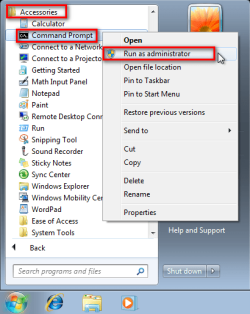
. - Type to Command Prompt: %windir%\System32\Sysprep\Sysprep.exe, and hit Enter
.

. - In sysprep dialog that opens, choose System Cleanup Action as Enter System Out-of-Box-Experience (OOBE), select Generalize, select Shutdown Options Shutdown. Click OK
.
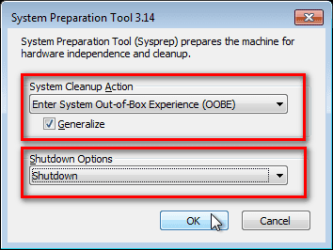
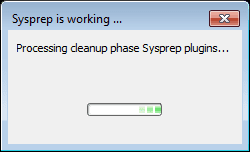
. - Sysprep generalizes now your Windows 7 setup and shuts down your computer. Do not run any other programs during this phase!
.
.

. - Switch the main power of your PC off and install the new hardware OR dismount the hard disk(s) and mount it (them) to a new computer
- Boot the PC from sysprep generalized hard disk. You will notice Windows booting as if it was the first boot after installation, installing default drivers and updating registry. One or two reboots are needed, depending on your system specifications
.

.

.
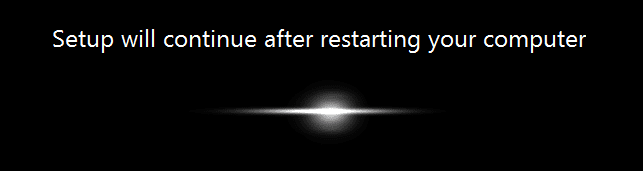
. - When Windows finally boots up, you will need to enter all information as if this really was a new, fresh installation
.
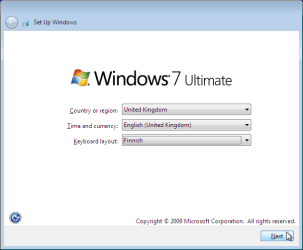
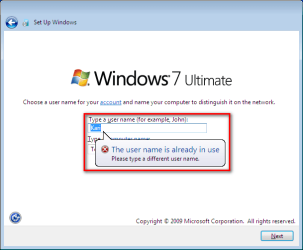
. - Because your old user profiles already exist, Windows does not accept your normal username, but instead you have to create a new temporary user. I use username Test for this purpose
.
. - When login screen appears, choose your old user account to login
.

. - Windows boots now to default OOBE first boot desktop, with default 800*600 resolution and default theme. All your installed applications are there, as well as your old user profiles and folders. Windows has installed the default drivers for your setup, you can update them if needed
.
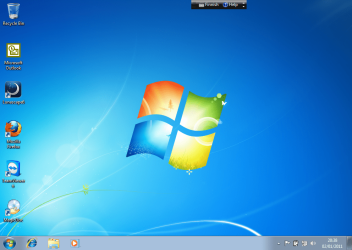
. - Go to Control Panel > User Accounts and delete the temporary user account (in this case Test) that you just created
METHOD TWO
Change the hard disk(s) or move Windows 7 setup to a new computer using third party imaging software
- Replace the HD containing Windows 7 on your old computer
- Move Windows 7 to a new HD on another computer
- Follow steps 1 through 5 above (method 1)
- Boot PC with an imaging CD/DVD (Paragon, Macrium etc.). See Macrium Reflect Free:at our sister site TenForums.com: Backup and Restore with Macrium Reflect Windows 10 Backup Restore Tutorials . Also see this post for a practical tip to create a Macrium system image.
- Create an image of your system
- Turn PC off, change the hard disk(s) and reboot with imaging application, restoring the image OR boot the new computer with imaging software and restore the image
- Continue from step 7 above (method 1)
This procedure is failsafe, and works every time. There is nothing to worry, but of course it is recommended to make a backup before trying this. I have even used this method when some serious driver issues caused the PC to constantly crash (BSOD), to reset all drivers to Windows defaults and then reinstalling them one by one to find the culprit.
Note
What does Sysprep generalizing do to my Windows 7 setup?
What happens when booting first time after sysprep generalizing?
- All system specific information is removed or uninstalled
- Security ID (SID) of your hardware setup is reseted
- All system restore points are deleted
- All event logs are deleted
- All personalization is removed (taskbar, toolbars, folder options, start orb etc.)
- Built-in administrator account is disabled (if it was enabled) and needs to be re-enabled after the transfer if needed
What happens when booting first time after sysprep generalizing?
- First boot configuration is run
- New SID is created
- Re-arm counter is reseted if not already re-armed three times
- Windows 7 is booted using first boot default drivers and settings
I have tested all above mentioned methods with all versions of Windows 7, from Starter to Enterprise. It works every time, with one exception: for reasons unknown to me, sysprep seems sometimes dislike Windows Media Player networking service, which is by default started every time Windows 7 starts. In about every third time I've done this, I've got an error message when trying to generalize:
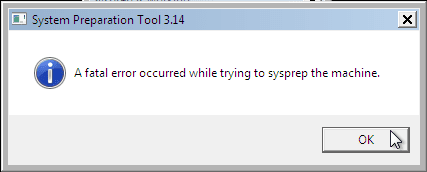
However, this is not a big problem. You just need to stop the WMP networking service, and run sysprep with generalize option again. You can stop the service in question by typing net stop WMPNetworkSvc to command prompt, and hitting Enter:

If you have any questions, do not hesitate to ask.
Happy computing!
Kari
EDIT: A Useful tip from xxxwea, as later confirmed by Victor:
Kari, just a suggestion.
You might note in the tutorial that if on first booting Windows can't finish configuring, a reboot into safe mode, then a normal reboot will allow it to finish successfully.
This has happened to me both times I used a sysprepped system drive in a new computer. I found the answer to this problem buried deep in this thread the first time I ran into it, and the same thing happened yesterday on a different computer.
It's a seemingly very silly solution, but it works. I do believe many people have abandoned their sysprep work when they encounter the problem.
I think the solution deserves more visibility.
Last edited:


