
How to Restore Missing Default Shortcuts in Windows 7 Start Menu
Information
This will provide you with all of the default shortcuts in the Start Menu in all editions of Windows 7 that you can use to restore them in your Start Menu.
Note
If you turned off a Windows Feature, then this could also be a reason why a shortcut may be missing in the Start Menu.
All installed programs that had shortcuts in your Start Menu will have to have new shortcuts manually created from the program's exe file and added to the Start Menu since these are not default shortcuts included in Windows.
All installed programs that had shortcuts in your Start Menu will have to have new shortcuts manually created from the program's exe file and added to the Start Menu since these are not default shortcuts included in Windows.
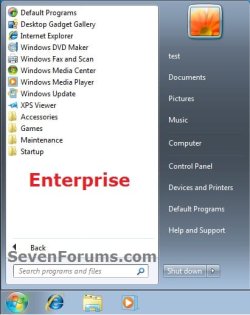
EXAMPLE: Start Menu of All Editions of Windows 7
NOTE: To compare and see the features in each edition of Windows 7, see Compare Windows 7 Editions.
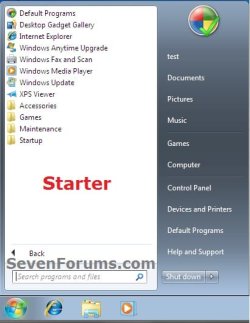
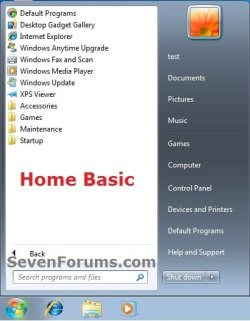

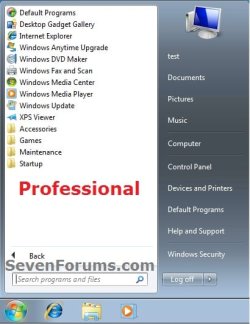
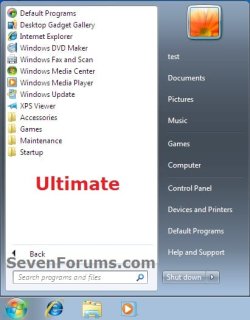
OPTION ONE
To Restore Default Start Menu Shortcuts used by Current Logged On User Only
NOTE: All 32 bit and 64 bit editions of Windows 7 have these same default Start Menu shortcuts used by the currently logged on user only.
1. Click on the Download button below to download the file below.
Current_User_Start_Menu.zip
Download
2. Save the Current_User_Start_Menu.zip file to your desktop.
3. Unblock the ZIP file.
4. Right click on the downloaded Current_User_Start_Menu.zip file, and click on Extract All, then extract the contents to your desktop.
5. In the extracted folder, select all of the shortcuts, right click on them, and click on Copy.
NOTE: You can also press and hold the CTRL key while left clicking on a shortcut to select random multiple shortcuts. Release the CTRL key when done. You will only want to include the Internet Explorer (64-bit) shortcut if you have a 64-bit Windows 7 installed.
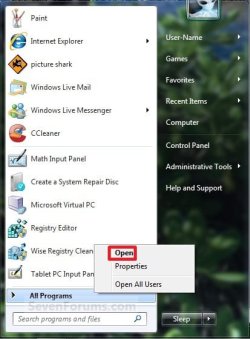
6. Open the Start Menu, right click on All Programs, and click on Open. (see screenshot below)
7. In the Programs folder in the Start Menu folder, navigate to where you want to restore the extracted shortcuts (step 5) to, right click on a empty space, and click on Paste. (see screenshot below)
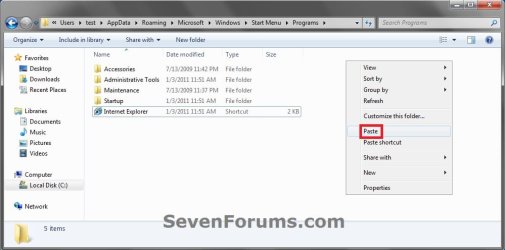
8. The shortcuts have been restore. Close all Windows Explorer windows.
9. Continue on to OPTION TWO below if you also need to restore any default Start Menu shortcuts shared by all users.
OPTION TWO
To Restore Default Start Menu Shortcuts Shared by All Users
1. Click on the Download button below the ZIP file for the edition of Windows 7 you have installed.
Starter_All_Users_Start_Menu.zip
Download
Home_Basic_All_Users_Start_Menu.zip
Download
Home_Premium_All_Users_Start_Menu.zip
Download
Professional_All_Users_Start_Menu.zip
Download
Ultimate_All_Users_Start_Menu.zip
Download
Enterprise_All_Users_Start_Menu.zip
Download
2. Save the ZIP file to your desktop.
3. Unblock the ZIP file.
4. Right click on the downloaded ZIP file and click on Extract All, then extract the contents to your desktop.
5. In the extracted folder, select all of the shortcuts, right click on them, and click on Copy.
NOTE: You can press and hold the CTRL key while left clicking on a shortcut to select random multiple shortcuts. Release the CTRL key when done.
6. Open the Start Menu, right click on All Programs, and click on Open All Users. (see screenshot below)
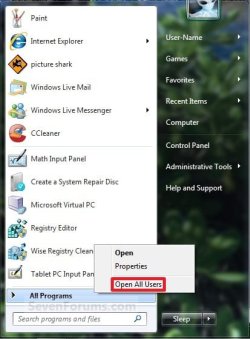
7. In the Start Menu folder, navigate to where you want to restore the extracted shortcuts (step 5) to, right click on a empty space, and click on Paste. (see screenshots below)
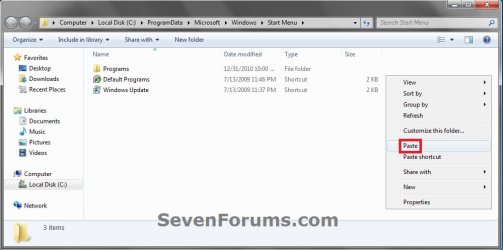
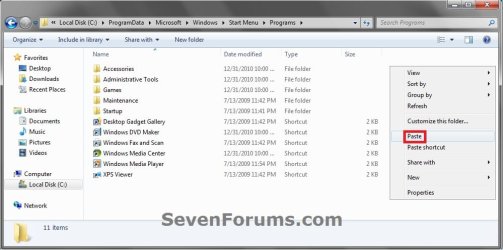
8. The shortcuts have been restored. Close all Windows Explorer windows.
That's it,
Shawn
Attachments
-
Current_User_Start_Menu.zip10.6 KB · Views: 39,492
-
Starter_All_Users_Start_Menu.zip27.9 KB · Views: 3,056
-
Home_Basic_All_Users_Start_Menu.zip28.4 KB · Views: 2,546
-
Home_Premium_All_Users_Start_Menu.zip34.8 KB · Views: 11,525
-
Professional_All_Users_Start_Menu.zip31.8 KB · Views: 9,717
-
Ultimate_All_Users_Start_Menu.zip35.8 KB · Views: 9,622
-
Enterprise_All_Users_Start_Menu.zip31.3 KB · Views: 3,332
Last edited:


 Yes,you can delete it.
