Windows 7 Forums


Windows 7: Start Menu All Programs in Windows 7 - Restore Default Shortcuts


Start Menu All Programs in Windows 7 - Restore Default Shortcuts

How to Restore Missing Default Shortcuts in the Windows 7 Start Menu
Published 03 Jan 2011
Published by

Featured Tutorial

Secunia ONLINE Software Inspector

How to Scan for Common Software Vulnerabilities

Safe Internet Browsing

How to safely operate on the internet and stay free from malware infections

Windows 7 Installation - Transfer to a New Computer

How to Transfer your Complete Windows 7 Installation to a New Computer

Restore Point - Add "Create Restore Point" to Context Menu in Windows

How to Add "Create Restore Point" to Context Menu in XP, Vista, Windows 7, and Windows 8

Search - Find More with Filters and Operators

How to Use Windows Search Filters and Operators to get better Search Results in Windows 7

Peppermint3 - Create Live CD/DVD/USB To Use For Emergency Backup

How to Create a Live Peppermint3 CD/DVD/USB to Backup Data When Windows 7 Will Not Boot
How to Restore Missing Default Shortcuts in the Windows 7 Start Menu

information   Information
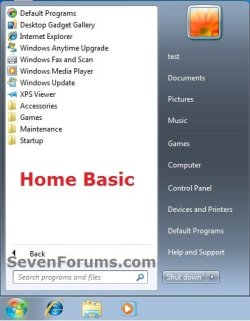
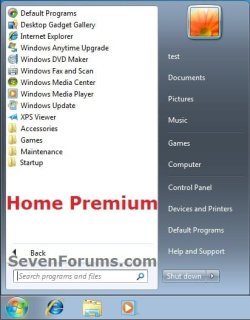
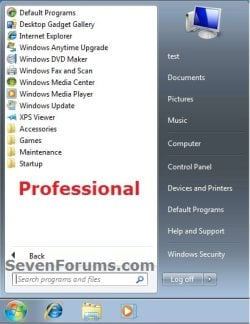
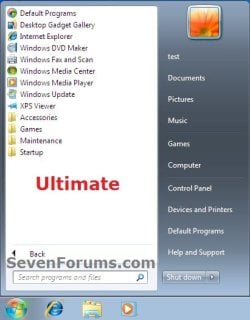
This will provide you with all of the default shortcuts in the Start Menu in all editions of Windows 7 that you can use to restore them in your Start Menu.

Note   Note
If you turned off a Windows Feature, then this could also be a reason why a shortcut may be missing in the Start Menu.

All installed programs that had shortcuts in your Start Menu will have to have new shortcuts manually created from the program's exe file and added to the Start Menu since these are not default shortcuts included in Windows.


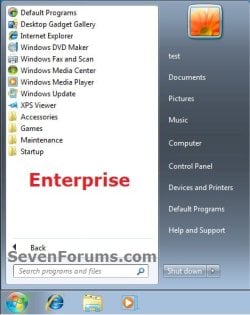
EXAMPLE: Start Menu of All Editions of Windows 7
NOTE: To compare and see the features in each edition of Windows 7, see Compare Windows 7 Editions.
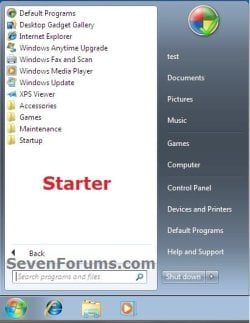
Start Menu All Programs in Windows 7 - Restore Default Shortcuts-starter_start_menu.jpgStart Menu All Programs in Windows 7 - Restore Default Shortcuts-home_basic_start_menu.jpgStart Menu All Programs in Windows 7 - Restore Default Shortcuts-home_premium_start_menu.jpg
Start Menu All Programs in Windows 7 - Restore Default Shortcuts-professional_start_menu.jpgStart Menu All Programs in Windows 7 - Restore Default Shortcuts-ultimate.jpgStart Menu All Programs in Windows 7 - Restore Default Shortcuts-enterprise_start_menu.jpg


OPTION ONE
To Restore Default Start Menu Shortcuts used by Current Logged On User Only

NOTE: All 32 bit and 64 bit editions of Windows 7 have these same default Start Menu shortcuts used by the currently logged on user only.
1. Click on the Download button below to download the file below.
Current_User_Start_Menu.zip
download
2. Save the Current_User_Start_Menu.zip file to your desktop.

3. Right click on the downloaded Current_User_Start_Menu.zip file and click on Extract All, then extract the contents to your desktop.

4. In the extracted folder, right click on a shortcut that you want to use to restore to your computer, click on Properties, General tab, and on the Unblock button. Repeat this for each shortcut that you want to restore. (see screenshot below)
NOTE: If you do not have a Unblock button under the General tab, then the shortcut is already unblocked.
Start Menu All Programs in Windows 7 - Restore Default Shortcuts-unblock.jpg
5. In the extracted folder, select all of the shortcuts that you unblocked in step 4, right click on them, and click on Copy.
NOTE: You can press and hold the CTRL key while left clicking on a shortcut to select random multiple shortcuts. Release the CTRL key when done. You will only want to include the Internet Explorer (64-bit) shortcut if you have a 64-bit Windows 7 installed.

6. Open the Start Menu, right click on All Programs, and click on Open. (see screenshot below)
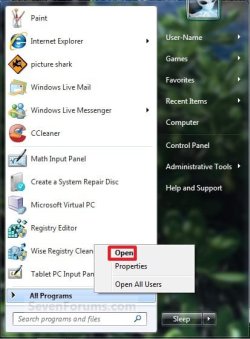
Start Menu All Programs in Windows 7 - Restore Default Shortcuts-start_menu_open.jpg
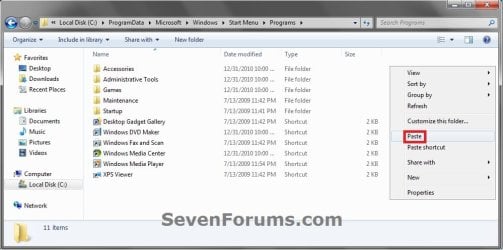
7. In the Programs folder in the Start Menu folder, navigate to where you want to restore the extracted shortcuts (step 5) to, right click on a empty space, and click on Paste. (see screenshot below)
Start Menu All Programs in Windows 7 - Restore Default Shortcuts-open.jpg
8. The shortcuts have been restore. Close all Windows Explorer windows.

9. Continue on to OPTION TWO below if you also need to restore any default Start Menu shortcuts shared by all users.


OPTION TWO
To Restore Default Start Menu Shortcuts Shared by All Users
1. Click on the Download button below the ZIP file for the edition of Windows 7 you have installed.
Starter_All_Users_Start_Menu.zip
download
Home_Basic_All_Users_Start_Menu.zip
download
Home_Premium_All_Users_Start_Menu.zip
download
Professional_All_Users_Start_Menu.zip
download
Ultimate_All_Users_Start_Menu.zip
download
Enterprise_All_Users_Start_Menu.zip
download
2. Save the ZIP file to your desktop.

3. Right click on the downloaded ZIP file and click on Extract All, then extract the contents to your desktop.

4. In the extracted folder, right click on a shortcut that you want to use to restore to your computer, click on Properties, General tab, and on the Unblock button. Repeat this for each shortcut that you want to restore. (see screenshot below)
NOTE: If you do not have a Unblock button under the General tab, then the shortcut is already unblocked.
Click image for larger version

Name:	Unblock.jpg
Views:	876
Size:	78.6 KB
ID:	128833
5. In the extracted folder, select all of the shortcuts that you unblocked in step 4, right click on them, and click on Copy.
NOTE: You can press and hold the CTRL key while left clicking on a shortcut to select random multiple shortcuts. Release the CTRL key when done.

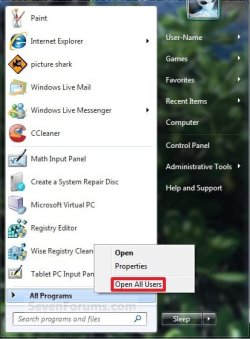
6. Open the Start Menu, right click on All Programs, and click on Open All Users. (see screenshot below)
Start Menu All Programs in Windows 7 - Restore Default Shortcuts-start_menu_open_all_users.jpg
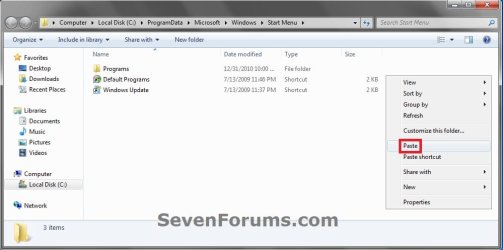
7. In the Start Menu folder, navigate to where you want to restore the extracted shortcuts (step 5) to, right click on a empty space, and click on Paste. (see screenshots below)
Start Menu All Programs in Windows 7 - Restore Default Shortcuts-open_all_users-1.jpgStart Menu All Programs in Windows 7 - Restore Default Shortcuts-open_all_users-2.jpg
8. The shortcuts have been restored. Close all Windows Explorer windows.
That's it,
Shawn


Need more help? Try searching our extensive help and support site.
Loading
03 Jan 2011   #1
StalkeR

Windows 7 Ultimate SP1 x64
Macedonia


Excellent, as always!

My System SpecsSystem Spec

03 Jan 2011   #2
Brink

64-bit Windows 7 Ultimate SP1 & Windows 8 Enterprise
Texas


Thank you Sir.
My System SpecsSystem Spec
26 Aug 2011   #3
GRB70

Windows 7 Home Premium 64-bit
ohio


After installation, do the .zip need to be uninstalled or no?
My System SpecsSystem Spec
.


26 Aug 2011   #4
StalkeR

Windows 7 Ultimate SP1 x64
Macedonia


Quote   Quote: Originally Posted by GRB70 View Post
After installation, do the .zip need to be uninstalled or no?
You don't need to extract if you don't want. You can just copy them directly from the .rar. (drag and drop there)

Sorry,wrong read... Yes,you can delete it.
My System SpecsSystem Spec
26 Aug 2011   #5
Brink

64-bit Windows 7 Ultimate SP1 & Windows 8 Enterprise
Texas


Hello GRb70,

You could delete the downloaded ZIP file afterwards if you like. You will not need it anymore.
My System SpecsSystem Spec
26 Aug 2011   #6
Brink

64-bit Windows 7 Ultimate SP1 & Windows 8 Enterprise
Texas


Quote   Quote: Originally Posted by StalkeR View Post
You don't need to extract if you don't want. You can just copy them directly from the .rar. (drag and drop there)
Yes, you do need to extract them first and unblock them to avoid getting the "Open File - Security Warning" everytime you use the shortcut.
My System SpecsSystem Spec
16 Sep 2012   #7
ViciousH

Windows 7 Ultimate x64


Thanks , This helped a lot
My System SpecsSystem Spec
16 Sep 2012   #8
Brink

64-bit Windows 7 Ultimate SP1 & Windows 8 Enterprise
Texas


You're most welcome Vicious, and welcome to Seven Forums.
My System SpecsSystem Spec
27 Sep 2012   #9
NoN

Windows 7 Professional SP1 - x64
Lost In Space, Vol 8-New Kind Of Kick


Good job here, thanks!
My System SpecsSystem Spec
Comment

 Start Menu All Programs in Windows 7 - Restore Default Shortcuts problems?


Tutorial Tools


Similar help and support threads for: Start Menu All Programs in Windows 7 - Restore Default Shortcuts
Windows 7 Tutorial Category
Start Menu All Programs - Add or Delete Shortcuts Tutorials
icon and start menu size has been lorger. how to restore to default? Customization
Default Programs - Change Default Icon in Start Menu Tutorials
Windows Update moved - How do I restore to Start Menu - All Programs? Windows Updates & Activation
Trying to restore start menu default settings - Not Working Customization


All times are GMT -5. The time now is 02:58 AM.


Seven Forums Android App Seven Forums IOS App Follow us on Facebook

Windows 7 Forums is an independent web site and has not been authorized,
sponsored, or otherwise approved by Microsoft Corporation.
"Windows 7" and related materials are trademarks of Microsoft Corp.
© Designer Media Ltd
  

1 2 3 4 5 6 7 8 9 10 11 12 13 14 15 16 17 18 19 20 21 22 23 24 25 26 27 28 29 30 31 32