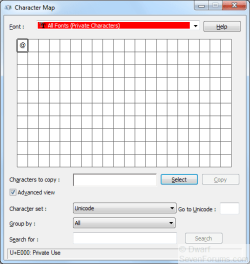
The Private Character Editor is the lesser-known companion to Character Map. The program allows you to insert characters of your own design into text that you write. They can be linked to all fonts, a selected number of fonts, or just a single font.
Begin by clicking on rb: and typing Private Character Editor into the search box and press enter/return. You will need to enter administrative credentials to continue. The following screen will appear:
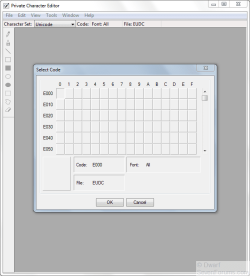
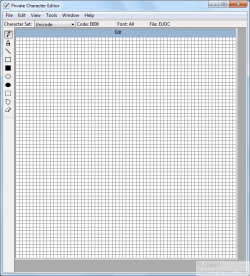
Click on OK. If you wish to design your own characters, you can do so in the grid shown below. When you have finished your design, proceed to the Save Character section.
Click Edit and then click Copy Character...
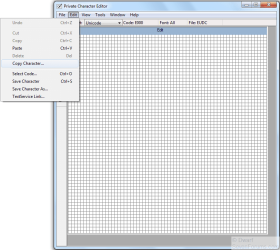
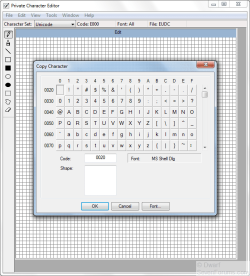
Choose the character you wish to copy, click on it to select it, and click OK.
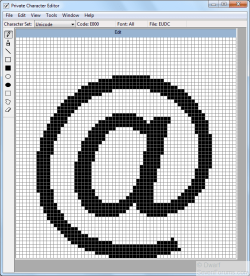
Click Edit and then click Save Character (alternatively, use the Ctrl + S shortcut).
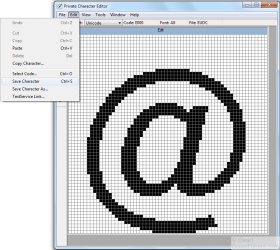
If you wish to create/copy further characters, click on View and then click Next Code (or use the Ctrl + N shortcut). The Prev Code (Ctrl + P shortcut) will then become available. You can copy/create further characters or edit existing ones.
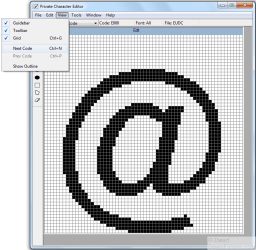
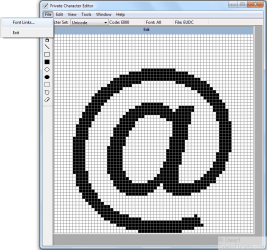
When you have finished copying/creating/editing characters, you need to link them so that you can access and use them. To do this, click on File and then click Font Links...
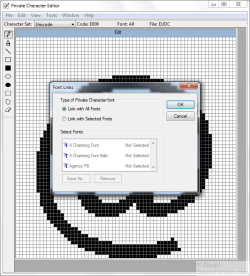
For the default option of Link with All Fonts, simply click on OK. You may now close the Private Character Editor.
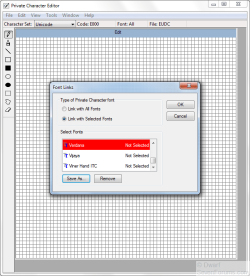
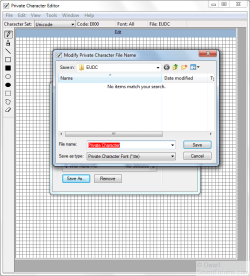
To explicitly link with one or more font(s), click on Link with Selected Fonts, browse to the required font and then click Save As... Give the character an appropriate name and click Save. Repeat for all fonts that you want to link with. When you have finished, click on OK and then close the Private Character Editor.
Begin by clicking on
rb: and typing Private Character Editor into the search box and press enter/return. You will need to enter administrative credentials to continue. The following screen will appear: Click on OK. If you wish to design your own characters, you can do so in the grid shown below. When you have finished your design, proceed to the Save Character section.
Click Edit and then click Copy Character...
Choose the character you wish to copy, click on it to select it, and click OK.
Click Edit and then click Save Character (alternatively, use the Ctrl + S shortcut).
If you wish to create/copy further characters, click on View and then click Next Code (or use the Ctrl + N shortcut). The Prev Code (Ctrl + P shortcut) will then become available. You can copy/create further characters or edit existing ones.
When you have finished copying/creating/editing characters, you need to link them so that you can access and use them. To do this, click on File and then click Font Links...
For the default option of Link with All Fonts, simply click on OK. You may now close the Private Character Editor.
To explicitly link with one or more font(s), click on Link with Selected Fonts, browse to the required font and then click Save As... Give the character an appropriate name and click Save. Repeat for all fonts that you want to link with. When you have finished, click on OK and then close the Private Character Editor.
Last edited by a moderator: