Windows 7 Forums Search

Go Back Windows 7 Forums > Windows 7 help and support > Tutorials » Zip Folders - Enable or Disable Windows Explorer View

Welcome to Windows 7 Forums. Our forum is dedicated to helping you find solutions with any problems, errors or issues you are experiencing with Windows 7. The Windows 7 forum also covers news and updates and has an extensive Windows 7 tutorial section that covers a wide range of tips and tricks.

Windows 7 - Zip Folders - Enable or Disable Windows Explorer View


Zip Folders - Enable or Disable Windows Explorer View

How to Disable Windows Explorer Folder View of Zip Folders in Windows 7
Published by Brink
06-18-2009
Default Zip Folders - Enable or Disable Windows Explorer View

How to Disable Windows Explorer Folder View of Zip Folders in Windows 7

information   Information
By default, Windows 7 handles ZIP files just like normal folders by having their contents expand and show in Windows Explorer. If you have a 3rd party ZIP program (ex: WinZip, 7-Zip, etc.) installed, then this can be an annoyance to you and you may want to turn this feature off so the ZIP file will only open in the program instead of Windows Explorer. This will show you how to enable or disable the default Windows 7 Zip folders (compressed and cab folders) from having their contents expand and show in Windows Explorer like normal folders.
Note   Note
Compressed (ZIP) folders and Cab folders are enabled by default to have their content expand and display in Windows Explorer folder view like normal folders.

If disabled, you will still be able to open ZIP and CAB files with the 3rd party program (ex: WinZip, 7-Zip, etc.). You will just see the ZIP and CAB files themselves, and will not see their content in Windows Explorer anymore unless opened.
warning   Warning
This can only be done while logged on to an administrator account.

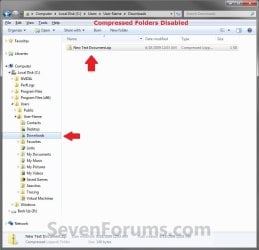
EXAMPLE: Zip Folders (compressed and cab folders) Enabled and Disabled
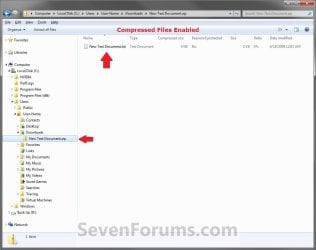
Zip Folders - Enable or Disable Windows Explorer View-enabled.jpgZip Folders - Enable or Disable Windows Explorer View-disabled.jpg


OPTION ONE

Disable Zip Folders
1. Open the Start Menu, and type regedit in the search line and press Enter.

2. If prompted by UAC, then click on Yes.

3. To Disable ZIP Compressed Folders -
A) In regedit, go to the location below. (See screenshot below)

HKEY_CLASSES_ROOT\CLSID\{E88DCCE0-B7B3-11d1-A9F0-00AA0060FA31}
Zip Folders - Enable or Disable Windows Explorer View-stepa.jpg
B) In the left pane, right click on {E88DCCE0-B7B3-11d1-A9F0-00AA0060FA31} and click on Permissions. (See screenshot above)
4. To Disable CAB Folders -
NOTE: You will also need to step 3 as well to disable CAB folders.
A) In regedit, go to the location below. (See screenshot below)
Code:
HKEY_CLASSES_ROOT\CLSID\{0CD7A5C0-9F37-11CE-AE65-08002B2E1262}
Zip Folders - Enable or Disable Windows Explorer View-stepb.jpg
B) In the left pane, right click on {0CD7A5C0-9F37-11CE-AE65-08002B2E1262} and click on Permissions. (See screenshot above)
5. Click on the Advanced button. (See screenshot below)
Zip Folders - Enable or Disable Windows Explorer View-step1.jpg
6. Click on the Owner tab, then select your user account and click on OK. (See screenshot below)
NOTE: Your user account must be an administrator account.
Zip Folders - Enable or Disable Windows Explorer View-step2.jpg
7. Select your user acount again (step 6), then check the Allow box for Full Control and click on OK. (See screenshot below)
Zip Folders - Enable or Disable Windows Explorer View-step3.jpg
9. To Disable ZIP Compressed Folders -
A) In the left pane of regedit, right click on {E88DCCE0-B7B3-11d1-A9F0-00AA0060FA31} and click on Delete. (See screenshot below step 3A)
10. To Disable CAB Folders -
A) In the left pane of regedit, right click on {0CD7A5C0-9F37-11CE-AE65-08002B2E1262} and click on Delete. (See screenshot below step 4A)
11. Click on Yes. (See screenshot below)

12. If you have 64-bit Windows 7 Installed -
Note   Note

To also disable ZIP and CAB folders from the "Open" and "Save as" type windows as well in 64-bit Windows 7, you will also need to do this step.

If you have a 32-bit Windows 7 installed, then skip this step since doing steps 1 to 9/10 will disable ZIP and CAB folders from the "Open" and "Save as" type windows as well.
A) In Regedit, go to the location below:
To Disable ZIP Compressed Folders
Code:
HKEY_LOCAL_MACHINE\SOFTWARE\Wow6432Node\Classes\CLSID\{E88DCCE0-B7B3-11d1-A9F0-00AA0060FA31}\ShellFolder
To Disable CAB Folders
Code:
HKEY_LOCAL_MACHINE\SOFTWARE\Wow6432Node\Classes\CLSID\{0CD7A5C0-9F37-11CE-AE65-08002B2E1262}\ShellFolder
B) Repeat steps 3B/4B to 11 above.
13. If open, close and reopen the Windows Explorer window. You will now not see the contents of your ZIP and CAB files in Windows Explorer. (See screenshot below)
NOTE: In some cases you may need to log off and on, or restart the computer to apply.
Click image for larger version

Name:	Disabled.jpg
Views:	1344
Size:	210.0 KB
ID:	14774


OPTION TWO

Enable Zip Folders

Note   Note
This is to restore having the contents of your ZIP and CAB files display in the Windows Explorer folder view if you have disabled them in OPTION ONE above.
1. To Enable ZIP Compressed Folders -
A) Click on the Download button below to download the
Restore_Zip_Files.reg file below.
For 32-bit Windows 7 Only
download

For 64-bit Windows 7 Only
download
2. To Enable CAB Folders -
A) Click on the Download button below to download the
Restore_Cab_Files.reg file below.
For 32-bit Windows 7 Only
download

For 64-bit Windows 7 Only
download
3. Click on Save, and save the .reg file to the desktop.

4. Right click the .reg file (On Desktop) and click on Merge.

5. Click on Run, Yes, Yes, and OK when prompted.

6. Open the Start Menu, and type regedit in the search line and press Enter.

7. If prompted by UAC, then click on Yes.

8. To Enable ZIP Compressed Folders -
A) In regedit, go to the location below. (See screenshot below)
Code:
HKEY_CLASSES_ROOT\CLSID\{E88DCCE0-B7B3-11d1-A9F0-00AA0060FA31}
Click image for larger version

Name:	StepA.jpg
Views:	997
Size:	132.7 KB
ID:	14785
B) In the left pane, right click on {E88DCCE0-B7B3-11d1-A9F0-00AA0060FA31} and click on Permissions. (See screenshot above)
9. To Enable CAB Folders -
A) In regedit, go to the location below. (See screenshot below)
Code:
HKEY_CLASSES_ROOT\CLSID\{0CD7A5C0-9F37-11CE-AE65-08002B2E1262}
Click image for larger version

Name:	StepB.jpg
Views:	452
Size:	135.5 KB
ID:	14786
B) In the left pane, right click on {0CD7A5C0-9F37-11CE-AE65-08002B2E1262} and click on Permissions. (See screenshot above)
10. Click on the Advanced button. (See screenshot below)
Zip Folders - Enable or Disable Windows Explorer View-step8.jpg
11. Click on the Owner tab, then click on the Other users and groups button. (See screenshot below)
Zip Folders - Enable or Disable Windows Explorer View-step5.jpg
12. Type NT SERVICE\TrustedInstaller in the white box, and click on OK. (See screenshot below)
Zip Folders - Enable or Disable Windows Explorer View-step6.jpg
13. Select TrustedInstaller, and click on OK. (See screenshot below)
Zip Folders - Enable or Disable Windows Explorer View-step7.jpg
14. Click on OK. (See screenshot below)
Click image for larger version

Name:	Step8.jpg
Views:	180
Size:	93.8 KB
ID:	14784
15. If you have 64-bit Windows 7 Installed -
Note   Note

To also disable ZIP and CAB folders from the "Open" and "Save as" type windows as well in 64-bit Windows 7, you will also need to do this step.

If you have a 32-bit Windows 7 installed, then skip this step since doing steps 1 to 14 will disable ZIP and CAB folders from the "Open" and "Save as" type windows as well.
A) In Regedit, go to the location below:
To Enable ZIP Compressed Folders
Code:
HKEY_LOCAL_MACHINE\SOFTWARE\Wow6432Node\Classes\CLSID\{E88DCCE0-B7B3-11d1-A9F0-00AA0060FA31}\ShellFolder
To Enable CAB Folders
Code:
HKEY_LOCAL_MACHINE\SOFTWARE\Wow6432Node\Classes\CLSID\{0CD7A5C0-9F37-11CE-AE65-08002B2E1262}\ShellFolder
B) Repeat steps 8B/9B to 14 above.
16. If open, close and reopen the Windows Explorer window. You will now see the contents of your ZIP and CAB files display again in the Windows Explorer folder view. (See screenshot below)
NOTE: In some cases you may need to log off and on, or restart the computer to apply.
Click image for larger version

Name:	Enabled.jpg
Views:	1465
Size:	215.9 KB
ID:	14773
That's it,
Shawn
Published by
Brink's Avatar
Administrator

Join Date: Oct 2008
Location: Texas
Posts: 17,035
Brink has a reputation beyond reputeBrink has a reputation beyond reputeBrink has a reputation beyond reputeBrink has a reputation beyond repute
Brink has a reputation beyond reputeBrink has a reputation beyond reputeBrink has a reputation beyond reputeBrink has a reputation beyond reputeBrink has a reputation beyond reputeBrink has a reputation beyond reputeBrink has a reputation beyond reputeBrink has a reputation beyond repute

Tutorial Tools
06-18-2009   #1
barney


Wndows 7


Shawn this is great I asked for this solution very early on and I can see why it took some working out!
As we could'nt find a solution I found a new work practise I access all my zip and rar file folders via a Favorites shortcut which takes out the explorer view giving me access to single archives without the elongation.

best

barney

My System SpecsSystem Spec
06-18-2009   #2
OEM


Windows 7 Ultimate / Vista Home Premium SP2 / XP MCE2005 SP3
Pennsylvania Dutch Country


Nice work Shawn, ...one less thing now on the "to do" list for you, one more thing for me.
My System SpecsSystem Spec
06-18-2009   #3
Brink


Windows 7 Ultimate x64 SP1 beta
Texas


LOL, you're welcome Barnet and OEM.

I was sitting there scratching my head as to why it would work in Vista and not in Windows 7 when they were the same registry entries when I noticed that the owner was now TrustedInstalled in Windows 7. It turned out to be nothing more than a permissions issue that taking ownership of the registry key first fixed.
My System SpecsSystem Spec
.
06-18-2009   #4
tannim


win7 home premium 64bit


Well, it worked after I went through the entire registry and deleted every instance of {0CD7A5C0-9F37-11CE-AE65-08002B2E1262} after taking ownership of the cab and zip things.

Now if I could just get rid of that anoying task bar popup with all the windows for each program that is open in it with the X to close any of them. I hate that thing.
My System SpecsSystem Spec
06-18-2009   #5
Brink


Windows 7 Ultimate x64 SP1 beta
Texas


Hello Tannim,

I'm happy to hear that you got the Zip folders sorted. Unfortunately, the only way to remove the taskbar thumbnails is this below.

Taskbar Thumbnail Previews - Enable or Disable

Last edited by Brink; 01-10-2010 at 12:17 AM.. Reason: updated
My System SpecsSystem Spec
09-28-2009   #6
cskevint


Windows 7 RTM


Windows 7 64-bit?

Does this process need to be modified at all for 64-bit?

I'm pretty sure I followed the instructions correctly but it didn't work for me. I also looked for all occurrences of

{0CD7A5C0-9F37-11CE-AE65-08002B2E1262}

And deleted those as well.
My System SpecsSystem Spec
09-28-2009   #7
Brink


Windows 7 Ultimate x64 SP1 beta
Texas


Hello Cskevint, and welcome to Seven Forums.

Yes, this is the same for both the 32-bit and 64-bit Windows 7. Did you also delete the {E88DCCE0-B7B3-11d1-A9F0-00AA0060FA31} key?

If you have, log off and log on to see if it works afterwards.
My System SpecsSystem Spec
09-28-2009   #8
cskevint


Windows 7 RTM


Thanks Brink. That's exactly what the issue was. I wasn't deleting {E88DCCE0-B7B3-11d1-A9F0-00AA0060FA31}. For some reason it wasn't clear to me that I needed to delete that one as well. Thanks for the help.
My System SpecsSystem Spec
09-28-2009   #9
Brink


Windows 7 Ultimate x64 SP1 beta
Texas


You're welcome Cskevint. I added a note to help avoid that.
My System SpecsSystem Spec
Comment

Tutorial Tools


Similar Threads for: Zip Folders - Enable or Disable Windows Explorer View
Windows 7 Tutorial Category
Numerical Sorting in Windows Explorer - Enable or Disable Tutorials
Internet Explorer Zoom - Enable or Disable Tutorials
Enable RAR view in Explorer? Software
Internet Explorer - Enable or Disable Accelerator Add-ons Tutorials
Windows Explorer Context Menu - Enable or Disable Tutorials


All times are GMT -5. The time now is 08:08 AM.


Windows 7 Forums is an independent web site and has not been authorized,
sponsored, or otherwise approved by Microsoft Corporation.
"Windows 7" and related materials are trademarks of Microsoft Corp.
© Designer Media Ltd

1 2 3 4 5 6 7 8 9 10 11 12 13 14 15 16 17 18 19 20 21 22 23 24 25 26 27 28