
Change the Active Navigation Folder Icon in Windows 7
Information
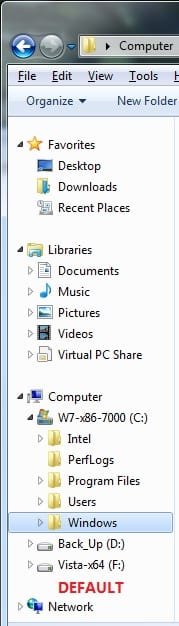
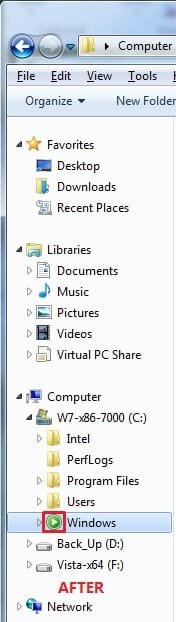
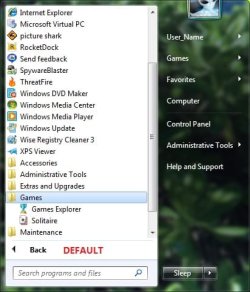
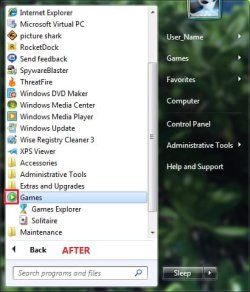
This will show you how to change the active folder icon in the Windows Explorer Navigation Pane and Start Menu All Programs in Windows 7. This can make it easier to navigate in the folder tree when the active or open folder icon is different than the other folder icons.
EXAMPLE: Active or Open Folder Icon Before (default) and After Change
NOTE: This is the icon that will be used in the download in OPTION ONE below.
OPTION ONE
Change Using a Download
1. To Change the Active Folder Icon
NOTE: This will be the icon used in the examples above.
A) Click on the download button below to download the file below.
Change_Open_Folder_Icon.zip
Download
B) Go to step 3.
2. To Restore the Default Active Folder Icon
NOTE: This will be the default yellow open folder icon.
A) Click on the download button below to download the file below.
Default_Open_Folder_Icon.zip
Download
3. Click on Save, and save the .zip file to the desktop.
4. Open the downloaded .zip file and extract (drag and drop) the .reg file to the desktop.
5. Right click on the extracted .reg file and click on Merge.
6. Click on Run, Yes, Yes, and OK when prompted.
7. Log off and log on, or restart the computer to apply.
8. When done, you can delete the downloaded .reg and .zip files on the desktop if you like.
Option Two
To Manually Change Through Registry Editor
NOTE: This will show you how to change the active folder icon to a icon of your choice instead.
1. Download and install the .reg file in step 1 in OPTION ONE above.
2. Open the Start Menu.
3. In the Start Menu Search box type regedit and press Enter. (See screenshot below)

4. If prompted, click on Yes in the UAC prompt.
5. In regedit, go to: (See screenshot below)
NOTE: If Shell Icons is not there, then right click on Explorer, click on New and Key, then type Shell Icons and press enter.
Code:
HKEY_LOCAL_MACHINE\SOFTWARE\Microsoft\Windows\CurrentVersion\Explorer\Shell Icons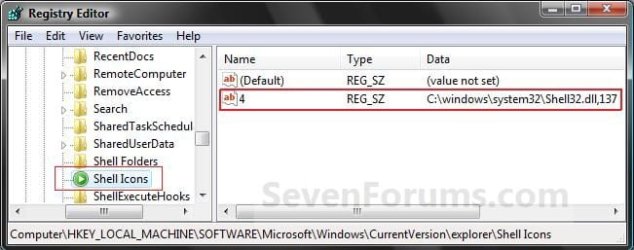
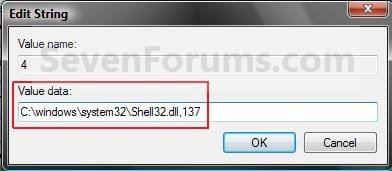
7. Type in the full path of the location of the .ico (icon) file that you want to use for the active folder icon, and click on OK. (See screenshot below)
NOTE: The example path below is for the one used in step 1 (OPTION ONE). You will need to leave your icon on your computer at the location you entered for it to continue to display properly.
8. Close Regedit.
9. Log off and log on, or restart the computer to apply.
That's it,
Shawn
Related Tutorials
- How to Show or Not Show All Folders in the Windows 7 Navigation Pane
- How to Turn On or Off Expand to Current Folder in Windows 7 Navigation Pane
- How to Customize the Windows 7 Start Menu
- How to Add or Delete Start Menu All Programs Shortcuts in Windows 7
- How to Turn the Navigation Pane On or Off in Windows 7
- Download a Shortcut that Opens the Start Menu in Windows
Attachments
Last edited:


