
How to Enable or Disable "Problem Steps Recorder" in Windows 7
Information
You can use Problem Steps Recorder to automatically capture the steps you take in Windows 7, including a text description of where you clicked and a screen shot during each click. Once you capture these steps, you can save them to a .zip file containing a .mht (MHTML) file of them. This file can then be used by a support professional or someone else helping you with a computer problem. If you like you can use it as a sort of Slide Show type demo to.
This will show you how to enable or disable the ability of all users to use Problem Steps Recorder in Windows 7.
You must be logged in as an administrator to be able to do this tutorial.
This will show you how to enable or disable the ability of all users to use Problem Steps Recorder in Windows 7.
You must be logged in as an administrator to be able to do this tutorial.
EXAMPLE: Problem Steps Recorder

OPTION ONE
Using a REG File Download
1. To Enable "Problem Steps Recorder" in Windows 7
NOTE: This is the default setting.
A) Click on the Download button below to download the file below.
Enable_Problem_Steps_Recorder.reg
Download
B) Go to step 3.
2. To Disable "Problem Steps Recorder" in Windows 7
A) Click on the Download button below to download the file below.
Disable_Problem_Steps_Recorder.reg
Download
3. Click on Save, and save the .reg file to the desktop.
4. Right click the downloaded .reg file on the Desktop and click on Merge.
5. Click on Run, Yes, Yes, and OK when prompted.
6. Log off and log on, or restart the computer to apply.
7. When done, you can delete the downloaded .reg file if you like.
OPTION TWO
Through the Local Group Policy Editor
1. Open the Local Group Policy Editor.
2. In the left pane, click on to expand Computer Configuration, Administrative Templates, Windows Components, and Application Conpatibility. (see screenshot below)
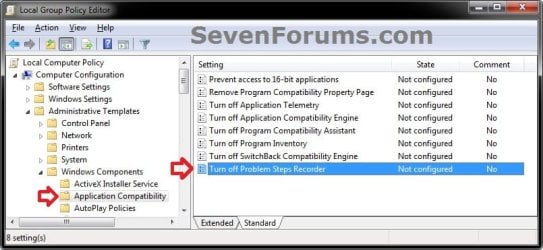
3. In the right pane, right click on Turn off Problem Steps Recorder and click on Edit. (see screenshot above)
4. To Enable "Problem Steps Recorder" in Windows 7
A) Select (dot) either Not Configured or Disabled. (see screenshot below step 6)
NOTE: Not Configured is the default setting.
B) Go to step 6.
5. To Disable "Problem Steps Recorder" in Windows 7
A) Select (dot) Enabled. (see screenshot below step 6)
6. Click on OK. (see screenshot below)
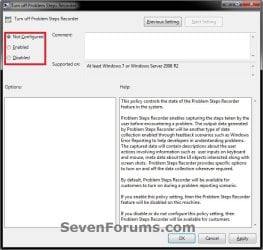
7. Close the Local Group Policy Editor window.
That's it,
Shawn
Attachments
Last edited:


