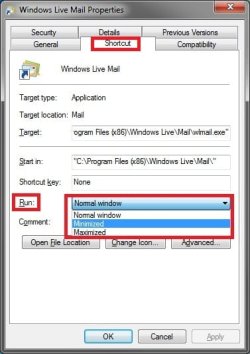
How to Change, Add, or Remove Startup Programs in Windows 7
Information
This will show you how to either add, remove, enable, or disable a startup program in Windows 7.
Note
You can also view the startup logs in Event Viewer (C:\Windows\system32\eventvwr.msc) under Applications and Services Logs, Microsoft, Windows, Diagnostics-Performance, and Operational. The logs will be in the middle to show you what ran at startup, how long it took, and more.
Warning
User Account Control prevents programs that require elevated (run as administrator) permission or an administrator password from running automatically when Windows 7 starts. If a program is blocked, you'll see a message in the notification area that says some startup programs need permission to run. You can then right click on the notification area message and either select to run the blocked program by giving UAC permission, remove the blocked program from the startup program list, or ignore the notification and not run the program.
:note: For the Windows 10 tutorial please see here - Startup Items - Add, Delete, Enable, Disable in Windows 10 - Windows 10 Tutorials
METHOD ONE
Through the Program Itself
NOTE: Some programs may have a setting in them to allow it to run at startup or not. You will need to consult the program's documentations on how to do this specifically for their program if it is available for that program.
1. Open the program's settings menu.
2. To Add the Program to Startup
A) Select the program's Run at startup type option.
3. To Remove the Program from Startup
A) Unselect the program's Run at startup type option.
METHOD TWO
Through the Startup Folder
NOTE: You can add or remove shortcuts to programs or files from the Startup folder to have them run or open at the startup of Windows 7.
1. Right click on the exe file of the program you want to run at startup, or file to open at startup, and click on Create Shortcut.
NOTE: This is the shortcut that you will add to the Startup folder in either Option One or Option Two below. Skip this step if you are only removing a shortcut from the Startup folder.
A) Do either OPTION ONE "Current User" or OPTION TWO "All Users" below for what you want.
OPTION ONE
For Current Single User Only
:note:NOTE: The single (current) user Startup folder is a hidden system folder located at:
C:\Users\(User-Name)\AppData\Roaming\Microsoft\Windows\Start Menu\Programs\Startup
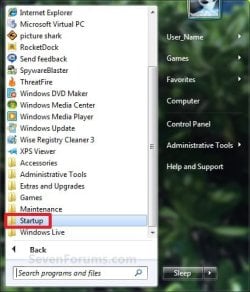
2. Open the Start Menu, click on All Programs, right click on the Startup folder, click on Open or Explore, and go to step 4 below. (See screenshot below)
OR
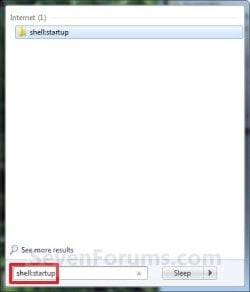
3. In the Start Menu search line, type shell:startup, press Enter, and go to step 4 below. (See screenshot below)
4. Do step 5 or 6 below for what you would like to do.
5. To Add a Startup Program or File Shortcut
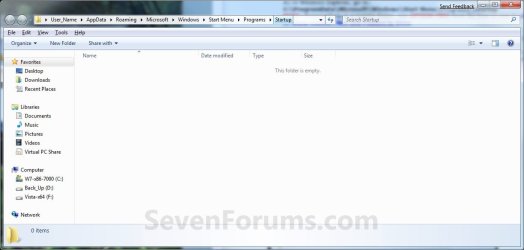
A) Drag the shortcut created from step 1 to inside the Startup folder and drop it. (See screenshot below)
6. To Remove a Startup Program or File Shortcut
A) Right click on the shortcut in the Startup folder and click on Delete. (See screenshot above)
7. Close the Startup folder when done. (See screenshot below step 5A)
OPTION TWO
For All Users
:note:NOTE: The all users Startup folder is a hidden system folder located at:
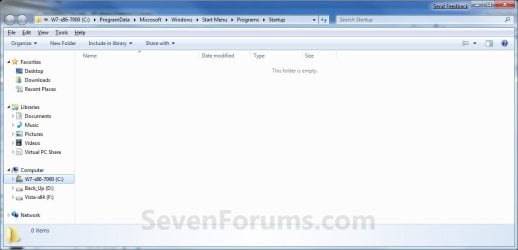
C:\ProgramData\Microsoft\Windows\Start Menu\Programs\Startup
2. Open the Start Menu, click on All Programs, right click on the Startup folder, click on Open All Users or Explore All Users, and go to step 4 below. (See screenshot below)
OR
3. In the Start Menu search line, type shell:common startup, press Enter, and go to step 4 below.
4. Do step 5 or 6 below for what you would like to do.
5. To Add a Startup Program or File Shortcut
A) Drag the shortcut created from step 1 to inside the Startup folder and drop it. (See screenshot below)
6. To Remove a Startup Program or File Shortcut
A) Right click on the shortcut in the Startup folder and click on Delete. (See screenshot above)
6. Close the Startup folder when done. (See screenshot below step 4A)
METHOD THREE
Through System Configuration (msconfig)
NOTE: Using the Selective Startup option in System Configuration (msconfig), you can enable or disable startup programs. You will need to be logged into an administator account, or provide the administrator password to open System Configuration.
WARNING: It would be best to also check the registry entries in METHOD FOUR below as well, since msconfig may not always show all startup programs.
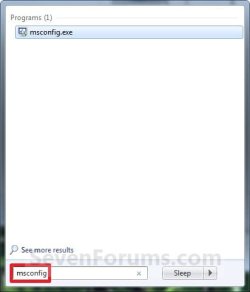
1. Open the Start Menu, type msconfig in the search box, press Enter, and go to step 3 below. (See screenshot below)
OR
2. Open the Control Panel (icons view) and click on the Administrative Tools icon, then click on System Configuration. Close the Control Panel and Administrative Tools windows.
3. If prompted, click on Continue for the UAC prompt, or type in the administrator's password.
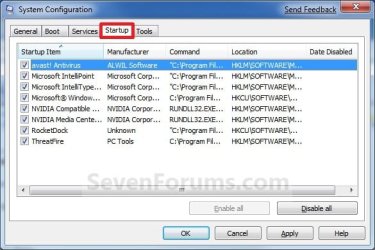
4. Click on the Startup tab. (See screenshot below)
Tip
If you look under the Location column for the Start Item, you will see the registry location for it that you can use to remove the startup item using METHOD FOUR below instead.
5. To Disable a Startup Program
A) Select a listed startup program and uncheck it. (See screenshot above)
B) Repeat to disable anymore listed startup programs.
6. To Enable a Startup Program
A) Select a listed startup program and check it. (See screenshot below step 4)
B) Repeat to enable anymore listed startup programs.
7. To Disable All Listed Startup Programs
A) Click on the Disable all button. (See screenshot below step 4)
B) Go to step 9.
8. To Enable All Listed Startup Programs
A) Click on the Enable all button. (See screenshot below step 4)
9. Click on Apply. (See screenshot below step 4)
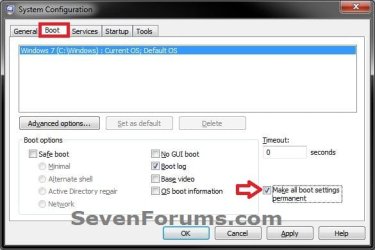
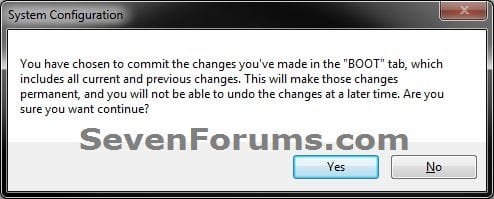
10. Click on the Boot tab, then check the Make all boot settings permanent box and click on OK. (See screenshot below)
11. Click on Yes. (See screenshot below)
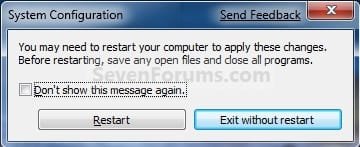
12. Click on the Restart button to apply. (See screenshot below)
WARNING: This will restart your computer immediately. Save and close anything that you are working on first.
METHOD FOUR
Manually in Registry Editor
NOTE: This will allow you to remove a startup program for either the current single user or all users. If you wanted to add a startup program, then METHOD TWO above would be a safer and easier way to do so.
1. Open the Start Menu.
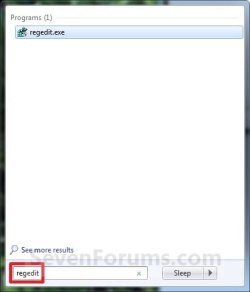
2. In the search line, type regedit and press Enter. (See screenshot below)
3. For "Current User" Only Locations
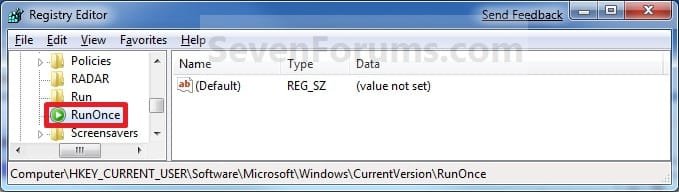
A) In regedit, go to: (See screenshots below)
HKEY_CURRENT_USER\Software\Microsoft\Windows\CurrentVersion\Run
AND
HKEY_CURRENT_USER\Software\Microsoft\Windows\CurrentVersion\RunOnce

4. For "All Users" Locations
A) In regedit, go to: (See screenshots below)
For 32-bit and 64-bit Windows 7:
HKEY_LOCAL_MACHINE\SOFTWARE\Microsoft\Windows\CurrentVersion\Run
AND
HKEY_LOCAL_MACHINE\SOFTWARE\Microsoft\Windows\CurrentVersion\RunOnce
AND (If added by Group Policy)
HKEY_CURRENT_USER\Software\Microsoft\Windows\CurrentVersion\Policies\Explorer\Run
AND (If added by Group Policy)
HKEY_LOCAL_MACHINE\SOFTWARE\Microsoft\Windows\CurrentVersion\Policies\Explorer\Run
AND
For 64-bit Windows 7 only:
HKEY_LOCAL_MACHINE\SOFTWARE\Wow6432Node\Microsoft\Windows\CurrentVersion\Run
AND
HKEY_LOCAL_MACHINE\SOFTWARE\Wow6432Node\Microsoft\Windows\CurrentVersion\RunOnce
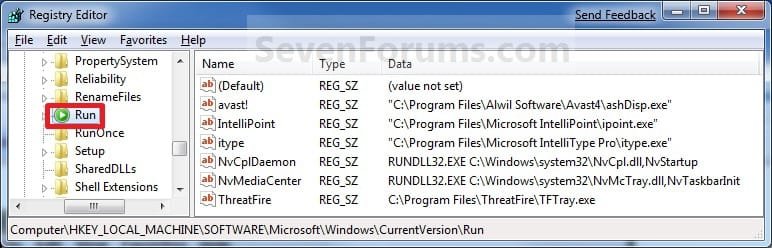
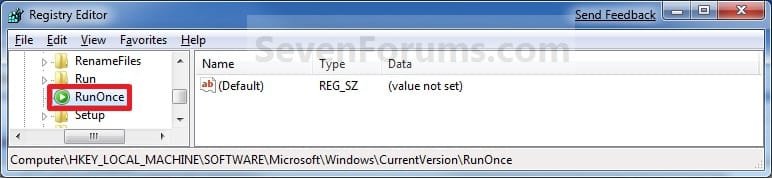
5. In the right pane of Run and/or RunOnce, right click on the startup program you want to remove and click on Delete. (See screenshots above)
NOTE: RunOnce is only to run the program once for the next time that Windows 7 starts up. Run is to run the program everytime that Windows 7 starts up.
6. Click on Yes to confirm deletion.
7. When done, close regedit.
METHOD FIVE
Using CCleaner
1. If you have not already, download and install the free program CCleaner.
2. Open CCleaner, and click on the Tools icon (left side) and on the Startup button. (See screenshot below)
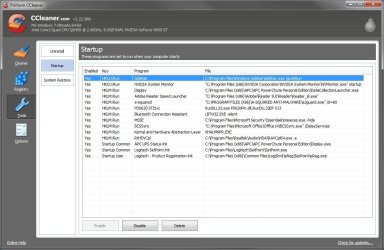
3. Select a startup item, then either enable, disable, or delete it from the Vista startup programs list. (See screenshot above)
METHOD SIX
Through Task Scheduler
Note
By default, you cannot run a elevated (Run as administrator) program that requires UAC permission at startup using the normal Windows 7 startup programs above.
For a Administrator User Account:
You can have Run as administrator (elevated) programs run at startup for a administrator account by running it in a startup task in Task Scheduler.
For a Standard User Account:
You will not be able to run elevated programs at startup for a standard user account though. Only unelevated programs (ex: Notepad).
For a Administrator User Account:
You can have Run as administrator (elevated) programs run at startup for a administrator account by running it in a startup task in Task Scheduler.
For a Standard User Account:
You will not be able to run elevated programs at startup for a standard user account though. Only unelevated programs (ex: Notepad).
1. For how to create a startup task, see:
How to Create a Task to Run a Program at Startup and Log On in Windows 7
That's it,
Shawn
Related Tutorials
- How to Start or Disable Services in Windows 7
- How to Enable or Disable Windows 7 Magnifier Starts at Startup
- How to Create a Task to Run a Program at Startup and Log On in Windows 7
- How to Run Specific Programs and Documents at User Logon in Vista, Windows 7, and Windows 8
- How to Turn On or Off Bing Desktop to Run at Windows Startup
Last edited: