
How to Turn Off Hard Disk After so many Minutes of being Idle or Never
Information
This will show you how to have your hard disks to be either turned off after however many minutes you set of being idle, or to never be turned off in Vista, Windows 7, and Windows 8.
This setting will only affect internal HDDs and not for SSDs (solid state drives).
When set to turn off hard disks after idle, you will notice a brief delay of a few seconds when you try to access a turned off hard disk as it spins back up and is turned back on automatically as needed. Having your hard disks to be turned off after being idle can help save energy and extend a laptop's battery life.
This setting will only affect internal HDDs and not for SSDs (solid state drives).
When set to turn off hard disks after idle, you will notice a brief delay of a few seconds when you try to access a turned off hard disk as it spins back up and is turned back on automatically as needed. Having your hard disks to be turned off after being idle can help save energy and extend a laptop's battery life.
Note
Hard disks do not turn off after your computer has been idle
If you have the hard disks set to be turned off after X amount of minutes of being inactive, then this behavior can be caused if any disk activity occurs, whether it is caused by user input or system tasks. Disk activity of any type resets the hard disk idle timer, and this can increase the amount of time it takes for your hard disk to turn off.
Windows is designed to automatically perform maintenance tasks to improve performance and reliability. When your computer is on AC power and is idle, system maintenance tasks may be able to run for a few minutes. These system maintenance tasks include disk-layout optimization to improve performance and preparing automatic system restoration points to increase reliability. Typically, these tasks occur the first time you leave your computer idle after you start it. These tasks ensure that the system maintains its performance and reliability even after long use. Because these tasks involve reading and writing to the hard disk, the hard disk idle time is reset regularly during this maintenance period.
There are other items that can reset the hard disk idle timer. These items can include:
If you have the hard disks set to be turned off after X amount of minutes of being inactive, then this behavior can be caused if any disk activity occurs, whether it is caused by user input or system tasks. Disk activity of any type resets the hard disk idle timer, and this can increase the amount of time it takes for your hard disk to turn off.
Windows is designed to automatically perform maintenance tasks to improve performance and reliability. When your computer is on AC power and is idle, system maintenance tasks may be able to run for a few minutes. These system maintenance tasks include disk-layout optimization to improve performance and preparing automatic system restoration points to increase reliability. Typically, these tasks occur the first time you leave your computer idle after you start it. These tasks ensure that the system maintains its performance and reliability even after long use. Because these tasks involve reading and writing to the hard disk, the hard disk idle time is reset regularly during this maintenance period.
There are other items that can reset the hard disk idle timer. These items can include:
- Paging operations.
- Windows Update checking the system state.
- Event logging.
- Network detection such as DHCP or Autonet.
- Third-party services such as quota software or an antivirus program.
- Scheduled tasks.
- The loading of services or drivers.
Here's How:
1. Open the advanced power settings in Windows 7 or Windows 8 for your selected power plan, and do step 2 or 3 below for what you would like to do. (see screenshot below)
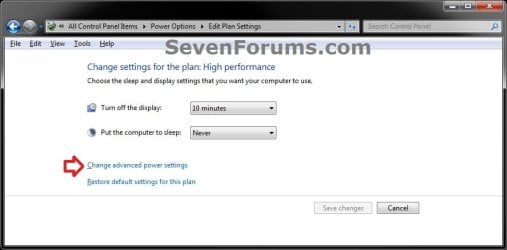
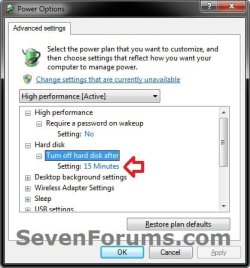
2. To Turn Off Hard Disks After Idle
A) Expand Hard disk and Turn off hard disk after, set how many minutes you want the hard disks to be idle for before being turned off, click/tap on OK, and go to step 4. (see screenshot below)
NOTE: The default setting is with 20 minutes.
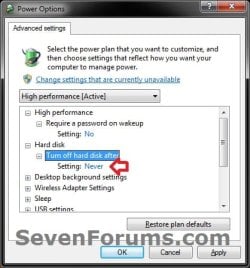
3. To Never Turn Off Hard Disks
A) Expand Hard disk and Turn off hard disk after, set it to Never ( 0 minutes), click/tap on OK, and go to step 4. (see screenshot below)
4. Close the Edit Plan Settings window. (see screenshot below step 1)
That's it,
Shawn
Related Tutorials
- How to Add or Remove "Turn off hard disk after" in Power Options in Windows
- How to Add or Remove "Hard disk burst ignore time" in Power Options
- How to Remove or Show Drives in the Vista and Windows 7 "Send To" Context Menu
- How to Select a Power Plan in Windows 7
- How to Change the Power Plan Settings in Windows 7
- How to Add, Change, or Remove a Drive Letter in Vista, Windows 7, and Windows 8
- How to Hide or Show Empty Drives in Windows 7 Computer Folder
- How to Turn On or Off "USB Selective Suspend" for Idle USB Devices
- How to Enable HIPM and DIPM for your SSD and HDD in Windows 7
- How to Set to Turn Off the Display after Specified Time in Windows
- How to Add or Remove "USB 3 Link Power Mangement" in Power Options in Windows 8
Last edited:


