

How to Change or Turn On or Off the Clicking Sound while Browsing Internet Explorer and Windows Explorer
InformationThis will show you how to either change or turn off the clicking sound you hear when clicking on links while browsing the internet in Internet Explorer, and when clicking on folders while browsing in Windows Explorer.
FIRSTTo Turn Click Sound On or Off in IE9, IE10, and IE11
NOTE: You would use OPTION ONE or OPTION TWO below to turn the clicking sound on or off in IE8 and Windows Explorer.1. Click/tap on the Tools (Menu bar) or gears icon, click/tap on Internet Options, and click/tap on the Advanced tab. (see screenshot below)2. To Turn Off Clicking Sound in IE9, IE10, or IE11
NOTE: This is the default setting.A) Under Accessibility, uncheck Play system sounds, and click/tap on OK. (see screenshot above)3. To Turn On Clicking Sound in IE9, IE10, or IE11A) Under Accessibility, check Play system sounds, and click/tap on OK. (see screenshot above)
B) Now do either OPTION ONE or OPTION TWO below to make sure that you have a sound set to the Start Navigation sound event to play when you click on a link in IE9.
OPTION ONEUsing a REG File Download
1. To Turn Off Clicking Sound in Internet Explorer and Windows ExplorerA) Click/tap on the Download button below to download the file below, and go to step 3 below.Disable_Navigation_Click_Sound.reg2. To Restore Default Clicking Sound in Internet Explorer and Windows Explorer
NOTE: This is the default setting.A) Click/tap on the Download button below to download the file below.3. Save the .reg file to your desktop.Default_Navigation_Click_Sound.reg
4. Double click/tap on the downloaded .reg file to merge it.
5. Click/tap on Run, Yes (UAC-Windows 7/8) or Continue (UAC-Vista), Yes, and OK when prompted.
6. When done, you can delete the downloaded .reg file if you like.
OPTION TWOManually Through Sounds
1. Open the Sound personalization window.
2. To Turn Off Clicking Sound in Internet Explorer and Windows ExplorerThat's it,A) Under the Windows Explorer (Vista/Windows 7) or File Explorer (Windows 8) section, select Complete Navigation, and change it to (None) in the drop down Sounds menu. (see screenshot below)
NOTE: This is the default setting.B) Under the Windows Explorer (Vista/Windows 7) or File Explorer (Windows 8) section, select Start Navigation, and change it to (None) in the drop down Sounds menu. (see screenshot below)3. To Change the Clicking Sound in Internet Explorer and Windows ExplorerC) Click/tap on OK.A) Under the Windows Explorer (Vista/Windows 7) or File Explorer (Windows 8) section, select Start Navigation, click/tap on the Browse button to navigate to and select the .wav sound that you want to use instead. (see screenshot below)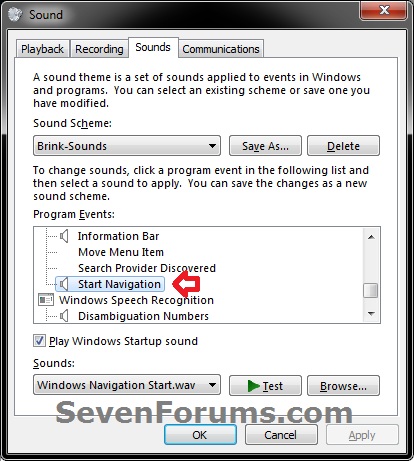 B) Click/tap on OK.4. To Restore Default Clicking Sound in Internet Explorer and Windows ExplorerA) Under the Windows Explorer (Vista/Windows 7) or File Explorer (Windows 8) section, select Complete Navigation, and change it to (None) in the drop down Sounds menu. (see screenshot below)
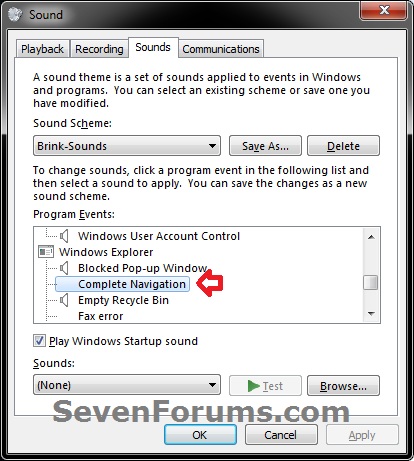 B) Under the Windows Explorer (Vista/Windows 7) or File Explorer (Windows 8) section, select Start Navigation, and change it to Windows Navigation Start.wav in the drop down Sounds menu. (see screenshot below)C) Click/tap on OK.
Shawn
Clicking Sound while Browsing Internet and Windows Explorer - Turn Off
-
New #1
Hello Joules,
Are you referring to it making a clicking noise while doing what in what program or action??
-
-
New #3
Did it Manually Through Sounds and no more clicking noise . Thank you for a great tutorial !
Ciara ... X
Forum software wont let me rep you
-
New #4
You're most welcome Ciara.
That's ok on the rep. Just knowing that it was able to help is thanks enough. :)
-

Clicking Sound while Browsing Internet and Windows Explorer - Turn Off
How to Change or Turn On or Off the Clicking Sound while Browsing Internet and Windows ExplorerPublished by Brink


 Quote
Quote
Related Discussions