
Folder Icon - Change Default Icon

How to Change Windows 7 Default Folder Icons using Resource Hacker

   Information
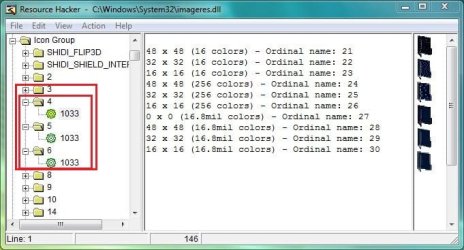
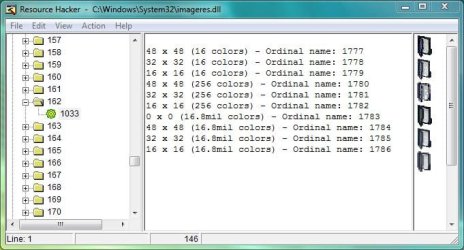
Windows 7 Folders are Live Folders , and they are not a single icon, but a combination of 5 different icons . In imageres.dll's icon group, the numbers of these 5 icons are respectively 3, 4, 5, 6, and 162 . So it is to change all the five icons to change the folder icon's look.

   Note
Tools Required :
1. Resource Hacker
2. System File Replacer

   Warning
To be safe and secured, it is better to http://www.sevenforums.com/tutorials/663-backup-complete-computer-create-image-backup.html before starting any customization activities. Moreover, I recommend to have manual backup (copy and paste in a secured place) of the files before modifying, so that it may be changed easily to default as and when it is needed.


OPTION ONE

To Change the Default Folder Icon to a Custom Icon


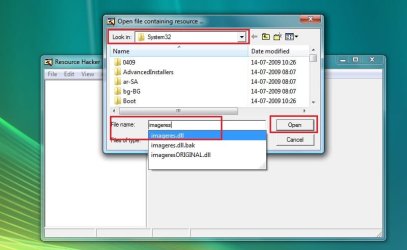
1. Open your resource hacker, Click on file > open ; it will open an window naming "open file continuing resource ...." make it sure that the location of look in box is System 32 . Type the filename "imageres.dll" , click the open button .
1.jpg
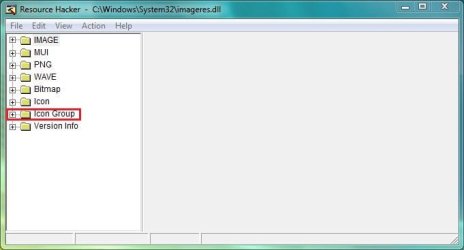
2. Click on the plus sign in front of "Icon Group" .
2.JPG
3. Now change 3, 4, 5, and 6 respectively with the Custom Icons . (The process is the same as described in http://www.sevenforums.com/tutorials/73191-icons-change-using-resource-hacker.html ; from step 9 to step 13; repeat steps for each number) {Change both 3 and 4 with the same open folder icon, 5 with the back side icon , and 6 with the front side icon}
3.JPG
4. Scroll down to 162, and change it (using the same process, with the icon having some stuff in it) .
4.JPG
:warn:
   Note
During Steps 3 and 4 , if you get a dialog saying "out of system resources", dont worry . Click OK and proceed . As all the resolutions (13 resolution layers are usually required there for system icons; for all the alternative locations) are not found, such a dialog pops up . It wont resist our customization.


5. Now File > Save As . In the "Save File As" window, set the save location to Desktop, give the filename "imageres.dll" and save .

So your custom imageres.dll file is ready . Now it is to apply .

6. Take Ownership of the original imageres.dll file, have a manual backup of it , and place the modded one to C:\Windows\System32 , choose Copy and Replace, if prompted . Otherwise, you may use System File Replacer to do the replacement .

   Information
For a 32 bit system, manual work for changing system resources is completed here, but if you are using a 64 bit system , you are to do the same for the imageres.dll situated in SysWoW64, too (as suggested by Bongo)


So your custom folder icon set is done . Now make it workable .

7. To make the icons take effect , rebuild the icon cache, and delete the thumbnail cache.

8. Restart your Computer . After restarting, you may have another Disk Cleanup, to make the changes perfectly. If the thumbnail Cache is not deleted and Icon Cache is not Rebuilt, no change will take effect at all.


OPTION TWO

To Restore the Default Folder Icon


1. To restore the defaults, you will need your manual backup of the original imageres.dll file, that you have made earlier. Next, follow steps 6, 7 and 8 with it to get back the defaults.

 
Last edited by a moderator:
Very nice, but if you do not want to work with the registry, you may use this simple method - lokks more involved than it really is.

1. Make a .ico from any picture

For that you use this little program on the web - no installation required (speaking of cloud computing, LOL). The following 4 pictures explain the steps:

2. Apply you new .ico to any folder

The following pictures explain this:

Folder Icon Change - Vista Forums

a) Right click on the folder in question and "Open folder location"

b) Right click on subject folder > Properties > Customize tab

c) Go to "Change Icon" and browse to the folder where you stored your .ico

d) Pick your .ico > Apply and you are done

This definitely is an alternative option but only if one want to change few folder icons, if some has more then 5,000 folders on their HDD this step is tideous and time consuming and going to take forever to change all the icons with these steps.


My Computer

Computer type
Laptop
OS
Windows 7 Ultimate
Amazing tutorial, worked amazingly well! Thanks for the good work. I couldn't be happier with the looks I got by applying this tutorial. Thanx. J
 

Attachments

  • Black Folders.JPG
    Black Folders.JPG
    114.9 KB · Views: 3,797

My Computer

Computer type
PC/Desktop
Computer Manufacturer/Model Number
Custom built
OS
Windows 7 Ultimate x64 SP1
CPU
AMD FX 8320 4.8GHz, 1.475V
Motherboard
ASUS Crosshair V Formula-Z
Memory
4 x GSkill Ripjaws Z 4GB 1600 CL8
Graphics Card(s)
2 x ASUS HD7870 2GB DirectCu II
Sound Card
M-Audio Firewire 410
Monitor(s) Displays
2 x Samsung Syncmaster SA300
Screen Resolution
1600x900
Hard Drives
1 x Seagate Barracuda 2TB, 7200 rpm, 64 mb cache - Kingston HyperX 3K 120GB (OS) - Corsair FORCE Series 180GB (Games & Apps)
PSU
Corsair TX850M
Case
NZXT Switch 810
Cooling
Custom Water. XSPC Raystorm, Laing DDC 3.2T PWM, 360+120 rad
Keyboard
Corsair Vengeance 650
Mouse
Elephant Leviathan 3200 DPI
Internet Speed
Too slow
Was this problem ever solved properly, i have the problem where they are both changed but the only changes i see are in the save file popups and stuff like that. i have also tried every solution and none worked.

any help would be awesome im just trying to put the finishing touches on a theme im making
 

My Computer

Computer Manufacturer/Model Number
Unknown
OS
Windows 7 64 Bit Home Edition
CPU
Intel Pentium D 820 2.8GHz
Motherboard
Asus P5LP-LE (Emery2)
Memory
4GB DDR2 SDram
Graphics Card(s)
ATi Radeon x700 Series
Sound Card
Realtek ALC882
Monitor(s) Displays
Generic PnP Monitor
Cooling
Fans
EAZY SOLUTION!

To anybody still trying to still accomplish this i found an easier way then the hassling replacing system files manually way and it works like a charm!

Step 1: Download this software - CustoPack Tools : Customize Windows XP, Vista, 7
Step 2: Open software and click "Create a CustoPack" and then "Create a new Pack" in the bottom right corner and fill out any info and check "Windows 7"
Step 3: Goto "Standard Icons/Folders" and change the top 5 icons to your custom ones.
Step 4: Goto "Pack Finalization" on the left menu and click "Test the Pack"

After applying they should be working fine.. This worked 100% for me if it doesnt there is also a "Purge Icon Cache" under the main menu "Settings and Configurations/System Configurations"

Cheers!
 

My Computer

Computer Manufacturer/Model Number
Unknown
OS
Windows 7 64 Bit Home Edition
CPU
Intel Pentium D 820 2.8GHz
Motherboard
Asus P5LP-LE (Emery2)
Memory
4GB DDR2 SDram
Graphics Card(s)
ATi Radeon x700 Series
Sound Card
Realtek ALC882
Monitor(s) Displays
Generic PnP Monitor
Cooling
Fans
Very Nice post and valuable info. I was looking for this for the past 3 years, eversince I purchased retail windows 7 Ultimate.
 

My Computer

Computer Manufacturer/Model Number
Lenovo
OS
Windows 7 Ultimate x32
CPU
Core2Deo
Motherboard
Intel
Memory
4GBDDR2
Graphics Card(s)
Inbuilt
Sound Card
Inbuilt
Everytime I replace the old file with the new one and do the other two things (Icon cache rebuild and deleting thumbnails), it doesn't work. I check the folders, nothing happened and I check in resource hacker and everything is back before I messed with it. What gives?
 

My Computer

Computer Manufacturer/Model Number
Acer / PEW76(B)
OS
Microsoft Windows 7 Home Premium 64-bit SP1
CPU
AMD K10 (45nm Technology)
Motherboard
Acer JE51_DN (Socket S1G4)
Memory
4.00 GB Dual-Channel DDR3 @ 536MHz (7-7-7-20)
Graphics Card(s)
ATI Mobility Radeon HD 4200 Series (Acer Incorporated [ALI])
Sound Card
AMD High Definition Audio Device
Monitor(s) Displays
Generic PnP Monitor on ATI Mobility Radeon HD 4200 Series
Screen Resolution
Dual Monitor: 1366x768 / 1440 x 900
Hard Drives
298GB TOSHIBA MK3275GSX SATA Disk Device (SATA)
PSU
6-Cell Li-ion Battery
Everytime I replace the old file with the new one and do the other two things (Icon cache rebuild and deleting thumbnails), it doesn't work. I check the folders, nothing happened and I check in resource hacker and everything is back before I messed with it. What gives?

If you are saving with Resource Hacker to the original location (System32 and SysWOW64) it won't let you do it and changes will not take effect. That's why you probably aren't seeing any changes when you check the files.
Save the modified imageres.dll files to your desktop and then replace them: with systemfilereplacer, after taking ownership of the original files and deleting them or through an elevated command prompt.

Hope this helps.

Cheers,

J
 

My Computer

Computer type
PC/Desktop
Computer Manufacturer/Model Number
Custom built
OS
Windows 7 Ultimate x64 SP1
CPU
AMD FX 8320 4.8GHz, 1.475V
Motherboard
ASUS Crosshair V Formula-Z
Memory
4 x GSkill Ripjaws Z 4GB 1600 CL8
Graphics Card(s)
2 x ASUS HD7870 2GB DirectCu II
Sound Card
M-Audio Firewire 410
Monitor(s) Displays
2 x Samsung Syncmaster SA300
Screen Resolution
1600x900
Hard Drives
1 x Seagate Barracuda 2TB, 7200 rpm, 64 mb cache - Kingston HyperX 3K 120GB (OS) - Corsair FORCE Series 180GB (Games & Apps)
PSU
Corsair TX850M
Case
NZXT Switch 810
Cooling
Custom Water. XSPC Raystorm, Laing DDC 3.2T PWM, 360+120 rad
Keyboard
Corsair Vengeance 650
Mouse
Elephant Leviathan 3200 DPI
Internet Speed
Too slow
Not Working

Hello,
I recently made my windows to look all metro-ey

So I naturally wanted to add folders, too. I followed this tutorial exactly, using System File Replacer to replace imageres.dll, but my folders are still just.... plain old boring normal windows folders :(

Any help much appreciated.
Thank you for this great tutorial... I just wish it would work. :banghead:
I'm running windows 8.1. with 12gb of ram and intel core i7 4700mq, Intel HD Graphics.
HP Laptop.
 
Last edited by a moderator:

My Computer

Computer type
Laptop
Computer Manufacturer/Model Number
HP
OS
Windows 8.1, 64bit
CPU
Core i7 4700MQ @2.40 GHz
Memory
12gb RAM
Graphics Card(s)
Intel HD Graphis 4000
Hard Drives
1tb Hard Drive
Antivirus
SUPER Anti-spyware
Browser
Google Chrome
An icon works in all the possible sizes when it is a multi-layered one. Can you let me see the icon that you are applying there? Upload any one of them here (zip it and upload it using the paper clip icon of the reply box).
 

My Computer

Computer type
PC/Desktop
Computer Manufacturer/Model Number
Self Assembled
OS
Microsoft Windows 10 Pro Insider Preview 64-bit
CPU
Intel(R) Core(TM) i3-4130 CPU @ 3.40GHz
Motherboard
Gigabyte Technology Co., Ltd. B85M-D3H
Memory
Corsair Vengence 4GB x2 (8.00GB Dual-Channel DDR3 @ 798MHz)
Graphics Card(s)
2047MB GeForce GTS 450 (ZOTAC International)
Sound Card
Onboard (Realtek High Definition Audio)
Monitor(s) Displays
LG Flatron E2040T
Screen Resolution
1600x900
Hard Drives
Western Digital 1 TB
Seagate 500 GB
PSU
Corsair VS550
Case
Cooler Master K380
Cooling
Cooler Master Seidon 120V Plus
Keyboard
Logitech MK260r
Mouse
Logitech MK260r
Internet Speed
PMPL Broadband
Antivirus
Windows Defender + MBAM
Browser
Firefox
Other Info
Dell Studio 15" Laptop
Nervermind, I just used a program called restorator to change the wmploc.dll and imageres.dll, and it did the trick, although I eventually restored the default due to the fact that thumbnails did not display correcly with the icon I was using.
Thanks anyways. :)
 

My Computer

Computer type
Laptop
Computer Manufacturer/Model Number
HP
OS
Windows 8.1, 64bit
CPU
Core i7 4700MQ @2.40 GHz
Memory
12gb RAM
Graphics Card(s)
Intel HD Graphis 4000
Hard Drives
1tb Hard Drive
Antivirus
SUPER Anti-spyware
Browser
Google Chrome
I just tried this tutorial today and everything came out really well. I now have live folders I like instead of those old boring yellow folders. So a big thanks to Arc for taking the time to put this tutorial together. It made a somewhat complex process pretty easy to follow. :D
 

My Computer

Computer type
PC/Desktop
OS
Windows 7 32-bit
Hello. If I´m correct, I only need to use Resource Hacker to create the custom dll and after I can uninstall the program, right?

Also, can somebody point me to some custom icon sets of the open folder? I can't find complete sets in the web. I only found this one, but idk which icon tu use in each number listed in the tutorial:

Elite Folders Iconset (6 icons) | IconTexto
 

My Computer

Computer type
PC/Desktop
OS
Windows 7 Home Premium 32bit

My Computer

Computer type
PC/Desktop
Computer Manufacturer/Model Number
Self Assembled
OS
Microsoft Windows 10 Pro Insider Preview 64-bit
CPU
Intel(R) Core(TM) i3-4130 CPU @ 3.40GHz
Motherboard
Gigabyte Technology Co., Ltd. B85M-D3H
Memory
Corsair Vengence 4GB x2 (8.00GB Dual-Channel DDR3 @ 798MHz)
Graphics Card(s)
2047MB GeForce GTS 450 (ZOTAC International)
Sound Card
Onboard (Realtek High Definition Audio)
Monitor(s) Displays
LG Flatron E2040T
Screen Resolution
1600x900
Hard Drives
Western Digital 1 TB
Seagate 500 GB
PSU
Corsair VS550
Case
Cooler Master K380
Cooling
Cooler Master Seidon 120V Plus
Keyboard
Logitech MK260r
Mouse
Logitech MK260r
Internet Speed
PMPL Broadband
Antivirus
Windows Defender + MBAM
Browser
Firefox
Other Info
Dell Studio 15" Laptop
Wow, thank you for the fast reply!

Anyway, I see the icon pack is numbered nicely so we know where to assign each icon. I have only one more question: I see each number listed by the tutorial (3,4,5,6,162), but also a closed folder icon. What should I do with that one?
 

My Computer

Computer type
PC/Desktop
OS
Windows 7 Home Premium 32bit

My Computer

Computer type
PC/Desktop
Computer Manufacturer/Model Number
Self Assembled
OS
Microsoft Windows 10 Pro Insider Preview 64-bit
CPU
Intel(R) Core(TM) i3-4130 CPU @ 3.40GHz
Motherboard
Gigabyte Technology Co., Ltd. B85M-D3H
Memory
Corsair Vengence 4GB x2 (8.00GB Dual-Channel DDR3 @ 798MHz)
Graphics Card(s)
2047MB GeForce GTS 450 (ZOTAC International)
Sound Card
Onboard (Realtek High Definition Audio)
Monitor(s) Displays
LG Flatron E2040T
Screen Resolution
1600x900
Hard Drives
Western Digital 1 TB
Seagate 500 GB
PSU
Corsair VS550
Case
Cooler Master K380
Cooling
Cooler Master Seidon 120V Plus
Keyboard
Logitech MK260r
Mouse
Logitech MK260r
Internet Speed
PMPL Broadband
Antivirus
Windows Defender + MBAM
Browser
Firefox
Other Info
Dell Studio 15" Laptop
Hello, sorry I didn't post back, but I was kinda busy with work.

Thing is, I can't get this process to work properly. I did everything as the guide says (I downloaded a custom set of icons for the folders, they're red) and changed the windows imageres.dll for the custom one I made. After that, I tried rebuilding the cache with the method you list in another tutorial here, but when I pasted the last line in the command window (DEL "%localappdata%\Microsoft\Windows\Explorer\iconcache*" /A), it tells me that "iconcache*" cannot be found in the path provided (my user name-appdata-local-microsoft-windows-explorer).

After that I reboot, delete the thumbs cache using Disk Cleanu, and it seems to go fine. Reboot again, and my red folders seem to show for most folders, but not for all. For some reason I still get the yellow ones in seemingly random folders in documents and images libraries, some more in the downloads folder. Then, sometimes red folder will turn yellow if I save some new element in them, or viceversa: yellow ones will turn red if any new interaction with them takes place.

Now, today I tried rebuilding the cache closing explorer with the file manager, and then using cmd to use the next commands: cd /d %userprofile%\AppData\Local
del IconCache.db /a
exit


I reboot, delete the thumbs cacche again, and after reboot ALL MY FOLDERS ARE BACK TO BEING YELLOW.

What gives? Could you help me please?
 

My Computer

Computer type
PC/Desktop
OS
Windows 7 Home Premium 32bit
I am having some trouble following along with the tutorial on the other site. I followed what I could but then started having a bit of trouble. (1) When I tried to change the icon for the front of the folder I didn't have one for the icons I wanted to use so I looked online for some with open and closed folders with stuff in them. The images are in png I downloaded the 64X64 size and then converted them all into ico files but I only have the folders icons in size 64X64 should I download all the other sizes as well and convert them to ico also. There are other sizes available like 256X256, 128x128px, 64x64px, 48x48px, 32x32px, 16x16px.


228143d1553223297t-change-icons-folders-pc-windows-10-a-resource-hacker.jpg


(2) How do I add multiple sizes to the editor in case I decide to use a larger file view in file explorer. When I add the icon the edit is a bit different then from the tutorial. I right click where I need too and it has the option to change icon but when I do all the other stuff gets removed and then I only have 1 size how do I add more sizes and should I?


228144d1553223351t-change-icons-folders-pc-windows-10-a-icon-help.jpg


(3) I do have the changes done for some of them folders like 3,4,5 and 6 but when I get to 162 I'm have to add folders with stuff in them. How do I add multiple folders to one area. In the 162 area is that where I put the folders with the music note, and documents icons inside the folder icons. Like I said still kind of new to this. On other site it says "4. Scroll down to 162, and change it (using the same process, with the icon having some stuff in it) ." I don't know what they mean by stuff unless it is the ones with the symbols in them. Plus I don't know how to add multiple sizes at once. Would I just checkbox the same icons and then select multiple sizes or how would I do this. Thanks in advance for the help.


Plus how should I name the icons if there the same but different sizes. Like open folder 1.ico and then keep going until all sizes match same name. And should I put each icon in there own folder if there multiple sizes.


I'm still pretty new to all of this. Thanks.
 

My Computer

Computer type
Laptop
Computer Manufacturer/Model Number
Lenovo
OS
windows 10 64 bit
Browser
Firefox
If the above comment is to hard to follow please let me know and I will try to explain it better.
 

My Computer

Computer type
Laptop
Computer Manufacturer/Model Number
Lenovo
OS
windows 10 64 bit
Browser
Firefox
Back
Top