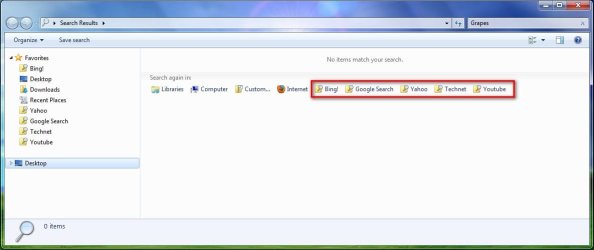
How to Pin Search Connectors to Search and See More Results in Start Menu
Information
This tutorial will show you how to add links for the Search Connectors in the Start Menu, to be able to search from the Start Menu Search Bar and See More Results directly from the Connectors.
Note
You will only be able to add a total of Five Search Connectors at a time, three that will be directly on the Start Menu along with the See More Results, and the other two from within See More Results.
Warning
This will only be available for the Ultimate/Enterprise Editions of Windows 7, as the Ultimate/Enterprise Editions will be the only Editions to have Federated Search available.
You will need to be an administrator to open the Local Group Policy Editor.
Here's How:
1. Go to this tutorial hereand download whatever Search Providers you like, or make your own.
Example:
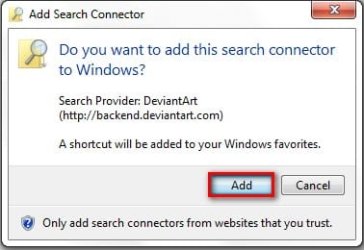
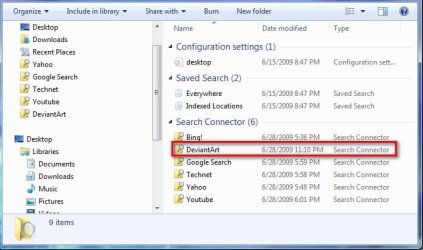
Which will end up here: C:\Users\UserName\Searches
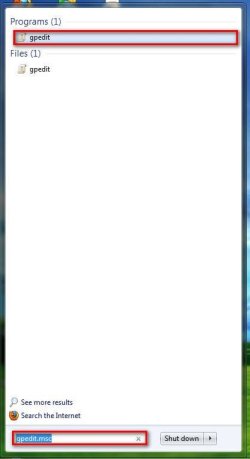
2. Go to the Start Menu and type gpedit.msc in the Search bar and press Enter. Click OK for the UAC prompt.
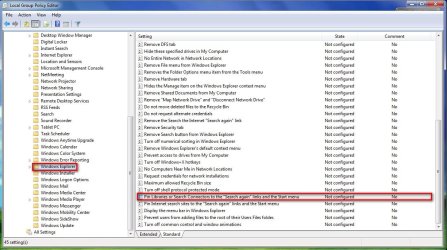
3. In the Local Group Policy Editor, go to User Configuration/Administrative Templates/Windows Components/Windows Explorer/Pin Libraries or Search Connectors to the "Search Again" links and the Start Menu,and double-click on it.
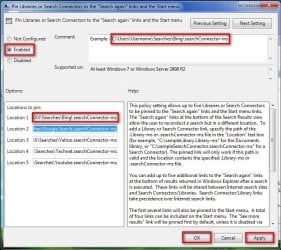
4. To enable the setting, click the dot for Enabled. Add the location for the Search Provider you want. I have given an example in the screenshot below, just Enter your own Username and the name of the Search Provider, followed by .searchConnector-ms. I have used the Bing! search provider for an example here. Enter it, along with any others, into the 5 Location to Pin areas. Click Apply - OK. You can now close gpedit.msc.
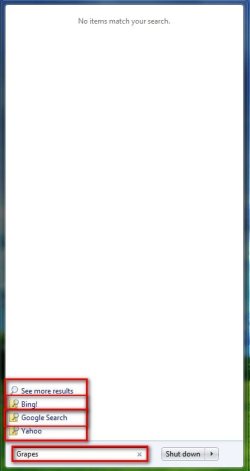
5. Now you can go to the Start Menu, and enter your search query into the bar, and you will see the first 3 Search Providers there along with the See More Results.
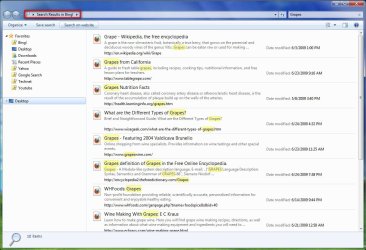
6. When you type your query in the search bar, you can choose to click on one of your Search Provider links, which will then give you your displayed results in the Explorer Window. Or you can choose See More Results, which will open a Window with all your displayed ''Search Again" links, including the other two Search Providers. You can then search from there if you want.
System Manufacturer/Model Number HP Compaq Presario/SR5113WM OS Windows 7 Ultimate x64/ Windows Vista Ultimate x64 CPU AMD Athlon 64 X2 3600+ 1.9Ghz Motherboard Asus M2N68-LA Memory PNY Optima Memory DDR2 2GB 2x1 kit Graphics Card PNY Nvidia 8400 GS 256MB Sound Card On board RealTek Monitor(s) Displays Acer X163W LCD Screen Resolution 1366x768
Keyboard Standard 102 key with volume and sleep buttons Mouse Wireless Logitech LX7 PSU Dynex 400w Case Nothin Special Cooling Stock Hard Drives Western Digital 160 GB SATA 3G (3.0Gb/sec)
7200 rpm
Western Digital 160 GB IDE Internet Speed Comcrap 10mb cable Other Info Insignia 2.1 speakers, wireless Xbox 360 controller w/plug n play charger, Belkin wireless G + mimo usb network adapter.
hi folks,
thanks for this article. just tried it out, but i don't get it to work for me.
i set the gpo to pin libaries and search connectors to start menu but nothing appears. also tried the paths if they are correct, when entering in exporer adress bar all of them open as expected. i have windows 7 pro 64 bit running and tried it on several machines now.
any hints for me? do i need some other setting to be active?
regards!
Using the federated search connectors is only available in the Ultimate/Enterprise editions of Windows 7. I don't have Professional so I can't double check for you, but I'm pretty sure you can't do this in Professional Edition.
System Manufacturer/Model Number Airbot 2.0 OS Windows 7 Ultimate x64 SP1 CPU Core i7 920 (D0) @ 4Ghz, *26c idle *65c full load on air Motherboard Asus P6X58D Premium - Sata 6Gb/s - USB 3.0 Memory 12GB DDR3 Corsair Dominator -CMD12GX3M6A1600C8 at 1600MHz Graphics Card EVGA GeForce GTX 480 -Aftermaket Accelero Xtreme Plus cooler Sound Card ASUS Xonar D2X Monitor(s) Displays 1 LG 24" Flatron W2453V-PF 1 Samsung 24" P2450H both 2ms RT Screen Resolution 1920x1080@60hz
Keyboard Logitech Wireless MK700 Mouse Logitech Wireless MK700 PSU Corsair HX1000W Case Cooler Master HAF 932 Cooling Case Fans *3 230mm, *1 140mm/CPU - *Tuniq Tower 120 Extreme Hard Drives 1 OCZ Vertex2 180GB SSD
1 TB Samsung Spinpoint F1 7200RPM 32MB cache
2 500GB WD Caviar Blacks 7200RPM 32MB cache (WD5001AALS)
Pioneer DVD Burner DVR-S18M Internet Speed DL 15 Mbps UL 0.98 Mbps Antivirus None Browser Firefox Nightly Other Info Processor-7.7 *RAM- 7.9 *Graphics-7.9 *Gaming Graphics- 7.9 *SSD- 7.8 W.E.I final score= 7.7
*Phone- Samsung Galaxy Nexus
thanks for your reply. Search connectors seem to work also in Professional edition. I have my connectors up and running, but only when directly selecting in explorer or using "more results". I just can't add them directly to the start menu.
It's annoying to search from instant search and then have to manually switch to my search connector and re-type the searchterm.
Any other ideas? Could there be an issue with 64Bit or even with the german edition of windows?
System Manufacturer/Model Number Airbot 2.0 OS Windows 7 Ultimate x64 SP1 CPU Core i7 920 (D0) @ 4Ghz, *26c idle *65c full load on air Motherboard Asus P6X58D Premium - Sata 6Gb/s - USB 3.0 Memory 12GB DDR3 Corsair Dominator -CMD12GX3M6A1600C8 at 1600MHz Graphics Card EVGA GeForce GTX 480 -Aftermaket Accelero Xtreme Plus cooler Sound Card ASUS Xonar D2X Monitor(s) Displays 1 LG 24" Flatron W2453V-PF 1 Samsung 24" P2450H both 2ms RT Screen Resolution 1920x1080@60hz
Keyboard Logitech Wireless MK700 Mouse Logitech Wireless MK700 PSU Corsair HX1000W Case Cooler Master HAF 932 Cooling Case Fans *3 230mm, *1 140mm/CPU - *Tuniq Tower 120 Extreme Hard Drives 1 OCZ Vertex2 180GB SSD
1 TB Samsung Spinpoint F1 7200RPM 32MB cache
2 500GB WD Caviar Blacks 7200RPM 32MB cache (WD5001AALS)
Pioneer DVD Burner DVR-S18M Internet Speed DL 15 Mbps UL 0.98 Mbps Antivirus None Browser Firefox Nightly Other Info Processor-7.7 *RAM- 7.9 *Graphics-7.9 *Gaming Graphics- 7.9 *SSD- 7.8 W.E.I final score= 7.7
*Phone- Samsung Galaxy Nexus