
Windows 7 Forums


Windows 7: USB Selective Suspend - Turn On or Off


USB Selective Suspend - Turn On or Off

How to Turn On or Off "USB Selective Suspend" for Idle USB Devices
Published 27 Feb 2011
Published by

Featured Tutorial

Online Scanners - Scan Suspicious Files on your PC

How to Scan Suspicious Files using Online Scanners

Make Windows 7 bootable after motherboard swap

Paragon P2P Adjust OS - Make Windows 7 bootable after motherboard swap

Troubleshooting Windows 7 Failure to Boot


Peppermint3 - Create Live CD/DVD/USB To Use For Emergency Backup

How to Perform an Emergency Data Backup When Windows 7 Will Not Boot

Portable OS - Carry your OS on an External Drive

How to Create a Portable OS on an External Drive
How to Turn On or Off "USB Selective Suspend" for Idle USB Devices

information   Information
The USB selective suspend feature allows the hub driver to suspend an individual USB port without affecting the operation of the other USB ports on the hub. Selective suspension of USB devices is especially useful in portable computers, since it helps conserve battery power. Many devices, such as fingerprint readers and other kinds of biometric scanners, only require power intermittently. Suspending such devices, when the device is not in use, reduces overall power consumption. More importantly, any device that is not selectively suspended may prevent the USB host controller from disabling its transfer schedule, which resides in system memory. DMA transfers by the host controller to the scheduler can prevent the system's processors from entering deeper sleep states, such as hibernate.

This will show you how to turn on or off USB selective suspend to automatically power down idle USB devices in Windows 7 and Vista.

For more information, see: USB Selective Suspend (Windows Driver Kit)


Here's How:
1. Open the advanced power settings for your selected power plan. (see screenshot below)
USB Selective Suspend - Turn On or Off-advanced.jpg
2. To Turn On USB Selective Suspend
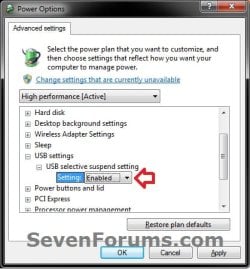
A) Expand USB settings and USB selective suspend setting, set the drop down menu setting to Enabled, and click on OK. (see screenshot below)
NOTE: This is the default setting.
USB Selective Suspend - Turn On or Off-enable.jpg
B) Go to step 4.
3. To Turn Off USB Selective Suspend
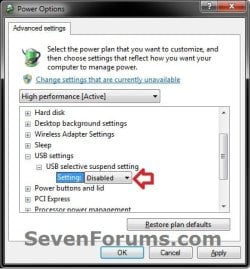
A) Expand USB settings and USB selective suspend setting, set the drop down menu setting to Disabled, and click on OK. (see screenshot below)
USB Selective Suspend - Turn On or Off-disable.jpg
4. Close the Edit Plan Settings window. (see screenshot below step 1)
That's it,
Shawn


Need more help? Try searching our extensive help and support site.
Loading
06 Dec 2012   #1
Brogues


OK thanks, I have switched off both in battery and plugged in. If this works(!) what will it prove exactly - so I can report back to Dell? Of course, I won't know for a while because the crashes are so random. Thanks again

My System SpecsSystem Spec

06 Dec 2012   #2
Brink


Hello Brogues,

The green information box at the top of the tutorial can give you more information about what the USB selective suspend feature is and does.

This tutorial just allows you to turn it on or off at will.

If turned off, the Windows will not be able to only suspend individual idle USB devices.

Hope this helps some,
Shawn
My System SpecsSystem Spec
1 Day Ago   #3
Melissa


I am only new to wishing to adjusting power plans - it is on default - if you wish to disable the External Hard Drive do you follow the instructions above to put it to sleep with the rest of the computer.

Or is it best to post in the forum
Attached Thumbnails
USB Selective Suspend - Turn On or Off-power-settings-usb.png   USB Selective Suspend - Turn On or Off-power-settings.png  
My System SpecsSystem Spec
.


23 Hours Ago   #4
Brink


Hello Melissa,

This setting is not related to the sleep computer setting.

Think of this setting like the turn off idle hard drives setting.

The USB selective suspend feature allows the hub driver to suspend an individual USB port without affecting the operation of the other USB ports on the hub. If set to be disabled, then all USB ports would be suspended instead of only idle ones.

If you like, the link below has more in-depth information about it.

USB Selective Suspend (Windows Drivers)

Hope this helps,
Shawn
My System SpecsSystem Spec
Comment

 USB Selective Suspend - Turn On or Off problems?


Tutorial Tools


Similar help and support threads for: USB Selective Suspend - Turn On or Off
Windows 7 Tutorial Category
USB selective suspend won't stay disabled (and related power issues) Drivers
USB selective suspend not working Hardware & Devices
Remote disable - disable USB selective suspend setting General Discussion
Solved Selective removal of SP1? Windows Updates & Activation
Selective patch System Security


All times are GMT -5. The time now is 06:32 PM.


Windows 7 Forums is an independent web site and has not been authorized,
sponsored, or otherwise approved by Microsoft Corporation.
"Windows 7" and related materials are trademarks of Microsoft Corp.
© Designer Media Ltd