Windows 7 Forums


Windows 7: Shut Down, Restart, Sleep, and Hibernate Commands - Add or Remove


Shut Down, Restart, Sleep, and Hibernate Commands - Add or Remove

How to Add or Remove the Shut Down, Restart, Sleep, and Hibernate Commands in Windows 7
Published 04 Mar 2011
Published by

Featured Tutorial

Clean Reinstall - Factory OEM Windows 7

How to Clean Reinstall a Factory OEM Windows 7

Restore Point - Add "Create Restore Point" to Context Menu in Windows

How to Add "Create Restore Point" to Context Menu in XP, Vista, Windows 7, and Windows 8

Secunia ONLINE Software Inspector

How to Scan for Common Software Vulnerabilities

SF Diagnostic Tool - Using for Troubleshooting

Using SF Diagnostic Tool for Troubleshooting

Emergency Kit - save your files from a dead OS

How to Create and Use a Linux Mint Mate USB Flash Drive to Recover your Files

Troubleshooting Windows 7 Failure to Boot


How to Add or Remove the Shut Down, Restart, Sleep, and Hibernate Commands in Windows 7

information   Information
This will show you how to add or remove the Shut Down, Restart, Sleep, and Hibernate commands from the Start Menu, Start Menu power button, CTRL+ALT+DEL screen, and Alt+F4 Shut Down Windows dialog for all users in Windows 7.

You must be logged in as an administrator to be able to do this tutorial.

Note   Note
This does not prevent users from being able to use any other method (ex: shortcuts) to Shut Down, Restart, Sleep, and Hibernate the computer. It only removes them from the Start Menu, Start Menu power button, CTRL+ALT+DEL screen, and Alt+F4 Shut Down Windows dialog locations.

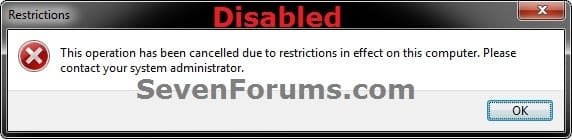
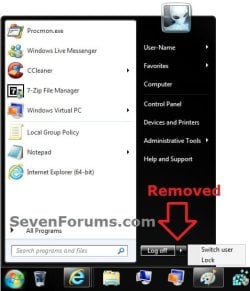
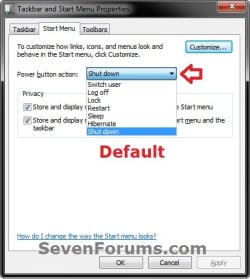
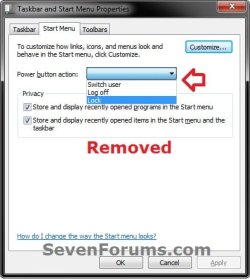
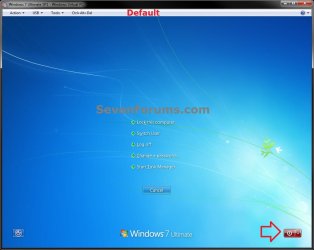
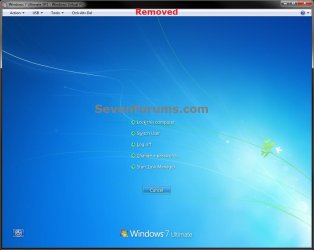
EXAMPLE: Shut Down, Restart, Sleep, and Hibernate commands Added and Removed
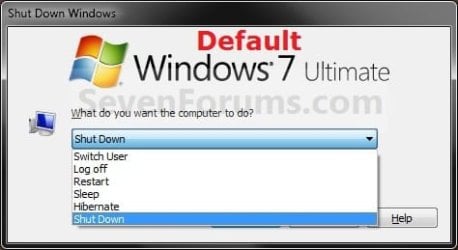
Shut Down, Restart, Sleep, and Hibernate Commands - Add or Remove-alt-f4_shut_down_windows_enabled.jpgShut Down, Restart, Sleep, and Hibernate Commands - Add or Remove-alt-f4_shut_down_windows_disabled.jpg
Shut Down, Restart, Sleep, and Hibernate Commands - Add or Remove-start_menu_default.jpgShut Down, Restart, Sleep, and Hibernate Commands - Add or Remove-start_menu_removed.jpg
Shut Down, Restart, Sleep, and Hibernate Commands - Add or Remove-power_button_default.jpgShut Down, Restart, Sleep, and Hibernate Commands - Add or Remove-power_button_removed.jpg
Shut Down, Restart, Sleep, and Hibernate Commands - Add or Remove-ctrl-alt-del_enabled.jpgShut Down, Restart, Sleep, and Hibernate Commands - Add or Remove-ctrl-alt-del_removed.jpg


OPTION ONE
Using a REG File Download
1. To Add Shut Down, Restart, Sleep, and Hibernate Commands
NOTE: This is the default setting.
A) Click on the Download button below to download the file below.
Add_Shut-Down_Restart_Sleep_Hibernation.reg

download
B) Go to step 3.
2. To Remove Shut Down, Restart, Sleep, and Hibernate Commands
A) Click on the Download button below to download the file below.
Remove_Shut-Down_Restart_Sleep_Hibernation.reg

download
3. Click on Save, and save the .reg file to the desktop.

4. Right click on the downloaded .reg file and click on Merge.

5. Click on Run, Yes, Yes, and OK when prompted.

6. Restart the computer to apply.

7. When done, you can delete the downloaded .reg file if you like.


OPTION TWO
Through the Local Group Policy Editor
1. Open the all users, specific users or groups, or all users except administrators Local Group Policy Editor for how you want this policy applied.

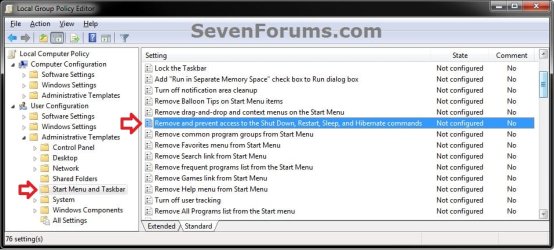
2. In the left pane, click on to expand User Configuration, Administrative Templates, and Start Menu and Taskbar. (see screenshot below)
Shut Down, Restart, Sleep, and Hibernate Commands - Add or Remove-gpedit-1.jpg
3. In the right pane, double click on Remove and prevent access to the Shut Down, Restart, Sleep, and Hibernate commands. (see screenshot above)

4. To Add Shut Down, Restart, Sleep, and Hibernate Commands
A) Select (dot) either Not Configured or Disabled. (see screenshot below step 6)
NOTE: Not Configured is the default setting.

B) Go to step 6.
5. To Remove Shut Down, Restart, Sleep, and Hibernate Commands
A) Select (dot) Enabled. (see screenshot below step 6)
6. Click on OK. (see screenshot below)
Shut Down, Restart, Sleep, and Hibernate Commands - Add or Remove-gpedit-2.jpg
7. Close the Local Group Policy Editor window.
That's it,
Shawn


Related Tutorials


Need more help? Try searching our extensive help and support site.
Loading
27 May 2011   #1
Britton30

Windows 7 Ultimate X64 SP1
Mt. Crumpit/Whoville


Hi Shawn, do you have one to remove only Lock, Switch user, and Sleep? I want to keep Restart and Shut Down and I already have Hibernate disabled with powercfg -h off command.

My System SpecsSystem Spec

27 May 2011   #2
Brink

64-bit Windows 7 Ultimate SP1 & Windows 8 Enterprise
Texas


My System SpecsSystem Spec
28 May 2011   #3
Britton30

Windows 7 Ultimate X64 SP1
Mt. Crumpit/Whoville


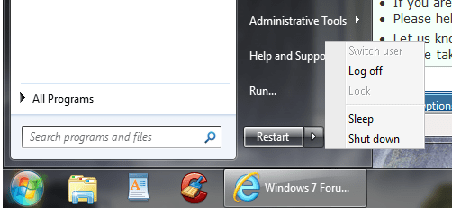
Thanks Shawn, the tut for removing Switch User and Lock worked, the one for removing sleep did not. The Switch User and Lock are grayed out in the restart button and do not show as an option in Properties.
Shut Down, Restart, Sleep, and Hibernate Commands - Add or Remove-untitled.png

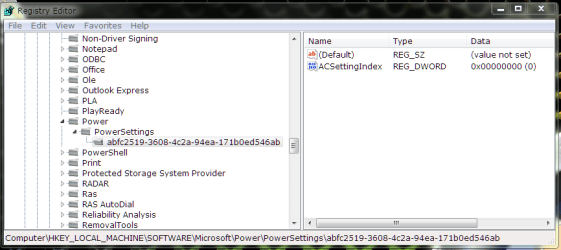
IT looks like everything is there?
Shut Down, Restart, Sleep, and Hibernate Commands - Add or Remove-regedit.png
My System SpecsSystem Spec
.


28 May 2011   #4
Brink

64-bit Windows 7 Ultimate SP1 & Windows 8 Enterprise
Texas


Did you already restart the computer to see if it may apply afterwards?
My System SpecsSystem Spec
28 May 2011   #5
Britton30

Windows 7 Ultimate X64 SP1
Mt. Crumpit/Whoville


Yes I did restart and went so far as to delete all my entries and redo the whole process, no luck yet.
My System SpecsSystem Spec
28 May 2011   #6
Brink

64-bit Windows 7 Ultimate SP1 & Windows 8 Enterprise
Texas


I just tested it again on my system, and that disable Sleep in Start Menu tutorial is not working for me now either. It use to when it was first posted. It may be one of those things that SP1 now prevents from working somehow. I sent Ted a PM to see if it's still working for him or not.
My System SpecsSystem Spec
28 May 2011   #7
Bare Foot Kid

W 7 64-bit Ultimate
The Lowcountry


Hello guys.


I have it currently disabled in 64-bit Ultimate SP1 without issue, as a matter of fact I just reinstalled less than 2 weeks ago and had no issue using the method outlined in the tutorial to disable it then.

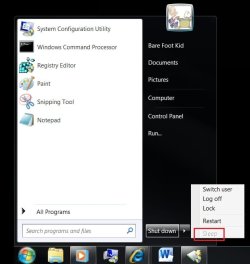
Sleep : Disable in Shut Down Menu


Shut Down, Restart, Sleep, and Hibernate Commands - Add or Remove-sleep.jpg

Last edited by Bare Foot Kid; 29 May 2011 at 05:27 PM..
My System SpecsSystem Spec
29 May 2011   #8
Britton30

Windows 7 Ultimate X64 SP1
Mt. Crumpit/Whoville


Thanks Shawn.
Ted, if you look at my snips, is everything correct? I copy/pasted the info supplied it the tutorial.
My System SpecsSystem Spec
29 May 2011   #9
Bare Foot Kid

W 7 64-bit Ultimate
The Lowcountry


Quote   Quote: Originally Posted by Britton30 View Post
Thanks Shawn.
Ted, if you look at my snips, is everything correct? I copy/pasted the info supplied it the tutorial.

Hello.


I looked at them earlier and all seems well, I have no idea what the issue may be.
My System SpecsSystem Spec
Comment

 Shut Down, Restart, Sleep, and Hibernate Commands - Add or Remove problems?


Tutorial Tools


Similar help and support threads for: Shut Down, Restart, Sleep, and Hibernate Commands - Add or Remove
Windows 7 Tutorial Category
Shut down / Sleep / Hibernate ??? General Discussion
Shut Down - Suspend - Hibernate - Restart Change Customization
Solved BSOD on shut-down, sleep or hibernate - DRIVER_POWER_STATE_FAILURE BSOD Help and Support
Computer will sleep but not hibernate or shut down General Discussion
Machine Won't Hibernate, Sleep or Shut down Performance & Maintenance


All times are GMT -5. The time now is 09:46 PM.


Seven Forums Android App Seven Forums IOS App Follow us on Facebook

Windows 7 Forums is an independent web site and has not been authorized,
sponsored, or otherwise approved by Microsoft Corporation.
"Windows 7" and related materials are trademarks of Microsoft Corp.
© Designer Media Ltd
  

1 2 3 4 5 6 7 8 9 10 11 12 13 14 15 16 17 18 19 20 21 22 23 24 25 26 27 28 29 30 31 32