
How to Create a "Remote Desktop Connection" Shortcut to a Specific Computer
Information
This tutorial will show you how to create a custom Remote Desktop Connection (RDC) shortcut that opens a RDC to a specific computer in Vista, Windows 7, and Windows 8.
Note
While all editions of Vista, Windows 7, and Windows 8 can be a remote desktop client...
- Only the Vista Business, Ultimate, and Enterprise editions can host a remote desktop connection.
- Only the Windows 7 Professional, Ultimate, and Enterprise editions can host a remote desktop connection.
- Only the Windows 8 Pro and Enterprise editions can host a remote desktop connection.
Warning
The computer that you want to make a Remote Desktop Connection to must be set to allow to have a Remote Desktop Connection made to it, or you will not be able to.
EXAMPLE: Remote Desktop Connection Shortcut to Specific Computer
NOTE: You will see the normal RDC log in screens below when you use this shortcut.
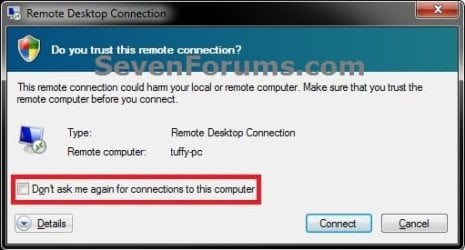
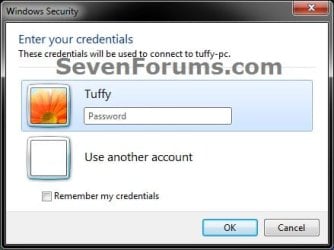
Here's How:
1. Right click on a empty area on desktop, and click on New and Shortcut.
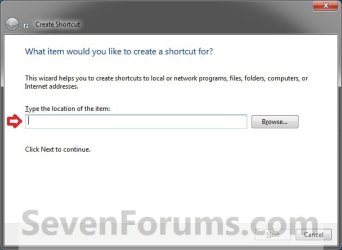
2. Type the location below into the location area, and click on the Next button. (see screenshot below)
NOTE: Substitute ComputerName or IP.Address in the command below with the actual computer name or IP address of the computer that you want to make a RDC to.
mstsc.exe /v:ComputerName
OR
mstsc.exe /v:IP.Address
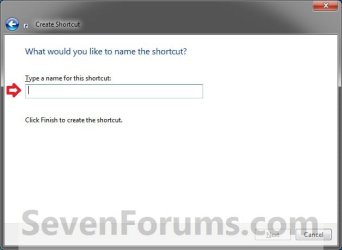
3. Type ComputerName RDC (ex: Brink-PC RDC) or IP.Address RDC (ex: 192.164.0.111 RDC) for the name to help you know what computer the RDC connection is to, and click on the Finish button. (see screenshot below)
NOTE: You can name this anything you would like though.
4. In Windows 7 or Vista, you can now Pin to Taskbar or Pin to Start Menu, add to Quick Launch, assign a keyboard shortcut to it, or move this shortcut to where you like for easy use.
5. In Windows 8, you can Pin to Taskbar on desktop, Pin to Start screen, add to Quick Launch, assign a keyboard shortcut to it, or move this shortcut to where you like for easy use.
That's it,
Shawn
Related Tutorials
- How to Enable Windows to Make and Accept a Remote Desktop Connection
- How to Create a Windows 7 Remote System Properties Shortcut
- How to Create a Windows RemoteApp and Desktop Connections Shortcut
- How to Set Time Limit for Active Remote Desktop Sessions
- How to Set Time Limit for Idle Remote Desktop Sessions
- How to Terminate Remote Desktop Session when Active or Idle Time Limits are Reached
- How to Turn On or Off Automatic Log On for a Remote Desktop Connection
- Allow or Prevent Remote Desktop Connection Clients to Automatically Log On to Host Computer
- How to Create a "Remote Shutdown Dialog" Shortcut
- How to Reset and Clear Remote Desktop Connection History in Windows 7 and Windows 8
- How to Delete Credentials of a Remote Desktop Connection in Windows 7 and Windows 8
Last edited:

