
How to Repair Windows 7 System Files with System File Checker
Information
The sfc /scannow command (System File Checker) scans the integrity of all protected Windows 7 system files and replaces incorrect corrupted, changed/modified, or damaged versions with the correct versions if possible.
Tip
If you get the Windows Resource Protection Could Not Start the Repair Service error when trying to run SFC, then make sure that the Windows Modules Installer service is enabled, click on Start, and set to Manual.
Services - Start or Disable
OR
Copy and paste the command below in the elevated command prompt, and press Enter. After the Windows Modules Installer service has started, try running the SFC command again
net start trustedinstaller
Services - Start or Disable
OR
Copy and paste the command below in the elevated command prompt, and press Enter. After the Windows Modules Installer service has started, try running the SFC command again
net start trustedinstaller
Note
Warning
Be aware that if you have modified your system files as in theming explorer/system files, running sfc /scannow will revert the system files such as explorer.exe back to it's default state. Make the appropriate backups of your system files that you have modified for theming if you wish to save them before running sfc /scannow.
:note: For the updated Windows 10 tutorial, please see - SFC Command - Run in Windows 10 - Windows 10 Tutorials
CONTENTS:
- Option One: To Run the SFC /SCANNOW Command at Boot
- Option Two: To Run the SFC /SCANNOW Command in Windows 7
- Option Three: How to See and Read Only the "SFC" Scan Results from the CBS.LOG
OPTION ONE
To Run the SFC /SCANNOW Command at Boot
1. For how, see METHOD TWO at this link: SFC /SCANNOW : Run in Command Prompt at Boot
Note
Using OPTION TWO below is recommended if able.
If you would like to get help with your SFC issue, then be sure to upload and attach your sfcdetails.txt file from OPTION THREE below in your post.
If you would like to get help with your SFC issue, then be sure to upload and attach your sfcdetails.txt file from OPTION THREE below in your post.
OPTION TWO
To Run the SFC /SCANNOW Command in Windows 7
1. Open an elevated command prompt or an elevated PowerShell, and do step 2 or 3 below for what type of scan you would like to run.
2. To Scan and Repair System Files
NOTE: Scans the integrity of all protected system files and repairs the system files if needed. Please see red WARNING box at the top of this tutorial.
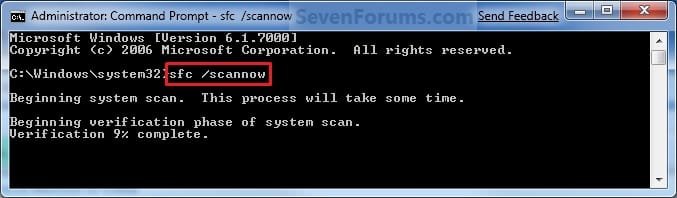
A) In the elevated command prompt, type sfc /scannow, press Enter, and go to step 4 below. (see screenshot below)
NOTE: This may take a little bit to finish.
3. To Only Verify if the System Files are Corrupted
NOTE: Scans and only verifies the integrity of all proteced system files only. This command will not change your system files as in the red WARNING box at the top of this tutorial.
A) In the elevated command prompt, type sfc /verifyonly, press Enter, and go to step 4 below.
4. When the scan is complete, hopefully you will see all is ok like the screenshot below.
Note
- If SFC could not fix something, then run the command again to see if it may be able to the next time. Sometimes it may take running the sfc /scannow command 3 or more times to completely fix everything that it's able to.
- If not, then download and run the 32-bit (x86) or 64-bit (x64) System Update Readiness Tool for your same installed 32-bit or 64-bit Windows 7, restart the PC afterwards, and try the sfc /scannow command again.
- If still not, then try using OPTION ONE above to run the sfc /scannow command at boot.
- If still not, then you can attempt to run a System Restore using a restore point dated before the bad file occured to fix it. You may need to repeat doing a System Restore until you find a older restore point that may work.
- If still not, then you can use the steps in the TIP box in the OPTION THREE section below to manually replace the files that SFC could not fix if there are not to many fix.
- If there are to many files to manually fix, or you prefer not to use OPTION THREE below, then you could do a repair install without losing anything.

5. When done, close the elevated command prompt.
OPTION THREE
How to See and Read Only the "SFC" Scan Results from the CBS.LOG
Note
When SFC runs, it logs it's actions into the C:\Windows\Logs\CBS\CBS.log. The steps in this option will show you how to see only the specific SFC entries with the [SR] tags in this CBS.log. This can be helpful to show you what files SFC could not fix automatically if you wanted to try and manually replace them.
1. Open an "elevated command prompt" (right click -> Run as administrator).
2. In the elevated command prompt, copy and paste the command below, and press Enter. (See screenshot below)
NOTE: This will place a sfcdetails.txt file on your desktop with only the SFC scan result details from the CBS.LOG in it.
Code:
findstr /c:"[SR]" %windir%\Logs\CBS\CBS.log >"%userprofile%\Desktop\sfcdetails.txt"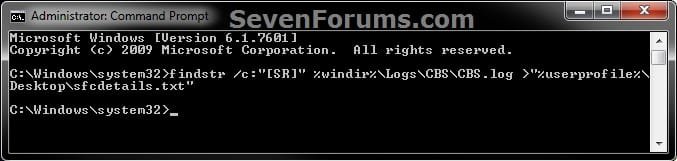
3. Close the elevated command prompt.
4. Open the sfcdetails.txt file on your desktop to see the SFC scan details in the CBS.LOG.
5. You can safely delete the sfcdetails.txt file afterwards if you like.
Tip
If you need to replace a corrupted system file that SFC cannot fix, then this will show you how to by extracting a new copy directly from your Windows 7 installation DVD.
Extract Files from Windows 7 Installation DVD
Extract Files from Windows 7 Installation DVD
That's it,
Shawn
Related Tutorials
- How to Run the System File Checker in a Command Prompt at Boot
- How to Do a System Restore in Windows 7
- How to Do a Repair Install to Fix Windows 7
- How to Run Disk Check in Windows 7
- How to See Windows 7 Reliability and Problem History with Reliability Monitor
- How to Extract Files from the Windows 7 Installation DVD
- How to Troubleshoot a Problem by Performing a Clean Startup in Windows 7 or Vista
Last edited:


