
How to Create a List of All Encrypted Files on All Local Drives in Windows
Information
This tutorial will show you how to create a list of all encrypted files that belong to the current user on all NTFS local drives in Vista, Windows 7, and Windows 8.
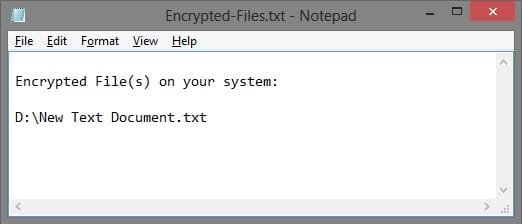
This will create a Encrypted-Files.txt file on your desktop that includes the full path of each encrypted file found in it.
This will create a Encrypted-Files.txt file on your desktop that includes the full path of each encrypted file found in it.
EXAMPLE: Encrypted-Files.txt
Here's How:
1. Open a command prompt in Vista, Windows 7, or Windows 8, and do step 2 or 3 below for what you would like to do.
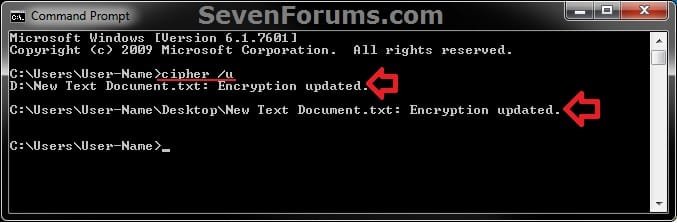
2. To Use the cipher /u /h Command
NOTE: This option is used to find all the encrypted files on the local drives, and will update the user's file encryption key or recovery keys of the encrypted files to use the current keys if changed since encrypted.
A) In the command prompt, copy and paste the command below, press Enter, and go to step 4 below.
NOTE: Added /H to include hidden encrypted files.
cipher /u /h > %UserProfile%\Desktop\Encrypted-Files.txt
3. To Use the cipher /u /n /h Command
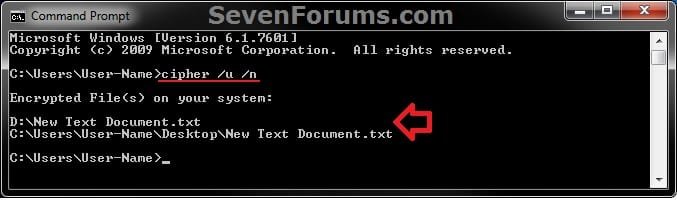
NOTE: This option is used to find all the encrypted files on the local drives, and will not update the encyption keys.
A) In the command prompt, copy and paste the command below, press Enter, and go to step 4 below.
NOTE: Added /H to include hidden encrypted files.
cipher /U /N /H > %UserProfile%\Desktop\Encrypted-Files.txt
4. When finished, close the command prompt.
5. You will now have a Encrypted-Files.txt file on your desktop with a list of all encrypted files on your system.
That's it,
Shawn
Related Tutorials
- How to Encrypt or Decrypt a Folder or File in Vista and Windows 7
- How to Restore the Encrypted File System (EFS) Certificate in Vista and Windows 7
- How to Backup the Encrypted File System (EFS) Certificate in Vista and Windows 7
- How to Add Encrypt and Decrypt to the Context Menu in Vista
- How to Disable or Enable Encryption in Vista and Windows 7
- How to Create a Encrypting File System Manager Shortcut
- How to Add Encrypt and Decrypt to the Windows 7 Context Menu
- How to Encrypt or Unencrypt Offline Files in Windows 7
Last edited:


