
How to Allow Pop-ups from a Website in Internet Explorer
Information
By default, Internet Explorer displays pop-ups that appear as a result of you clicking a link or button. Pop-up Blocker blocks pop-ups that are displayed automatically (without you clicking a link or button).
This will show you how to add or remove a website to the Pop-up Blocker exception list to allow the website to display automatic pop-ups.
This will show you how to add or remove a website to the Pop-up Blocker exception list to allow the website to display automatic pop-ups.
OPTION ONE
Using "Tools" Menu or Command Bar in Internet Explorer
1. Open Internet Explorer.
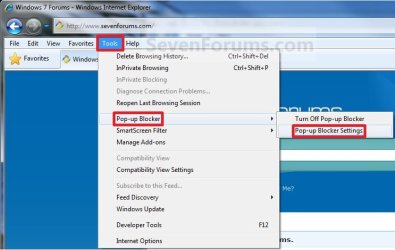
2. Click on the Tools Menu Bar item, and click on Pop-up Blocker and Pop-up Blocker Settings. (See screenshot below)
OR
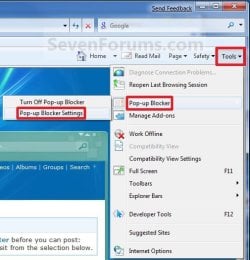
3. Click on the Tools Command Bar icon button, and click on Pop-up Blocker and Pop-up Blocker Settings. (See screenshot below)
4. To Add a Website to the Pop-up Blocker List
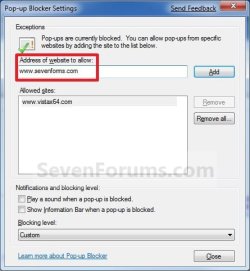
A) Type in the website address that you want to allow to display automatic pop-ups in the Address of website to allow line, then click on the Add button. (See screenshot below)
NOTE: Repeat this to add more websites to the exception list to allow them to display automatic pop-ups in Internet Explorer.
5. To Remove a Website from the Pop-up Blocker List
A) Under Allowed sites, select (click on) a website address that you want to remove, and click on the Remove button. (See screenshot below)
NOTE: Repeat this to remove more websites from the exception list to not allow them to display automatic pop-ups in Internet Explorer.

6. To Remove All Websites from the Pop-up Blocker List -
A) Click on the Remove all button. (See screenshot above)
NOTE: This will remove all websites from the Allowed sites exception list to not allow them to display automatic pop-ups in Internet Explorer.
7. Click on the Close button. (See screenshot below step 4 or 5)
OPTION TWO
Through Internet Options
1. Open Internet Explorer.
A) Click on Tools (Menu Bar or Command Bar icon button)
B) Go to step 3.
OR
2. Open the Control Panel (icons view).
3. Click on Internet Options.
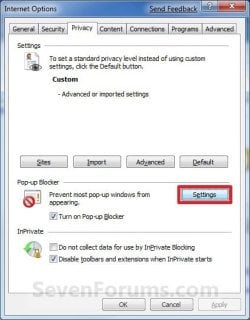
4. Click on the Privacy tab and Settings button. (See screenshot below)
5. Go to step 4, 5, or 6 in METHOD ONE above for the option you want to do.
7. Click on the Close button. (See screenshot below step 4 or 5 in METHOD ONE above)
8. Click on OK. (See screenshot below step 4)
That's it,
Shawn
Related Tutorials
- How to Turn Pop-up Blocker On or Off in Internet Explorer
- How to Turn InPrivate Filtering On or Off in Internet Explorer 8
- How to Turn SmartScreen Filter On or Off in Internet Explorer
- How to Open a InPrivate Browsing Window in Internet Explorer
- How to Import and Export Internet Explorer Pop-up Blocker Settings
- How to Allow or Block Cookies in Internet Explorer in Vista and Windows 7
- How to Enable or Disable DOM Storage "Cookies" in Internet Explorer and Firefox
- How to Allow or Prevent Websites to Request Your Location in IE9, IE10, and Firefox
Last edited:


