
Windows 7 Forums


Windows 7: Outlook 2010 - Signatures - Backup and Restore


Outlook 2010 - Signatures - Backup and Restore

How to Backup and Restore Signatures in Outlook 2010
Published 17 Jul 2011
Published by

Featured Tutorial

PCIe Link State Power Management - Turn On or Off in Windows

How to Turn On or Off PCIe Link State Power Management in Windows

Troubleshooting Steps for Windows 7


Screen Capture and Video Editing in High Quality


Online Scanners - Scan Suspicious Files on your PC

How to Scan Suspicious Files using Online Scanners

Secunia ONLINE Software Inspector

How to Scan for Common Software Vulnerabilities
How to Backup and Restore Signatures in Outlook 2010

information   Information
This will show you how to backup and restore your signatures in Outlook 2010.

Note   Note
Signatures in Outlook 2010 are saved in the folder below by default.

Windows XP:
C:\Documents and Settings\%username%\Application Data\Microsoft\Signatures

Vista and Windows 7:
C:\Users\%username%\AppData\Roaming\Microsoft\Signatures


Here's How:
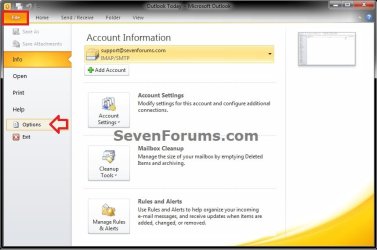
1. Open Outlook 2010, click on File, and click on Options. (see screenshot below)
Outlook 2010 - Signatures - Backup and Restore-step-1.jpg
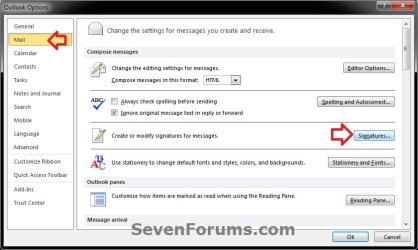
2. In the right pane, click on Mail, press and hold the CTRL (control key, click on the Signatures button, and release the CTRL key. (see screenshot below)
NOTE: This opens the Signatures folder used by Outlook.
Outlook 2010 - Signatures - Backup and Restore-step-2.jpg
3. To Backup Signatures in Outlook 2010
A) Select all of the files and folders in the Signatures folder, right click on them and click on Copy. (see screenshot below)
Outlook 2010 - Signatures - Backup and Restore-step-3.jpg
B) Create a new folder on your desktop, and paste the contents of the Signatures folder into the new folder.

C) You can now move the new folder to where you like to keep it as your backup of the signatures in Outlook 2010.

D) Go to step 5.
4. To Restore Signatures Back to Outlook 2010
A) Open the backup new folder from step 3, select all of the files and folders in the new folder, right click on them and click on Copy.

B) Paste the contents of the new folder into the Signatures folder opened from step 2. When finished, close this window. (see screenshot below)
Click image for larger version

Name:	Step-3.jpg
Views:	551
Size:	148.6 KB
ID:	165569
C) Click on the Signatures button (without CTRL key) from step 2 again. (see screenshot below)
Click image for larger version

Name:	Step-2.jpg
Views:	324
Size:	115.4 KB
ID:	165568
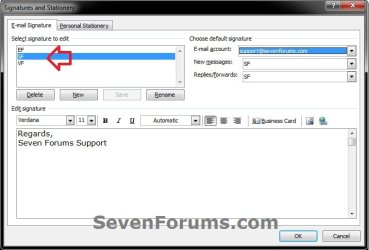
D) You can now assign your restored signatures to the email accounts that you want to use them with. Click on OK when finished. (see screenshot below)
Outlook 2010 - Signatures - Backup and Restore-step-4.jpg
5. When finished, close all remaining opened windows.
That's it,
Shawn


Need more help? Try searching our extensive help and support site.
Loading
Comment

 Outlook 2010 - Signatures - Backup and Restore problems?


Tutorial Tools


Similar help and support threads for: Outlook 2010 - Signatures - Backup and Restore
Windows 7 Tutorial Category
How to Backup Outlook 2010 and Business Contact Manager? Microsoft Office
Backup Calander in Outlook 2010 Microsoft Office
Outlook 2010 backup/restore emails Microsoft Office
Windows Live Mail - Backup and Restore Signatures Tutorials
Outlook 2010 - no pfbackup.exe backup mail folders ? Microsoft Office


All times are GMT -5. The time now is 03:01 AM.


Windows 7 Forums is an independent web site and has not been authorized,
sponsored, or otherwise approved by Microsoft Corporation.
"Windows 7" and related materials are trademarks of Microsoft Corp.
© Designer Media Ltd