Windows 7 Forums


Windows 7: Clock - Add Additional Clocks


Clock - Add Additional Clocks

How to Add Additional Clocks in Windows 7 and Windows 8
Published 30 Jul 2011
Published by

Featured Tutorial

Emergency Kit - save your files from a dead OS

How to Create and Use a Linux Mint Mate USB Flash Drive to Recover your Files

Search - Find More with Filters and Operators

How to Use Windows Search Filters and Operators to get better Search Results in Windows 7

Peppermint3 - Create Live CD/DVD/USB To Use For Emergency Backup

How to Perform an Emergency Data Backup When Windows 7 Will Not Boot

Microsoft Account - Sign up for and Create

How to Sign up for and Create a Microsoft Account

User Profiles - Create and Move During Windows 7 Installation

How to Create User Accounts on another Partition or Disk During Windows 7 Installation

Clean Up Factory Bloatware


How to Add Additional Clocks in Windows 7 and Windows 8

information   Information
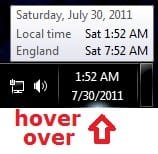
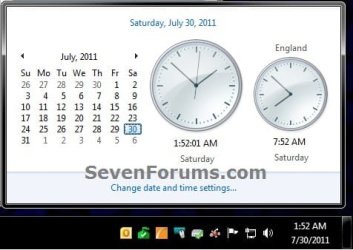
Windows 7 and Windows 8 can display up to three clocks: one for the local time and two for the times in other time zones. After you set up additional clocks, you can view them by clicking on or pointing to the taskbar clock.


EXAMPLE: Additional Clocks in Windows
Clock - Add Additional Clocks-clock1.jpgName:  hover.jpg
Views: 4797
Size:  13.6 KB

Here's How:
1. Do step 2, 3, or 4 below for how you would like to open Additional Clocks.

2. Click/tap on Time on the taskbar, click/tap on Change date and time settings, and go to step 5 below. (see screenshot below)
Click image for larger version

Name:	Clock1.jpg
Views:	141
Size:	54.9 KB
ID:	167646
3. Right click on Time on the taskbar, click/tap Adjust Date/Time, and go to step 5 below.

4. Open the Control Panel (icons view), click/tap on the Date and Time icon, and go to step 5 below.

5. Click/tap on the Additional Clocks tab. (see screenshot below step 9)

6. Check Show this clock to add a clock. (see screenshot below step 9)
NOTE: You can add one or both additional clocks.

7. Click/tap on the Select time zone drop down arrow, and select a time zone from the list you want for this clock. (see screenshot below step 9)

8. Enter a display name for this clock. (see screenshot below step 9)
NOTE: You can type up to 15 characters.

9. When finished, click/tap on OK. (see screenshot below)
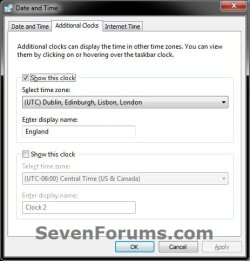
Clock - Add Additional Clocks-date_time.jpg
That's it,
Shawn


Need more help? Try searching our extensive help and support site.
Loading
20 Sep 2012   #1
alikhan

Windows 7 Ultimate x64
Mumbai & Bangalore


I have downloaded software to add additional clock of different region in my desktop and didn't realize that a simple option was there in date and time settings to add ......

My System SpecsSystem Spec

Comment

 Clock - Add Additional Clocks problems?


Tutorial Tools


Similar help and support threads for: Clock - Add Additional Clocks
Windows 7 Tutorial Category
Custom Gadget Clocks Gadgets
How can I change Additional Clocks to 5 ? General Discussion
Solved Clock Drift driving me nuts. Any way to sync to CMOS clock? General Discussion
Additional Clocks Shortcut - Create Tutorials
More Clocks General Discussion


All times are GMT -5. The time now is 07:40 AM.


Seven Forums Android App Seven Forums IOS App Follow us on Facebook

Windows 7 Forums is an independent web site and has not been authorized,
sponsored, or otherwise approved by Microsoft Corporation.
"Windows 7" and related materials are trademarks of Microsoft Corp.
© Designer Media Ltd
  

1 2 3 4 5 6 7 8 9 10 11 12 13 14 15 16 17 18 19 20 21 22 23 24 25 26 27 28 29 30 31 32