Windows 7 Forums


Windows 7: Wake Source - Read Event Viewer Log


Wake Source - Read Event Viewer Log

How to Read the Wake Source Log in Event Viewer for Vista, Windows 7, and Windows 8
Published 05 Aug 2011
Published by

Applies to:
7,8,Vista

Featured Tutorial

Troubleshooting Windows 7 Failure to Boot


Emergency Kit - save your files from a dead OS

How to Create and Use a Linux Mint Mate USB Flash Drive to Recover your Files

User Profiles - Create and Move During Windows 7 Installation

How to Create User Accounts on another Partition or Disk During Windows 7 Installation

System Preparation Tool - Use to Customize Windows

How to Use Sysprep to Customize Windows 7 and Windows 8

Microsoft Account "Two-step Verification" - Turn On or Off

How to Turn "Two-step Verification" On or Off for your Microsoft Account

Microsoft Account Primary Alias Email Address - Change

How to Change your Microsoft Account Primary Alias Email Address
How to Read the Wake Source Log in Event Viewer for Vista, Windows 7, and Windows 8

information   Information
This will show you how to read the wake source log in the Event Viewer to see what device, task, or etc... has woke up your computer from sleep or hibernation at listed dates and times.

You must be logged in as an administrator to be able to do the steps in this tutorial.


Here's How:
1. Press the Windows + R keys to open the Run dialog, type eventvwr.msc, and press enter.

2. If prompted by UAC, then click on Yes (Windows 7/8) or Continue (Vista).
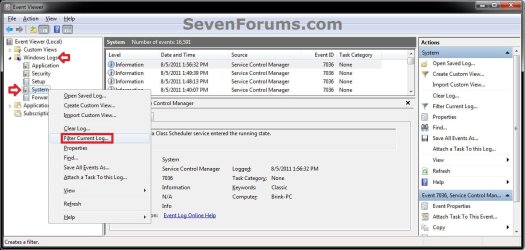
3. In the left pane of Event Viewer, double click on Windows Logs to expand it, click on System to select it, then right click on System and click on Filter Current Log. (see screenshot below)
Wake Source - Read Event Viewer Log-step-1.jpg
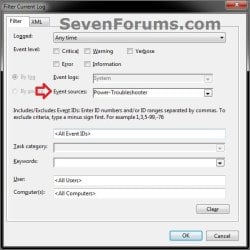
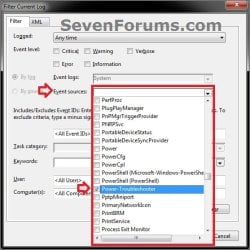
4. In the Event sources drop down menu, check the Power-Troubleshooter option, and click on OK. (see screenshots below)
Wake Source - Read Event Viewer Log-step-2a.jpgWake Source - Read Event Viewer Log-step-2b.jpg
5. In the middle pane of Event Viewer, you will now have a list of events with date and time to select to see the Wake Source of. (see screenshot below)
NOTE: For example, the HID-compliant Bluetooth Mouse was what woke my computer last at the selected event date and time.
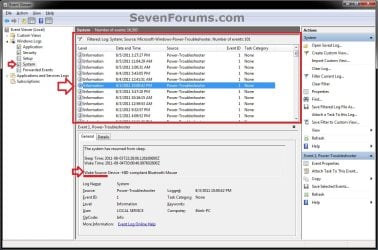
Wake Source - Read Event Viewer Log-step-3.jpg
6. When finished, close Event Viewer.
That's it,
Shawn


Need more help? Try searching our extensive help and support site.
Loading
Comment

 Wake Source - Read Event Viewer Log problems?


Tutorial Tools


Similar help and support threads for: Wake Source - Read Event Viewer Log
Windows 7 Tutorial Category
Check Disk (chkdsk) - Read Event Viewer Log Tutorials
Solved Event Viewer Warning - Source e1yexpress - Event ID 27 General Discussion
Event viewer information survives low level format! Spooky - read on! Backup and Restore
Event ID 10 — Event Filter Query Functionality, Source: WMI BSOD Help and Support
Memory Diagnostics Tool - Read Event Viewer Log Tutorials


All times are GMT -5. The time now is 05:14 AM.


Seven Forums Android App Seven Forums IOS App Follow us on Facebook

Windows 7 Forums is an independent web site and has not been authorized,
sponsored, or otherwise approved by Microsoft Corporation.
"Windows 7" and related materials are trademarks of Microsoft Corp.
© Designer Media Ltd
  

1 2 3 4 5 6 7 8 9 10 11 12 13 14 15 16 17 18 19 20 21 22 23 24 25 26 27 28 29 30 31 32