How to Create a Shortcut of a File, Folder, Drive, or Program in Vista, Windows 7, and Windows 8
Information
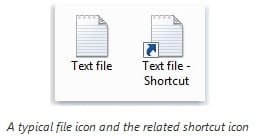
A shortcut is a link to an item (such as a file, folder, drive, or program) on your computer. You can create shortcuts and then place them in a convenient location so that you can easily access the item that the shortcut links to. Shortcuts can be distinguished from the original file by the arrow that appears on the icon.
This tutorial will show you different ways on how to create a shortcut of a file, folder, drive, or program in Vista, Windows 7, and Windows 8.
This tutorial will show you different ways on how to create a shortcut of a file, folder, drive, or program in Vista, Windows 7, and Windows 8.
Tip
After you create the shortcut:
In Vista or Windows 7, you could Pin to Taskbar or Pin to Start Menu, add to Quick Launch, assign a keyboard shortcut to it, or move the shortcut to where you like for easy use.
In Windows 8 and 8.1, you could Pin to Taskbar on desktop, Pin to Start screen, add to Quick Launch, assign a keyboard shortcut to it, or move the shortcut to where you like for easy use.
In Vista or Windows 7, you could Pin to Taskbar or Pin to Start Menu, add to Quick Launch, assign a keyboard shortcut to it, or move the shortcut to where you like for easy use.
In Windows 8 and 8.1, you could Pin to Taskbar on desktop, Pin to Start screen, add to Quick Launch, assign a keyboard shortcut to it, or move the shortcut to where you like for easy use.
EXAMPLE: File and Shortcut of File
OPTION ONE
Create Shortcut from Windows Explorer Address Bar
1. Open Windows Explorer (Vista or Windows 7) or File Explorer (Windows 8), and navigate to and open the folder or drive that you want to create a shortcut of.
2. Drag the small folder or drive icon at the far left side of the address bar to a location (ex: desktop) that you want to create a shortcut of the folder at, then drop and release to create it. (see screenshot below)

OPTION TWO
Create Shortcut using "Send To" Context Menu Item
1. Select (highlight) one or more file(s), folder(s), or program(s) (exe file) that you want to create a shortcut of, right click or press and hold on them, then click/tap on Send To and Desktop (create shortcut). (see screenshot below)
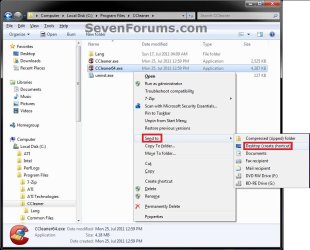
2. You can now move the shortcut(s) to where you like for ease of use.
OPTION THREE
Create Shortcut using "Create Shortcut" Context Menu Item
1. Select (highlight) one or more file(s), folder(s), or program(s) (exe file) that you want to create a shortcut of, right click or press and hold on them, then click on Create shortcut. (see screenshot below)
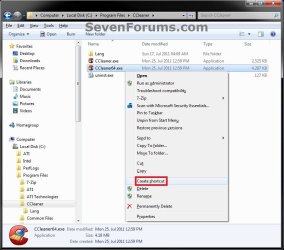
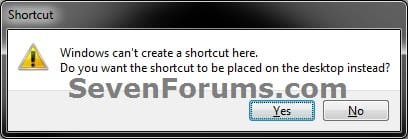
2. If prompted, click/tap on Yes. (see screenshot below)
3. You can now move the shortcut(s) to where you like for ease of use.
OPTION FOUR
Create Shortcut using "New -> Shortcut" Context Menu Item
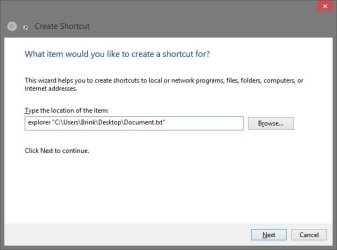
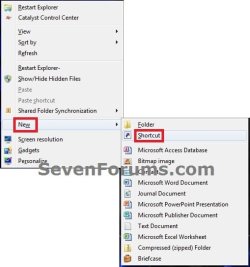
1. Right click on a empty space on the desktop or Windows Explorer (not in navigation pane or preview pane), then click/tap on New and Shortcut. (see screenshot below)
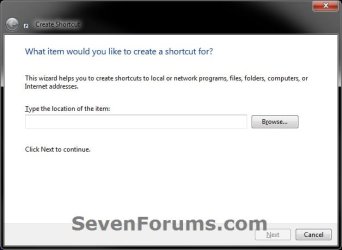
2. Click/tap on the Browse button. (see screenshot below)
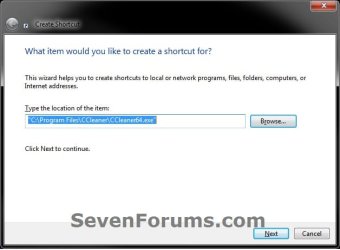
3. Navigate to and select the file, folder, drive, or program (exe file) that you want to create a shortcut of, and click/tap on OK. (see screenshot below)

4. Click/tap on Next. (see screenshot below)
5. Type in a name you would like the shortcut to have, and click/tap on Finish. (see screenshot below)
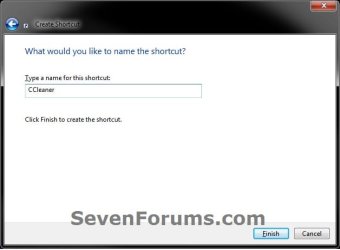
6. You can now move the shortcut to where you like for ease of use.
OPTION FIVE
Create Shortcut using "Paste shortcut" Context Menu Item
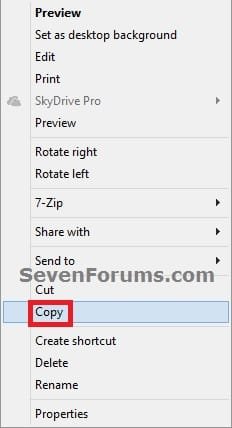
1. Select (highlight) one or more file(s), folder(s), drive(s), or program(s) (exe file) that you want to create a shortcut of, right click or press and hold on them, then click/tap on Copy. (see screenshot below)
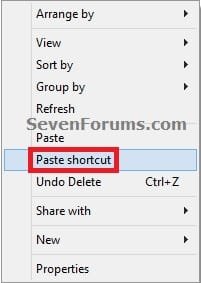
2. Go to where (ex: desktop, in a folder, library etc...) that you would like to create a shortcut of the selected file(s), folder(s), drive(s), or program(s), right click or press and hold on an empty area, then click/tap on Paste shortcut.
That's it,
Shawn
Related Tutorials
- How to Add or Delete Start Menu All Programs Shortcuts in Windows 7
- Add or Remove "Favorites" Links in Navigation Pane of Windows 7 and Windows 8
- How to Create a Internet Website Shortcut in Windows
- How to Change the Icon of a Shortcut in Windows 7
- How to Change, Remove, or Restore the Shortcut Arrow Overlay Icon in Windows
- How to Remove or Restore the "Shortcut" Name Extension in Windows 7 and Windows 8
- How to Hide a Folder or Shortcut Icon in Vista and Windows 7
- How to Pin or Unpin a Program to the Windows 7 Taskbar
- How to Pin or Unpin a Folder to the Windows 7 Taskbar
- Always Open Shortcut Minimized, Maximized, or Normally in Vista, Windows 7, and Windows 8
- How to Change Default Open To Target of File Explorer Pinned to Taskbar in Windows 8.1
- How to Create Shortcut with Relative Path
Last edited: