How to Disable the "Open File Security Warning" in Windows
Information
This will show you how to enable or disable XP, Vista, or Windows 7 prompting you with the Open File Security Warning when you open or run a downloaded or copied file from the internet or another computer on your computer.
Warning
The Open File - Security Warning prompt is a security measure in Windows 7 and Vista to ask for your permission (like UAC) before allowing a downloaded or copied file from the internet or another computer to be opened or run on your computer.
Disabling Open File - Security Warning will reduce the security level of Windows, and place your computer at a higher risk of being infected by malware.
Disable at your own risk if you no longer want to have a Open File - Security Warning.
Disabling Open File - Security Warning will reduce the security level of Windows, and place your computer at a higher risk of being infected by malware.
Disable at your own risk if you no longer want to have a Open File - Security Warning.
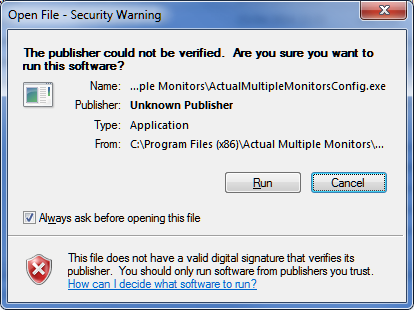
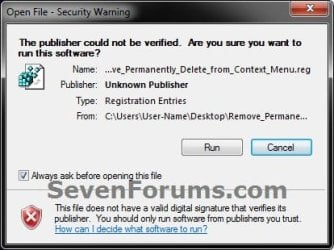
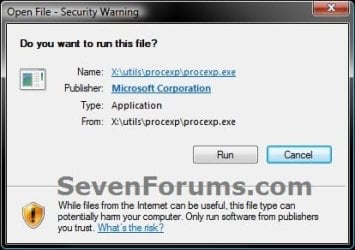
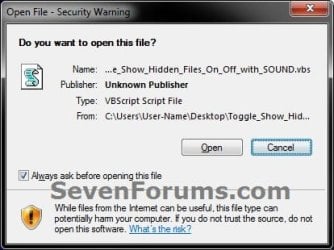
EXAMPLE: Open File - Security Warning
- Do you want to open this File? Unknown Publisher
- The Publisher could not be verified. Are you sure you want to run this software? Unknown Publisher
- Do you want tio run this file? Application
OPTION ONE
To Enable or Disable "Zone File Checking" using a BAT File Download
NOTE: This option will enable or disable the "Open File Security Warning" completely by enabling or disabling all security Zone checking.
1. Do step 2, 3, 4, or 5 below for what you would like to do.
2. To Enable Zone Checking for Current User Only
NOTE: Step 4 or 5 below will override this step.
A) Click/tap on the Download button below to download the .bat file below to your desktop, run it, and go to step 7 below.
Enable_Zone_Checking_for_Current_User.bat
Download
3. To Disable Zone Checking for Current User Only
NOTE: Step 4 or 5 below will override this step.
A) Click/tap on the Download button below to download the .bat file below to your desktop, run it, and go to step 7 below.
Disable_Zone_Checking_for_Current_User.bat
Download
4. To Enable Zone Checking for All Users
NOTE: You must be logged in as an administrator to be able to do this option. This is the default setting. This step will override steps 2 and 3 above.
A) Click/tap on the Download button below to download the .bat file below to your desktop.
Enable_Zone_Checking_for_All_Users.bat
Download
B) Right click on the downloaded .bat file, click on Run as administrator, and go to step 6 below.
5. To Disable Zone Checking for All Users
NOTE: You must be logged in as an administrator to be able to do this option. This step will override steps 2 and 3 above.
A) Click/tap on the Download button below to download the .bat file below to your desktop.
Disable_Zone_Checking_for_All_Users.bat
Download
B) Right click on the downloaded .bat file, click on Run as administrator, and go to step 6 below.
6. If prompted, click/tap on Run.
7. You will now notice a command prompt quckly open and close while applying the changes to your registry.
8. If you used step 4 or 5 above, then log off and on, or restart the computer to fully apply.
OPTION TWO
To Enable or Disable "Open File Security Warning" for Specific File Types using a REG File Download
NOTE: This option uses the same group policy as OPTION THREE below, but will affect all users on the computer. You must be logged in as an administrator to be able to do this option.
1. To Enable the "Open File Security Warning"
NOTE: This is the default setting.
A) Click on the Download button below to download the file below.
Enable_Open-File_Security_Warning.reg
Download
B) Go to step 3.
2. To Disable the "Open File Security Warning"
A) Click on the Download button below to download the file below.
Disable_Open-File_Security_Warning.reg
Download
Note
This will include the same file extensions in step 4D of OPTION THREE below. If you would like to add or remove file extensions from the exception list, then:
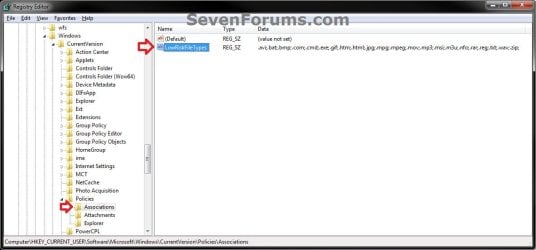
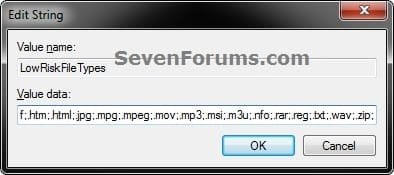
- After downloading the REG file, do steps 3-5 below first.
- Open the Start Menu, type regedit in the search box, and press Enter.
- If prompted by UAC, click on Yes (Windows 7) or Continue (Vista).
- In regedit, navigate to the location below:
-
Code:
HKEY_CURRENT_USER\Software\Microsoft\Windows\CurrentVersion\Policies\Associations
-
- In the right pane of Associations, double click on LowRiskFileTypes.
- Add or remove file extensions using the same format, and click on OK when finished.
- Close regedit, and go to step 6 below.
3. Save the .reg file to the desktop.
4. Double click on the downloaded .reg file to merge it.
5. Click on Run, Yes (Windows 7) or Continue (Vista), Yes, and OK when prompted.
6. Log off and log on, or restart the computer to apply.
7. When done, you can delete the downloaded .reg file if you like.
OPTION THREE
To Enable or Disable "Open File Security Warning" for Specific File Types using the Local Group Policy Editor
NOTE: You must be logged in as an administrator to be able to do this option.
1. Open the all users, specific users or groups, or all users except administrators Local Group Policy Editor for how you want this policy applied.
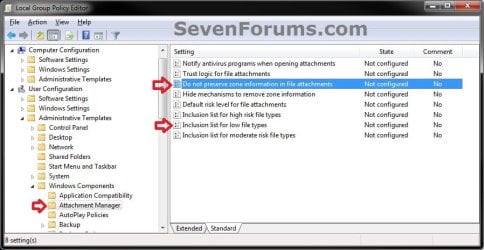
2. In the left pane, click on to expand User Configuration, Administrative Templates, Windows Components, and Attachment Manager. (see screenshot below)
3. To Enable the "Open File Security Warning"
A) In the right pane, double click on Do not preserve zone information in file attachments. (see screenshot below step 2)
B) Select (dot) either Not Configured or Disabled, and click on OK. (see screenshot below)
NOTE: Not Configured is the default setting.
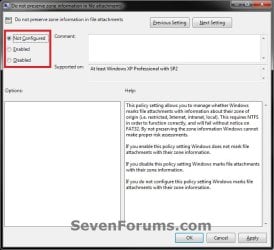
C) In the right pane, double click on Inclusion list for low file types. (see screenshot below step 2)
D) Select (dot) either Not Configured or Disabled, and click on OK. (see screenshot below)
NOTE: Not Configured is the default setting.

4. To Disable the "Open File Security Warning"
A) In the right pane, double click on Do not preserve zone information in file attachments. (see screenshot below step 2)
B) Select (dot) Enabled, and click on OK. (see screenshot below)
C) In the right pane, double click on Inclusion list for low file types. (see screenshot below step 2)
D) Select (dot) Enabled, then copy and paste the extensions below exactly as is into the Options box and click on OK. (see screenshot below)
NOTE: These are the most common file extensions for this. If you like, you could add or remove file extensions to or from the list at anytime for those that you want to or do not want to get a Open File - Security Warning for.
Code:
.avi;.bat;.com;.cmd;.exe;.htm;.html;.lnk;.mpg;.mpeg;.mov;.mp3;.msi;.m3u;.rar;.reg;.txt;.vbs;.wav;.zip;5. Close the Local Group Policy Editor window.
That's it,
Shawn
Related Tutorials
- How to Disable Downloaded Files from being Blocked in Windows
- How to Unblock a File to Stop the "Open File - Security Warning" Prompt for the File
- Allow or Prevent to "Unblock" a File to Stop the "Open File - Security Warning" Prompt
- How to Change UAC Notification Settings in Windows 7
- How to Hide or Show Known File Type Extensions in Windows 7
- How to Change Behavior of User Account Control (UAC) Prompt for Standard Users
Attachments
-
Disable_Zone_Checking_for_Current_User.bat240 bytes · Views: 35,577
-
Enable_Zone_Checking_for_All_Users.bat348 bytes · Views: 14,686
-
Disable_Zone_Checking_for_All_Users.bat364 bytes · Views: 45,873
-
Enable_Zone_Checking_for_Current_User.bat228 bytes · Views: 19,540
-
Disable_Open-File_Security_Warning.reg1.5 KB · Views: 44,299
-
Enable_Open-File_Security_Warning.reg1.3 KB · Views: 12,193
Last edited:



 It works now, got in a big hurry. Page looks fine now too. Thanks!