
How to Change the Visual Effects Settings in Windows 7
Information
This will show you how to change the visual effect settings you want to use for the appearance and performance of Windows 7 on your computer.
Note
If you apply any changes in the Control Panel -> Ease of Access Center, your visual effects settings will automatically get reset back to default.
You will notice that not all visual effects options are available in the Windows 7 Starter and Home Basic editions since they do not include the Aero feature.
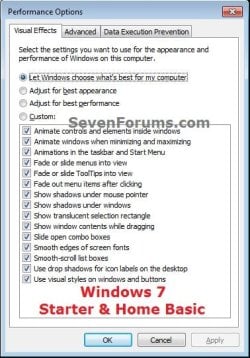
You will notice that not all visual effects options are available in the Windows 7 Starter and Home Basic editions since they do not include the Aero feature.
Tip
The visual effect settings below are the most common ones to turn off (uncheck) to help improve performance.
- Animate windows when minimizing and maximizing
- Animations in the taskbar and Start Menu
- Enable transparent glass
- Fade or slide menus into view
- Fade or slide ToolTips into view
- Fade out menu items after clicking
- Show shadows under windows
- Slide open combo boxes
OPTION ONE
To Change Visual Effects Settings in System Properties
1. Do either step 2, 3, or 4 below depending on how you would like to open Visual Effects.
NOTE: Standard users will only be able to use step 4.
2. Open the Start Menu.
A) Right click on the Computer button and click on Properties.
B) Go to step 3A.
OR
3. Open the Control Panel (icons vew), and click on the System icon.
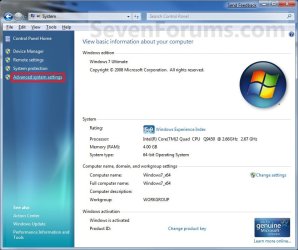
A) Click on the Advanced System settings link in the left blue pane, then close this window afterwards. (see screenshot below)
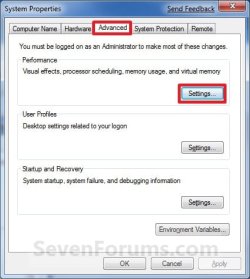
B) Under the Advanced tab and Performance section, click on the Settings button. (see screenshot below)
C) Go to step 5.
OR
4. Open the Control Panel (icons vew), and click on the Performance Information and Tools icon.
A) Click on the Advanced tools link in the left blue pane. (see screenshot below)
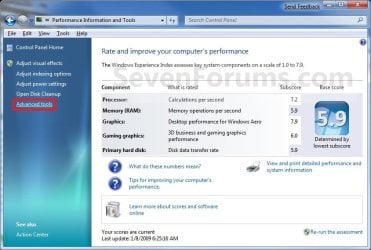
B) Click on the Adjust the appearance and performance of Windows link, then close this window afterwards. (see screenshot below)

5. You will now see the Visual Effects settings to select. Do step 6, 7, 8, or 9 below for what you would like to do. (see screenshot below)
Note
You will notice that not all visual effects options are available in the Windows 7 Starter and Home Basic editions since they do not include the Aero feature.
- Let Windows choose what's best for my computer - Windows will select the settings that it determines will run fine based on your system specs.
- Adjust for best appearance - This will select all settings.
- Adjust for best performance - This will unselect all settings.
- Custom - This will allow you to select and unselect the settings you would like to. This will also be selected by default if you manually select or unselect settings.
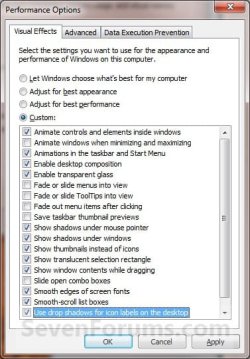
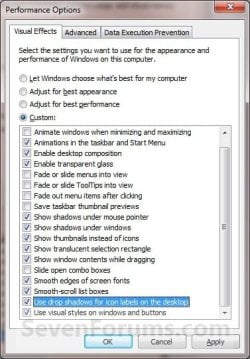
6. For Custom to Manually Select or Unselect Visual Effects
A) Select (dot) the Custom option. (see screenshots above)
B) Check the settings you want, uncheck the settings you do not want, and go to step 10 below.
7. For Best Appearance
A) Select (dot) the Adjust for best appearance option, and go to step 10 below. (see screenshots below step 5)
NOTE: This will select all of the visual effect settings.
8. For Best Performance
A) Select (dot) the Adjust for best performance option, and go to step 10 below. (see screenshots below step 5)
NOTE: This will unselect all of the visual effect settings.
9. To Let Windows 7 Choose the Visual Effects
A) Select (dot) the Let Windows choose what's best for my computer option, and go to step 10 below. (see screenshots below)
NOTE: These screenshots are the usual items selected by Windows 7, but this will be based on what Windows 7 thinks will run best on your computer.
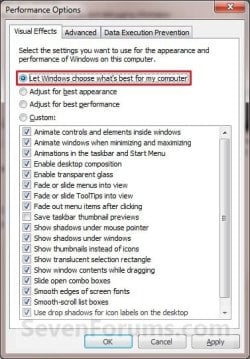
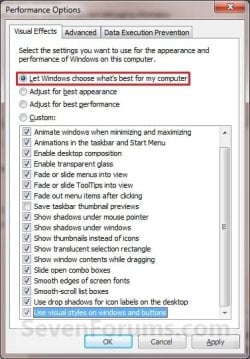
10. Click on Apply and OK. (See screenshots above or below step 4)
NOTE: If you did step 2 or 3, then you will also need to click on OK in the screenshot below step 3B.
OPTION TWO
To Change Visual Effects Settings Manually in Registry Editor
Note
If you like, you can click on a link below for these Visual Effects to see how to quickly change them in the Registry Editor instead.
You will notice that the visual effects below with a * are not available in the Windows 7 Starter and Windows 7 Home Basic editions since they do not include the Aero feature.
You will notice that the visual effects below with a * are not available in the Windows 7 Starter and Windows 7 Home Basic editions since they do not include the Aero feature.
- Animate controls and elements inside windows
- Animate windows when minimizing and maximizing
- Animations in the taskbar and Start Menu
- Enable Aero Peek *
- Enable desktop composition *
- Enable tranparent glass *
- Save taskbar thumbnail previews *
- Show thumbnails instead of icons *
- Show translucent slection rectangle
- Show window contents while dragging
- Smooth edges of screen fonts
- Use drop shadows for icon labels on the desktop
- Use visual styles on windows and buttons
1. Open the Start Menu, then type regedit in the search box, and press Enter.
2. If prompted by UAC, then click on Yes.
3. In regedit, navigate to the location below. (see screenshot below)
HKEY_CURRENT_USER\Software\Microsoft\Windows\CurrentVersion\Explorer\VisualEffects

4. In the right pane of VisualEffects, double click on the VisualFXSetting DWORD to modify it. (see screenshot above)
5. Type in the value number below for the setting you want below, and click/tap on OK. (see screenshot below)
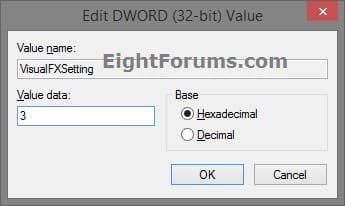
A) Type 0 (zero) for Let Windows choose what's best for my computer option, and go to step 8 below.
B) Type 1 for Adjust for best appearance option, and go to step 8 below.
C) Type 2 for Adjust for best Performance option, and go to step 8 below.
D) Type 3 for Custom option, and go to step 6 below.
6. Using the binary sets below, change the letters in them to turn on (1) or off (0) for each corresponding visual effect.
Note
The visual effects below will require more work to change them in the Registry Editor.
We will have to use the 3 sets of binary values below for the letter(s) of the Visual Effects below that you want to turn on or off, then convert each binary set to hex for the first 3 hex entries in the registry. This will be explained in detail on how to do this in the steps below.
Binary sets (3)
1001ABC0 00D1EF10 00000GH1
0=off and 1=on
We will have to use the 3 sets of binary values below for the letter(s) of the Visual Effects below that you want to turn on or off, then convert each binary set to hex for the first 3 hex entries in the registry. This will be explained in detail on how to do this in the steps below.
Binary sets (3)
1001ABC0 00D1EF10 00000GH1
0=off and 1=on
Visual Effects and their assigned letters
(A) Smooth-scroll list boxes
(B) Slide open combo boxes
(C) Fade or slide menus into view
(D) Show shadows under mouse pointer
(E) Fade or slide ToolTips into view
(F) Fade out menu items after clicking
(G) Show shadows under windows
(H) Use Visual styles on windows and buttons
For example, to turn them all off, I would change all letters in the binary sets to 0 (number zero) like below.
10010000 00010010 00000001
For example, to turn only the H visual effect on, I would change the letters in the binary sets like below.
10010000 00010010 00000011
7. Use a binary to hex converter to convert each separate binary set one by one to hex.
NOTE: Make note of these hex values when converted from the adjusted binary sets. They are what you will be using in regedit at step 9 below.
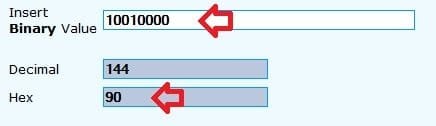
NOTE: Press enter after entering the binary value to convert it.
For example, from the example above to turn them all off, I would convert the 3 separate binary sets one by one to hex like below.
Binary
10010000 00010010 00000001
converted to
Hex
90 12 1
For example, from the example above to turn only the H visual effect on, I would convert the 3 separate binary sets one by one to hex like below.
Binary
10010000 00010010 00000011
converted to
Hex
90 12 3
8. In regedit, navigate to the location below. (see screenshot below)
HKEY_CURRENT_USER\Control Panel\Desktop
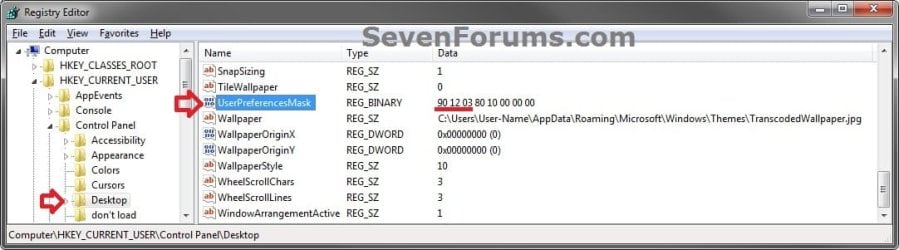
9. In the right pane of Desktop, double click on UserPreferencesMask to modify it, and do step 10, 11, 12, or 13 below depending on what you set in step 5 above. (see screenshot above)
10. If you typed 0 at step 5 for the Let Windows choose what's best for my computer option, then change the values to be the same as the ones in red below, click on OK, and go to step 14 below. (see screenshot below)
9E 3E 07 80 12 00 00 00
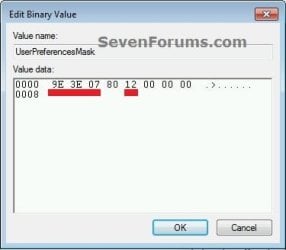
11. If you typed 1 at step 5 for the Adjust for best appearance option, then change the values to be the same as the ones in red below, click on OK, and go to step 14 below. (see screenshot below step 10)
9E 3E 07 80 12 00 00 00
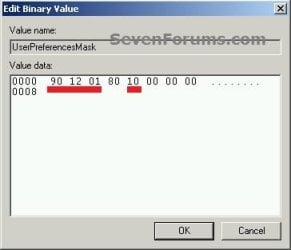
12. If you typed 2 at step 5 for the Adjust for best performance option, then change the values to be the same as the ones in red below, click on OK, and go to step 14 below. (see screenshot below)
90 12 01 80 10 00 00 00
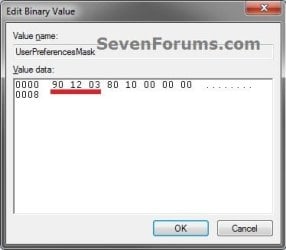
13. If you typed 3 at step 5 for the Custom option, then change the first 3 values (ex: 90 12 03) underlined in red below with the hex values you got from step 7, click on OK, and go to step 14 below. (see screenshot below)
14. Close regedit.
15. Log off and log on, or restart the computer to apply the changes.
That's it,
Shawn
Related Tutorials
- How to Change the Window Color and Appearance in Windows 7
- How to Change or Save a Windows 7 Theme
- How to Enable or Disable Windows 7 Transparency
- How to Open Folder Options in Windows 7
- How to Create a Windows 7 Visual Effects Performance Options Shortcut
- How to "Turn off all unnecessary animations" in Vista and Windows 7
- How to Allow or Prevent Window Animations in Vista, Windows 7, and Windows 8
- How to Turn On or Off "Animate controls and elements inside windows"
Last edited:


 ....if not, I'll be back LOL.


