How to Enable or Disable System Icons on Taskbar in Windows 7 and Windows 8
Information
The notification area is a part of the taskbar that provides a temporary source for notifications and status. It can also be used to display icons for system and program features that are not on the desktop. The notification area was known historically as the system tray or status area.
By default, the only icons that will be visible in this area are some system icons. However, you can select which icons appear on the taskbar, and which icons hide in the overflow section.
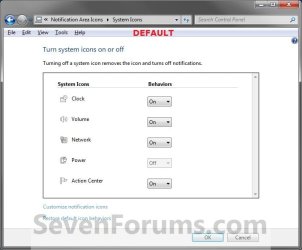
This will show you how to enable or disable the Notification Area System Icons for all user accounts on the computer. These are the Clock, Volume, Network, Action Center, and Power (battery) icons in the bottom right corner of the taskbar.
You must be logged in as an administrator to be able to do the steps in this tutorial.
By default, the only icons that will be visible in this area are some system icons. However, you can select which icons appear on the taskbar, and which icons hide in the overflow section.
This will show you how to enable or disable the Notification Area System Icons for all user accounts on the computer. These are the Clock, Volume, Network, Action Center, and Power (battery) icons in the bottom right corner of the taskbar.
You must be logged in as an administrator to be able to do the steps in this tutorial.
Note
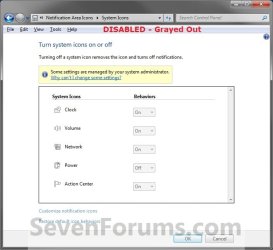
When disabled, these icons are grayed out in System Icons and will no longer appear at the Notification Area.
When enabled, these icons can be turned on and off at will in System Icons and will appear in the Notification Area if turned on.
When enabled, these icons can be turned on and off at will in System Icons and will appear in the Notification Area if turned on.
Tip
- Check to make sure that the system icon is turned on.
- Check to make sure that the system icon is not hidden.
- Make sure that the drivers and devices that are for the system icons are installed and working properly. They will not work if the device or driver does not.
- Sometimes to simply log off and log on, or restart the computer, will enable the missing notification icons again. You should try this first.
- Sometimes resetting the Notification Icons will clear the problem.
- Sometimes on a laptop, you can shutdown the laptop and remove the battery pack, reconnect it, and power the laptop back up to get the Power (battery) icon back or ungrayed.
NOTE: When disabled, the system icons will be grayed out and cannot be turned on and off by all users on the computer.
OPTION ONE
Through Local Group Policy Editor
1. Open the all users, specific users or groups, or all users except administrators Local Group Policy Editor for how you want this policy applied.
2. In the left pane, click/tap on an expand User Configuration, Administrative Templates, and Start Menu and Taskbar. (See screenshot below)
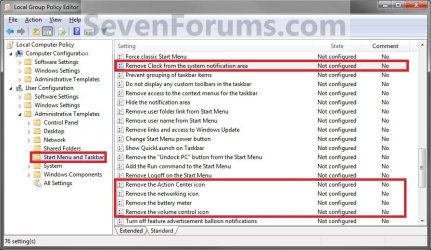
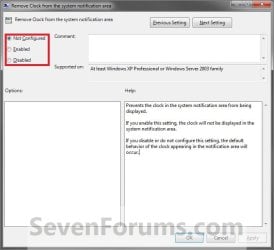
3. For the Clock Icon - In the right pane, double click/tap on Remove Clock from the system notification area to edit it. (See screenshot above)
A) To Disable the Clock Icon - Select (dot) Enabled and click/tap on OK. (See screenshot below step 8)
B) To Enable the Clock Icon - Select (dot) Disabled or Not Configured and click/tap on OK. (See screenshot below step 8)
4. For the Volume Icon - In the right pane, double click/tap on Remove the volume control icon to edit it. (See screenshot below step 2)
A) To Disable the Volume Icon - Select (dot) Enabled and click/tap on OK. (See screenshot below step 8)
B) To Enable the Volume Icon - Select (dot) Disabled or Not Configured and click/tap on OK. (See screenshot below step 8)
5. For the Network Icon - In the right pane, double click/tap on Remove the networking icon to edit it. (See screenshot below step 2)
NOTE: To make sure that this icon works properly you should also have the Network Connections, Network List Service, Network Location Awareness, and Network Store Interface Service Services set to Started and Automatic.
A) To Disable the Network Icon - Select (dot) Enabled and click/tap on OK. (See screenshot below step 8)
B) To Enable the Netwok Icon - Select (dot) Disabled or Not Configured and click/tap on OK. (See screenshot below step 8)
6. For the Power (battery) Icon - In the right pane, double click/tap on Remove the battery meter to edit it. (See screenshot below step 2)
NOTE: This will remain grayed out, even when enabled, unless your computer is a laptop or has a UPS battery backup connected to it.
A) To Disable the Power Icon - Select (dot) Enabled and click/tap on OK. (See screenshot below step 8)
B) To Enable the Power Icon - Select (dot) Disabled or Not Configured and click/tap on OK. (See screenshot below step 8)
7. For the Action Center Icon - In the right pane, double click/tap on Remove the Action Center icon to edit it. (See screenshot below step 2)
A) To Disable the Action Center Icon - Select (dot) Enabled and click/tap on OK. (See screenshot below step 8)
B) To Enable the Action Center Icon - Select (dot) Disabled or Not Configured and click/tap on OK. (See screenshot below step 8)
8. When done, close the Local Group Policy Editor.
9. Log off and log on, or restart the computer to fully apply.
OPTION TWO
Using a REG File Download
1. To Enable the Action Center Icon
A) Click/tap on the Download button below to download the file below.
Enable_Action_Center_Notification_Icon.reg
Download
2. To Disable the Action Center Icon
A) Click/tap on the Download button below to download the file below.
Disable_Action_Center_Notification_Icon.reg
Download
3. To Enable the Clock Icon
A) Click/tap on the Download button below to download the file below.
Enable_Clock_Notification_Icon.reg
Download
4. To Disable the Clock Icon
A) Click/tap on the Download button below to download the file below.
Disable_Clock_Notification_Icon.reg
Download
5. To Enable the Network Icon
A) Click/tap on the Download button below to download the file below.
Enable_Network_Notification_Icon.reg
Download
6. To Disable the Network Icon
A) Click/tap on the Download button below to download the file below.
Enable_Network_Notification_Icon.reg
Download
7. To Enable the Power (battery) Icon
A) Click/tap on the Download button below to download the file below.
Enable_Power_Notification_Icon.reg
Download
8. To Disable the Power (battery) Icon
A) Click/tap on the Download button below to download the file below.
Disable_Clock_Notification_Icon.reg
Download
9. To Enable the Volume Icon
A) Click/tap on the Download button below to download the file below.
Enable_Volume_Notification_Icon.reg
Download
10. To Disable the Volume Icon
A) Click/tap on the Download button below to download the file below.
Disable_Volume_Notification_Icon.reg
Download
11. Save the .reg file to your Desktop.
12. Double click/tap on the downloaded .reg file to merge it.
13. Click/tap on Run, Yes (UAC), Yes, and OK when prompted.
14. Log off and log on, or restart the computer to fully apply.
15. When done, you can delete the downloaded .reg file if you like.
That's it,
Shawn
Related Tutorials
- How to Add or Remove the Notification Area from the Taskbar in Windows 7
- How to Turn System Icons On or Off in Windows 7 and Windows 8
- How to Create a "System Icons" Settings Shortcut in Windows 7 and Windows 8
- How to Hide or Show System Icons and Notifications in Windows 7 and Windows 8
- How to Change the Action Center Message Settings in Windows 7
- How to Turn On or Off Action Center Messages in Windows 8
- How to Change How Long Windows 7 Notifications Stay Open
- How to Enable or Disable Windows 7 Balloon Notifications
- How to Reset and Clean Out Old Notification Area Icons in Windows 7 and Windows 8
- How to Create a "Notification Area Icons" Shortcut in Windows 7 and Windows 8
- How to Customize the Notification Area Icons in Windows 7
- How to Enable or Disable Changing "Notification Area Icons" Settings in Windows 7
Attachments
-
Enable_Network_Notification_Icon.reg488 bytes · Views: 26,795
-
Disable_Clock_Notification_Icon.reg498 bytes · Views: 3,856
-
Enable_Clock_Notification_Icon.reg468 bytes · Views: 7,688
-
Disable_Action_Center_Notification_Icon.reg510 bytes · Views: 6,627
-
Disable_Network_Notification_Icon.reg514 bytes · Views: 8,831
-
Enable_Power_Notification_Icon.reg480 bytes · Views: 42,940
-
Disable_Power_Notification_Icon.reg510 bytes · Views: 6,980
-
Enable_Volume_Notification_Icon.reg484 bytes · Views: 78,611
-
Disable_Volume_Notification_Icon.reg514 bytes · Views: 7,633
-
Enable_Action_Center_Notification_Icon.reg1 KB · Views: 14,926
Last edited: