
How to Delete the Windows.old Folder in Windows 7
Information
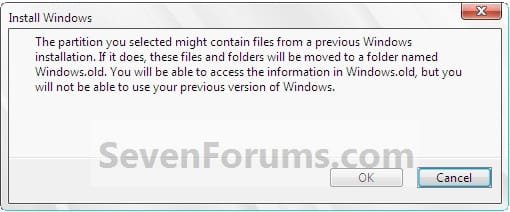
If you performed repair install, upgrade install, or a custom install without formatting the drive for a clean install and selected to install Windows 7 on the same partition of the previous Windows installation, then you may have a C:\Windows.old folder left over in your new installation.
If you already had a C:\Windows.old folder in the installation that you performed a repair install, upgrade install, or a custom install on, then it would be renamed to say C:\Windows.old.000 (older previous installation) in addition to the C:\Windows.old folder. The most recent previous installation will always be in the C:\Windows.old folder.
This will show you how to delete the Windows.old folder(s) generated during the installation to free up the hard drive space that the Windows.old folder(s) takes.
If you already had a C:\Windows.old folder in the installation that you performed a repair install, upgrade install, or a custom install on, then it would be renamed to say C:\Windows.old.000 (older previous installation) in addition to the C:\Windows.old folder. The most recent previous installation will always be in the C:\Windows.old folder.
This will show you how to delete the Windows.old folder(s) generated during the installation to free up the hard drive space that the Windows.old folder(s) takes.
Note
The C:\Windows.old folder contains folders and files from the previous Windows installation. Be sure to copy any files or data that you may still want to keep to another location before deleting this folder.
Tip
For how to
restore a Windows 7-based computer to a previous Windows installation by using the Windows.old folder, see: How to restore a Windows 7-based computer to a previous Windows installation by using the Windows.old folder
restore a Windows 7-based computer to a previous Windows installation by using the Windows.old folder, see: How to restore a Windows 7-based computer to a previous Windows installation by using the Windows.old folder
Warning
Be sure to copy any files that you want out of the Windows.old folder before you delete it. Once deleted, they are gone.
You must logged in as an administrator to be able to do the steps in this tutorial.
You must logged in as an administrator to be able to do the steps in this tutorial.
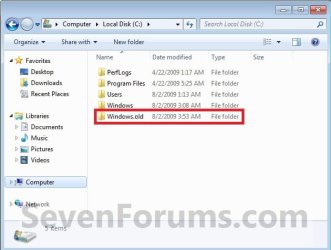
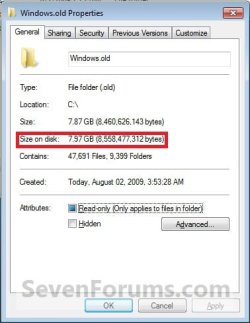
EXAMPLE: Windows.old Folder
NOTE: Notice how much space this folder uses.
OPTION ONE
Delete "Windows.old" Folder Using Disk Cleanup
1. Open Disk Cleanup.
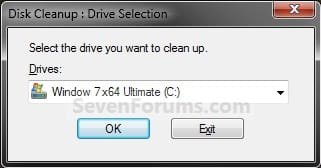
2. If prompted, select the Windows 7 C: drive, and click on OK. (see screenshot below)
NOTE: You will only see this if you have more than one HDD or partition with a drive letter.
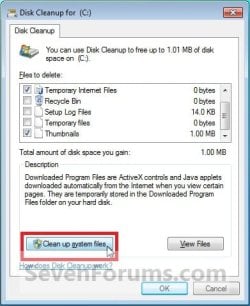
3. Click on the Clean up system files button. (see screenshot below)
4. If prompted by UAC, then click on Yes.
5. Repeat step 2 above.
6. Check the Previous Windows installations box, and click on OK. (see screenshot below)
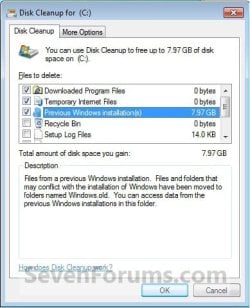
7. Click on Delete Files. (see screenshot below)

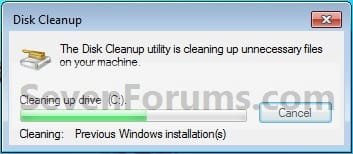
8. When Disk Cleanup finishes, the C:\Windows.old folder(s) will be deleted.
OPTION TWO
Delete "Windows.old" Folder Using Elevated Command Prompt
1. Open a Elevated command prompt.
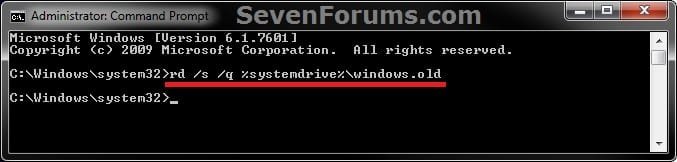
2. In the elevated command prompt, copy and paste the command below, and press Enter. (see screenshot below)
NOTE: If you had another say windows.old.000 folder that you also wanted to delete, then you could repeat this command substituting that name instead to also delete it.
RD /S /Q %SystemDrive%\windows.old
3. Close the command prompt.
OPTION THREE
Delete "Windows.old" Folder Using Command Prompt at Boot
NOTE: This would be a good option to do if OPTION ONE or OPTION TWO was unable to delete your C:\Windows.old folder.
1. Open the Disk Management (diskmgmt.msc), and make note of the name (ex: none) and total size (ex: 126 GB) of your Windows 7 drive. (see screenshot below)
NOTE: You will need to know this in step 3C.

2. Using either you Windows 7 installation DVD or system repair disc, boot to a command prompt at boot (click on link for how).
3. To Verify the Windows 7 Drive Letter at Boot
NOTE: The Windows 7 drive letter may not always be C: at boot like it is while Windows is started, so be sure to verify it's drive letter before doing the command in step 4 for it to work.
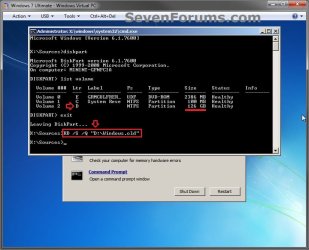
A) In the command prompt, type diskpart and press enter. (see screenshot below)
B) In the command prompt, type list volume and press enter. (see screenshot below)
C) From the listed volumes, look for and verify the drive letter (ex: D: ) of your Windows 7 drive (ex: 126 GB w/ no name). (see screenshot below)
D) In the command prompt, type exit and press enter. (see screenshot below)

4. To Delete the "Windows.old" Folder
A) In the command prompt, type the command below and press enter. (see screenshot below)
NOTE: Be sure to substitute D in the command below with the actual drive letter of your Windows 7 drive as displayed from step 3 above instead. If you had another say windows.old.000 folder that you also want to delete, then you could repeat this command substituting that name instead of Windows.old to also delete it.
RD /S /Q "D:\Windows.old"
B) Close the command prompt window.
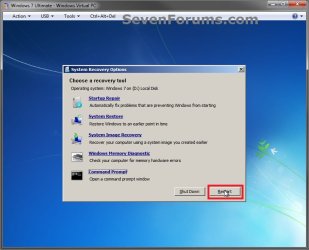
5. Click on the Restart button to restart the computer and start Windows 7, and to verify that the Windows.old folder has been deleted.
That's it,
Shawn
Last edited:


