
How to Create an Elevated Program Shortcut Any User is able to Run in Vista, Windows 7, and Windows 8
Information
This will show you how to create an elevated program shortcut that allows any user (ex: Standard user) to be able to run a program that runs as administrator without being prompted to enter the administator's password each time in Vista, Windows 7, and Windows 8.
Note
If the user you want to have this shortcut has been restricted with Parental Controls in Windows 7 with it set as Standard Account can only use the programs I allow, then they will not be able to use the shortcut in this tutorial since they will not be allowed to use the runas.exe file used by this shortcut. Windows 7 will not allow runas.exe to be added to the allowed to run list.
If the user you want to have this shortcut has been restricted with Family Safety in Windows 8 with it set as (user) can only use the apps I allow, then they will not be able to use the shortcut in this tutorial since they will not be allowed to use the runas.exe file used by this shortcut. Windows 8 will not allow runas.exe to be added to the allowed to run list.
You will not be able to do this in Vista Starter, Vista Home Basic, Vista Home Premium, Windows 7 Home Basic, and Windows 7 Starter editions since the runas /savecred switch option is not available and will be ignored in them.
If you disable the built-in Administrator account, the elevated shortcut will stop working until you enable the built-in Administrator again. This is because the elevated shortcut uses the password of the built-in Administrator to approve running it.
If the user you want to have this shortcut has been restricted with Family Safety in Windows 8 with it set as (user) can only use the apps I allow, then they will not be able to use the shortcut in this tutorial since they will not be allowed to use the runas.exe file used by this shortcut. Windows 8 will not allow runas.exe to be added to the allowed to run list.
You will not be able to do this in Vista Starter, Vista Home Basic, Vista Home Premium, Windows 7 Home Basic, and Windows 7 Starter editions since the runas /savecred switch option is not available and will be ignored in them.
If you disable the built-in Administrator account, the elevated shortcut will stop working until you enable the built-in Administrator again. This is because the elevated shortcut uses the password of the built-in Administrator to approve running it.
OPTION ONE
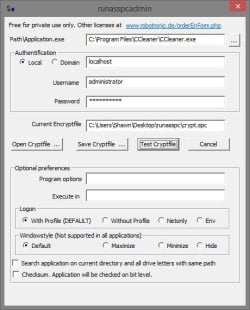
To Create Elevated Shortcut for User using RunasSPC Program
1. Download the free RunasSPC program in a .zip file at the site below.
Download
2. The link below can help show you how to use the program.
Runas Spc guidance and examples
OPTION TWO
To Create Elevated Shortcut for User using runas Command
Tip
This option uses the runas command included in Windows.
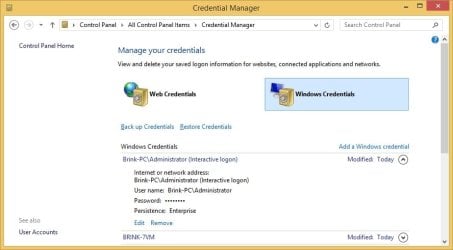
The Administrator's password (credential) used by the elevated shortcut is encrypted and stored in the Credential Manager (Control Panel (icons view)) as an "interactive logon" entry under Windows Credentials for only that user account like below.
The Administrator account's password cannot be viewed.
If you like, you can Remove (delete) this credential at anytime in Credential Manager to strip the password from the elevated shortcut to make it ask for the password again when opened like in step 18 below.
The Administrator's password (credential) used by the elevated shortcut is encrypted and stored in the Credential Manager (Control Panel (icons view)) as an "interactive logon" entry under Windows Credentials for only that user account like below.
The Administrator account's password cannot be viewed.
If you like, you can Remove (delete) this credential at anytime in Credential Manager to strip the password from the elevated shortcut to make it ask for the password again when opened like in step 18 below.
Warning
This elevated shortcut creates a security hole.
It would be best to only do this with a trusted user.
Once you have created the elevated shortcut, the user can use the built-in Administrator's saved credentials in Credential Manager along with the command below to run and access anything they want on the computer with the same rights as the built-in Administrator.
RUNAS /savecred /user:administrator "command to run"
It would be best to only do this with a trusted user.
Once you have created the elevated shortcut, the user can use the built-in Administrator's saved credentials in Credential Manager along with the command below to run and access anything they want on the computer with the same rights as the built-in Administrator.
RUNAS /savecred /user:administrator "command to run"
1. If you have not already, enable the built-in elevated "Administrator" account, and create a password for it.
Warning
You must use the actual built-in Administrator account, and not just another administrator type user account. If you don't the shortcut will not work.
2. Log in to the built-in Administrator account, right click or press and hold on an empty space on the desktop, and click/tap on New and Shortcut.
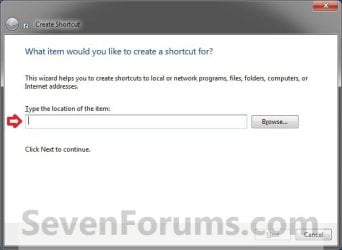
3. Type the location below into the location area, and click/tap on the Next button. (see screenshot below)
Note
- You would substitute ComputerName in the command below with the actual computer name.
- If the Administrator account has been renamed, then you would also need to substitute Administrator in the command below with the new name.
- You would substitute Full path to program's exe file in the command below with the actual full path of the elevated program's exe file within quotes that you want to have the standard user be able to run.
Code:
runas /user:[B][COLOR=red]ComputerName[/COLOR][/B]\[B]Administrator[/B] /savecred "[B][COLOR=red]Full path to program's exe file[/COLOR][/B]"
Code:
runas /user:[B][COLOR=red]Brink-PC[/COLOR][/B]\[B]Administrator[/B] /savecred "[B][COLOR=red]C:\Program Files\CCleaner\CCleaner.exe[/COLOR][/B]"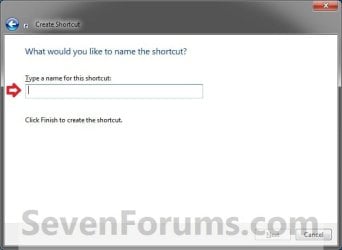
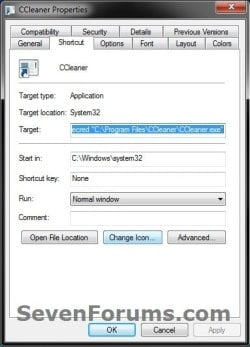
4. Right click or press and hold on the new shortcut, click/tap on Properties, Shortcut tab, and on the Change Icon button. (see screenshot below)
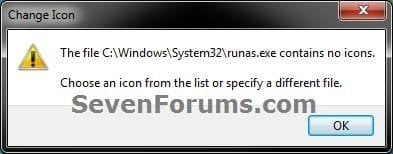
5. Click/tap on OK. (see screenshot below)
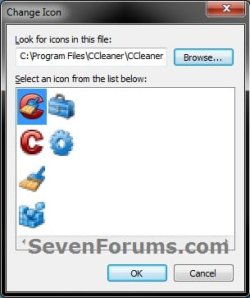
6. Click/tap on the Browse button, navigate to the location of the program's (ex: CCleaner) exe file, click on Open, select the program's icon, and click/tap on OK. (see screenshots below)

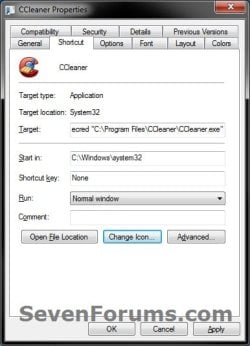
7. Click/tap on OK. (see screenshot below)
8. While still logged in to the "Administrator" account, copy the shortcut to the desktop folder of the user account (ex: Test) that you would like to be able to run this elevated program without getting a UAC prompt or having to provide the administrator's password for it.
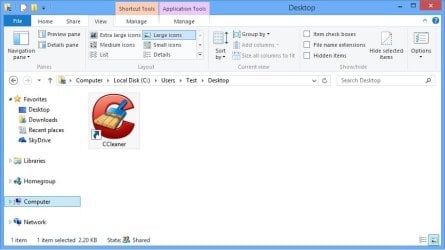
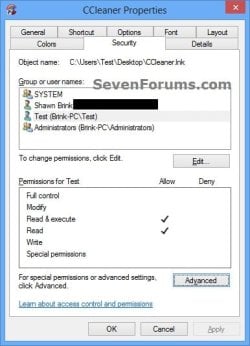
9. Right click or swipe down on the shortcut on the user's desktop that you just copied to, and click/tap on Properties. (see screenshot above)
10. Click/tap on the Security tab, and Advanced button. (see screenshot below)
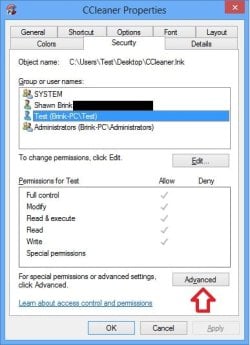
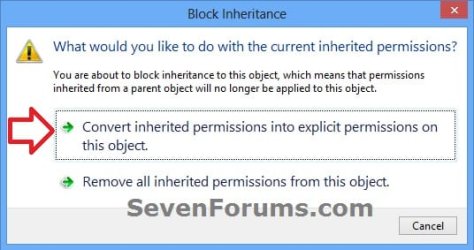
11. Select the user account (ex: Test) that the elevated shortcut is for, and click/tap on the Disable inheritance button. (see screenshot below)

12. Click/tap on Convert inherited permissions into explicit permissions on this object. (see screenshot below)
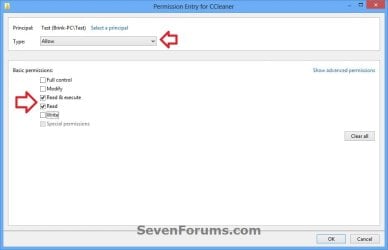
13. Select the user account (ex: Test), and click/tap on the Edit button. (see screenshot below)

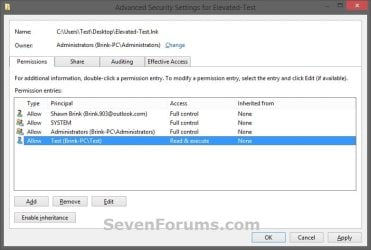
14. Make sure that only the Read & execute and Read "Allow" permissions are checked, and click/tap on OK. (see screenshot below)
NOTE: This will prevent the user (ex: Test) from being able to change the target of the elevated shortcut, and only be able to run the program the elevated shortcut was created to run.
15. Click/tap on OK. (see screenshot below)
16. Click/tap on OK. (see screenshot below)
17. Log on to the user account (ex: Test) that you made a copy of this shortcut to, and run the shortcut.
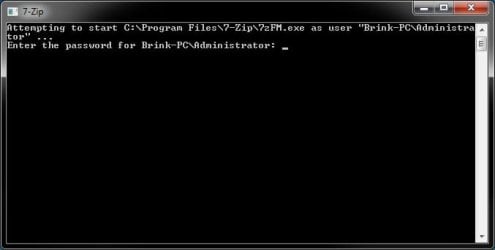
18. In the command prompt that opened, type in your built-in Administrator account's password and press Enter. You will not see the password while you are typing it in. (see screenshot below)
NOTE: You will only have to enter the Administrator's password for only the first time that this shortcut is ran in the user account (ex: Test). Afterwards, it will be remembered and entered automatically for the user when they run it without anyone being able to see the password.
19. In Vista and Windows 7, the user can now Pin to Taskbar (Windows 7 only) or Pin to Start Menu, add to Quick Launch, assign a keyboard shortcut to it, or move this shortcut to where you like for easy use.
20. In Windows 8 and 8.1, the user can Pin to Taskbar on desktop, Pin to Start screen, add to Quick Launch, assign a keyboard shortcut to it, or move this shortcut to where you like for easy use.
That's it,
Shawn
Related Tutorials
- How to Create a Elevated Program Shortcut without a UAC Prompt
- How to Run a Program as an Administrator in Windows 7
- How to See if Process is running as administrator (elevated) in Vista and Windows 7
- How to See if Process is running as administrator (elevated) in Windows 8 and 8.1
- How to Change UAC Notification Settings in Windows 7
- How to Run a Program as a Different User in Windows 7
- How to Create a Shortcut to Run a Program as a Specified User
- How to Rename the Windows 7 Built-in Administrator Account
- How to Change Behavior of User Account Control (UAC) Prompt for Standard Users
Last edited:


